Bulk Edit Product Titles Before Importing to Shopify
On this page
Bulk Edit Product Titles Before Importing to Shopify
The product description gets most of the attention when merchants prepare a Shopify import. The title is treated as a given, something that arrives from the supplier and gets imported as-is. That assumption is where most imports quietly go wrong, and it is the reason knowing how to bulk edit product titles before importing to Shopify saves time at every stage that follows.
Titles arrive from supplier feeds in whatever format the supplier's system produces: ALL CAPS, trailing SKU codes, double spaces, HTML markup, pipe-separated attributes, and occasionally invisible characters that look like spaces but are not. If those titles reach the AI description generator unchanged, the AI works with that input. A title like BLUE DENIM JEANS | SLIM FIT | W32 L30 produces a different description than Blue Denim Jeans Slim Fit W32 L30. The AI uses what it is given, not what you intended.
This is article 2 of 5 in the Import Workflow Deep Dive series. Part 1 covered importing product images from a Dropbox folder. This article covers what to do with the titles before the AI writes a single word.
The Problem
Why Bulk Editing Product Titles Before Import Matters
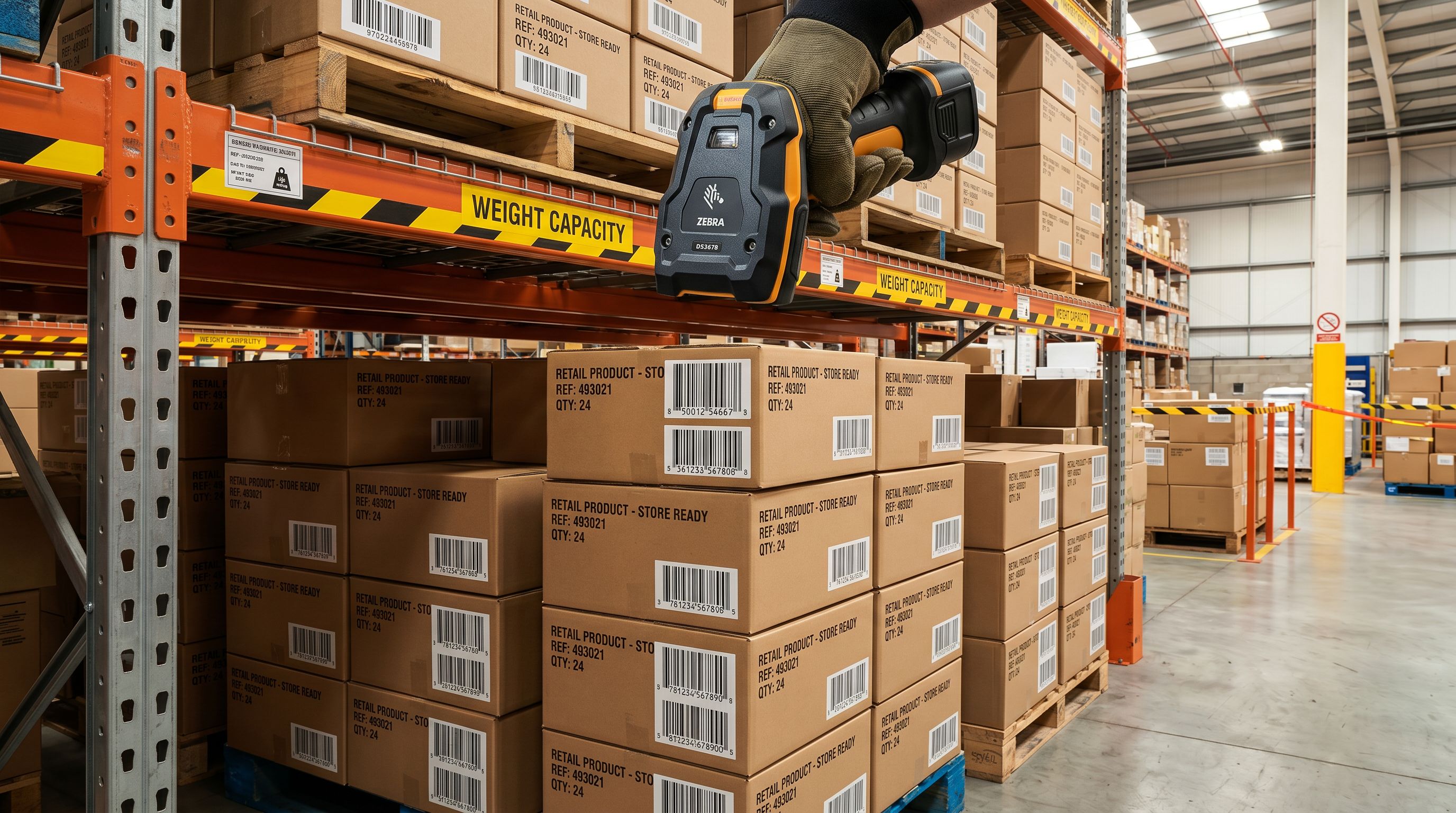
A wholesale or distributor feed is built for the supplier's internal system, not for Shopify. The column names and title formats reflect what works for their warehouse management or ERP software.
In practice, supplier titles arrive with several predictable problems.
ALL CAPS or erratic casing. Warehouse systems often store product names in uppercase. "STAINLESS STEEL MIXING BOWL 5L" is correct data in their system. It is not a usable Shopify product title.
Trailing SKU codes and supplier references. A title like Widget Pro - SKU12345 - ACME carries internal references that mean nothing to a customer and confuse the AI when generating descriptions.
Double spaces and stray whitespace. Titles copied from PDFs or exported from older systems often carry extra spaces at the start, end, or between words. These look fine in a spreadsheet but can affect search indexing and appear careless on the storefront.
HTML markup and encoded characters. Some supplier systems export HTML entities ( , &, <br>) or actual HTML tags embedded in the title field. These render as raw code in Shopify rather than clean text.
Delimiter-separated attributes. Many feeds concatenate product attributes into the title using pipes, slashes, or semicolons: Blue Jeans | Slim Fit | W32. This works as an internal product reference, not as a customer-facing product name.
Invisible non-printing characters. This is the one most merchants miss entirely. Characters copied from PDF catalogues or certain ERP exports sometimes include zero-width spaces, non-breaking spaces stored as raw Unicode, or byte-order marks. They look identical to blank space in a spreadsheet. Shopify treats them as part of the title, which affects search and can prevent title-based Smart Collection rules from matching.
Shopify's product documentation notes that product titles are indexed for Shopify search and used as the default SEO title tag when no separate SEO title is configured. A title carrying supplier codes or embedded markup will surface that content in search results.
That is why the bulk editing tools sit in the Generate Descriptions step rather than at the end of the import flow. The fix happens before the AI runs, not after.
The Four Groups
How to Bulk Edit Product Titles: Four Transform Groups
Importier's Bulk Title Editing Tools panel appears in the Generate Descriptions step of the 14-step import wizard. Before the AI runs, you select the rows you want to fix and apply one or more transforms to the entire selection at once. The four groups each target a different category of title problem.
Change case. This group handles all casing transformations: Sentence case (first letter uppercase, rest lowercase), Capitalize Each Word (title case), lower case, UPPER CASE, lower then capitalise (converts to lowercase first, then applies title case), and an Invert option that flips the case of each character. For most supplier catalogues, Capitalize Each Word handles 90 per cent of the casing problem in one click across all selected rows.
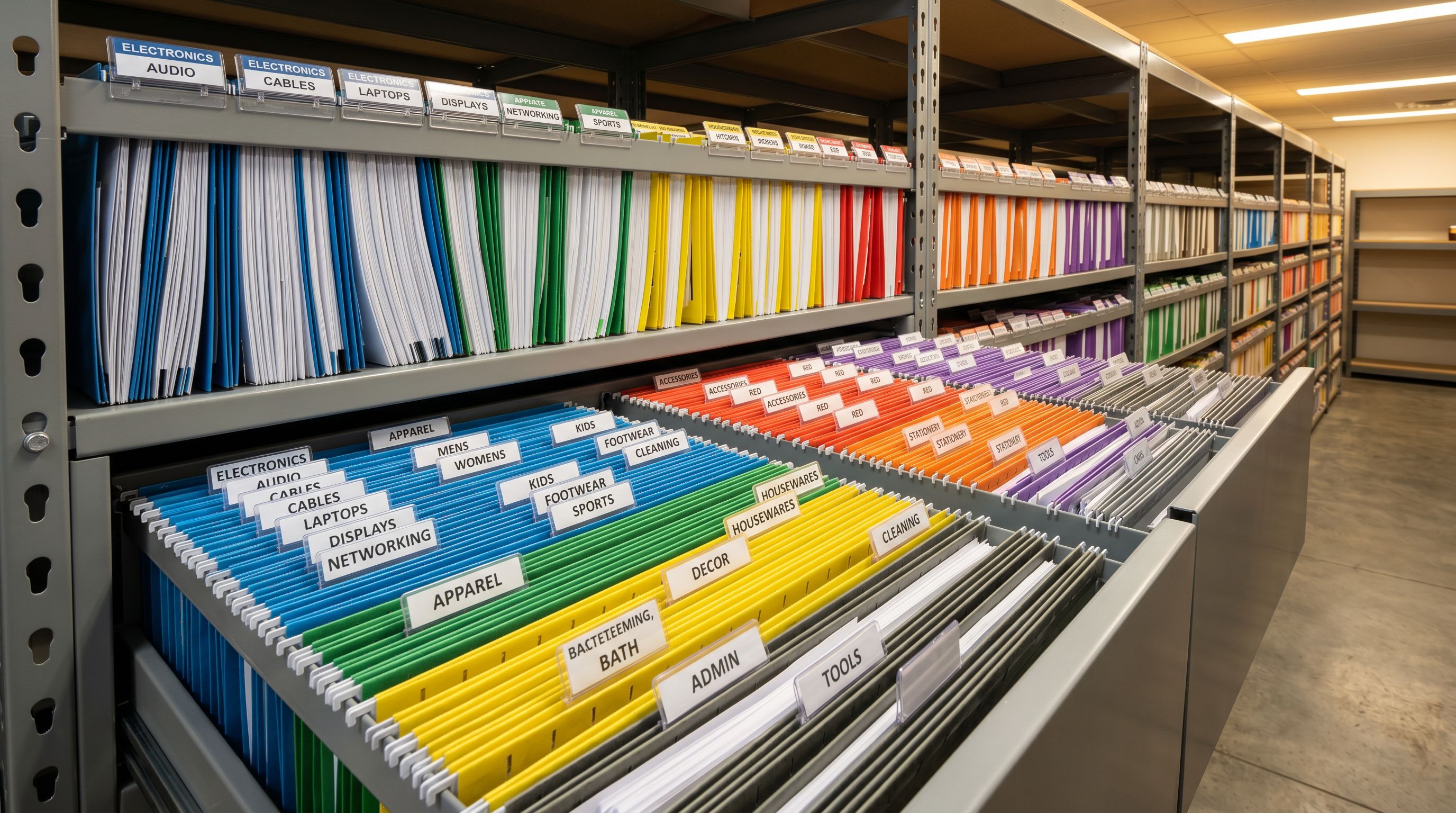
Add text by position. This group adds text at the beginning, at the end, after a specific character position, or before or after a piece of text you nominate. A typical use: a merchant importing from multiple suppliers who needs to prefix each batch with a brand identifier, or who needs to append a size or format indicator that the supplier omitted.
Remove characters by position. This group removes the first N characters, the last N characters, a character range, or everything before or after a nominated piece of text. This is how trailing SKU codes get stripped: if every title ends with - SKU12345, removing everything after - clears it across all selected rows in one operation.
Clean up spaces and delimiters. This is the group most merchants overlook. It includes:
- Trim ends (leading and trailing whitespace)
- Collapse repeated spaces (multiple spaces between words become one)
- Strip line breaks (removes embedded carriage returns or newlines)
- Decode HTML entities (converts
&to&, to a space,<to<) - Remove HTML tags (strips any
<tag>content from the title) - Remove common delimiters (removes commas, semicolons, pipes, and slashes from the title string)
- Strip non-printing characters (removes zero-width spaces, non-breaking spaces stored as raw Unicode, and byte-order marks)
Most title clean-up advice stops at casing. The bigger silent problem is invisible characters and stray markup pasted from supplier systems, which break search and look fine until they do not.
What the Workflow Looks Like in Practice
- 01Review titles in the wizardAt the Column Mapping step of the import wizard, you see a preview of how the supplier file maps to Shopify fields. The title column shows the raw supplier data. This is where you first see what you are working with and can flag obvious problems before proceeding.
- 02Select the problem rowsIn the Generate Descriptions step, the Bulk Title Editing Tools panel shows a table of all product titles. Tick the rows with title problems. If every row needs a case change, use Select All. The panel shows a live count of selected rows.
- 03Apply transforms in orderApply one transform group at a time. Run case changes first, then removals, then the clean-up tools last. The panel updates immediately after each transform so you can see the result before proceeding. Applying multiple transforms in sequence is supported.
- 04Edit remaining titles individuallyAfter bulk transforms, any title that still needs a specific fix can be edited by hand directly in the table. Then continue to Generate and the AI writes descriptions from the corrected titles.
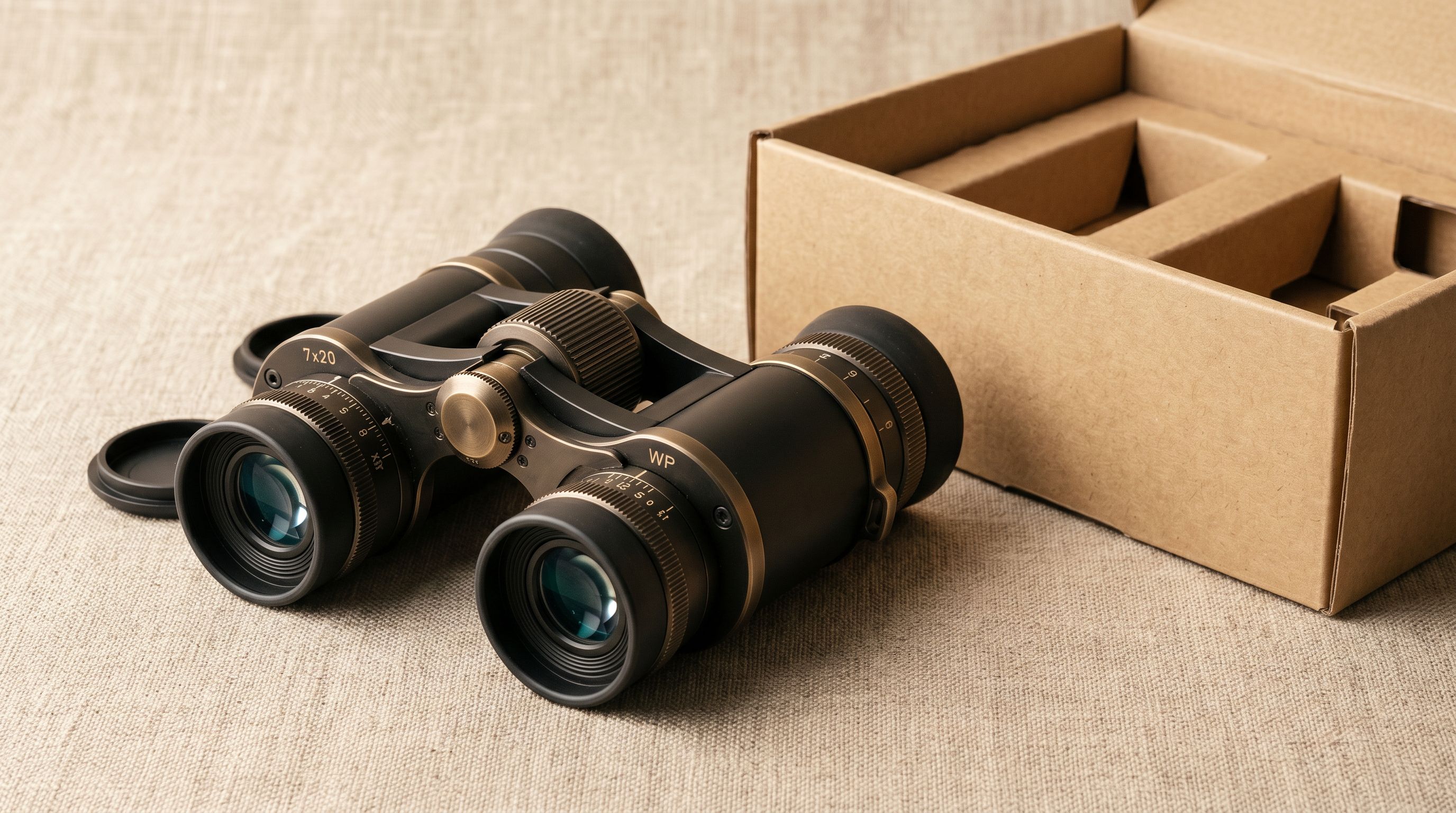
This is what the experience looks like in practice. A 400-row supplier CSV arrives with every title in ALL CAPS. You select all rows, apply Capitalize Each Word, then run Trim Ends and Collapse Repeated Spaces. In under a minute, 400 titles are consistent and clean. Any product that needs a hand edit gets it in the same panel. Then the AI generates descriptions from corrected input.
Before and After: Three Common Title Problems
| Raw Supplier Title | Transforms Applied | Cleaned Result |
|---|---|---|
ACME WIDGET PRO - SKU12345 | Capitalize Each Word + Remove after " - " + Trim Ends | Acme Widget Pro |
8X42 ED Binocular<br> | Decode HTML Entities + Remove HTML Tags | 8X42 ED Binocular |
Blue Denim Jeans | Slim Fit | W32 L30 | Remove Common Delimiters + Collapse Repeated Spaces | Blue Denim Jeans Slim Fit W32 L30 |
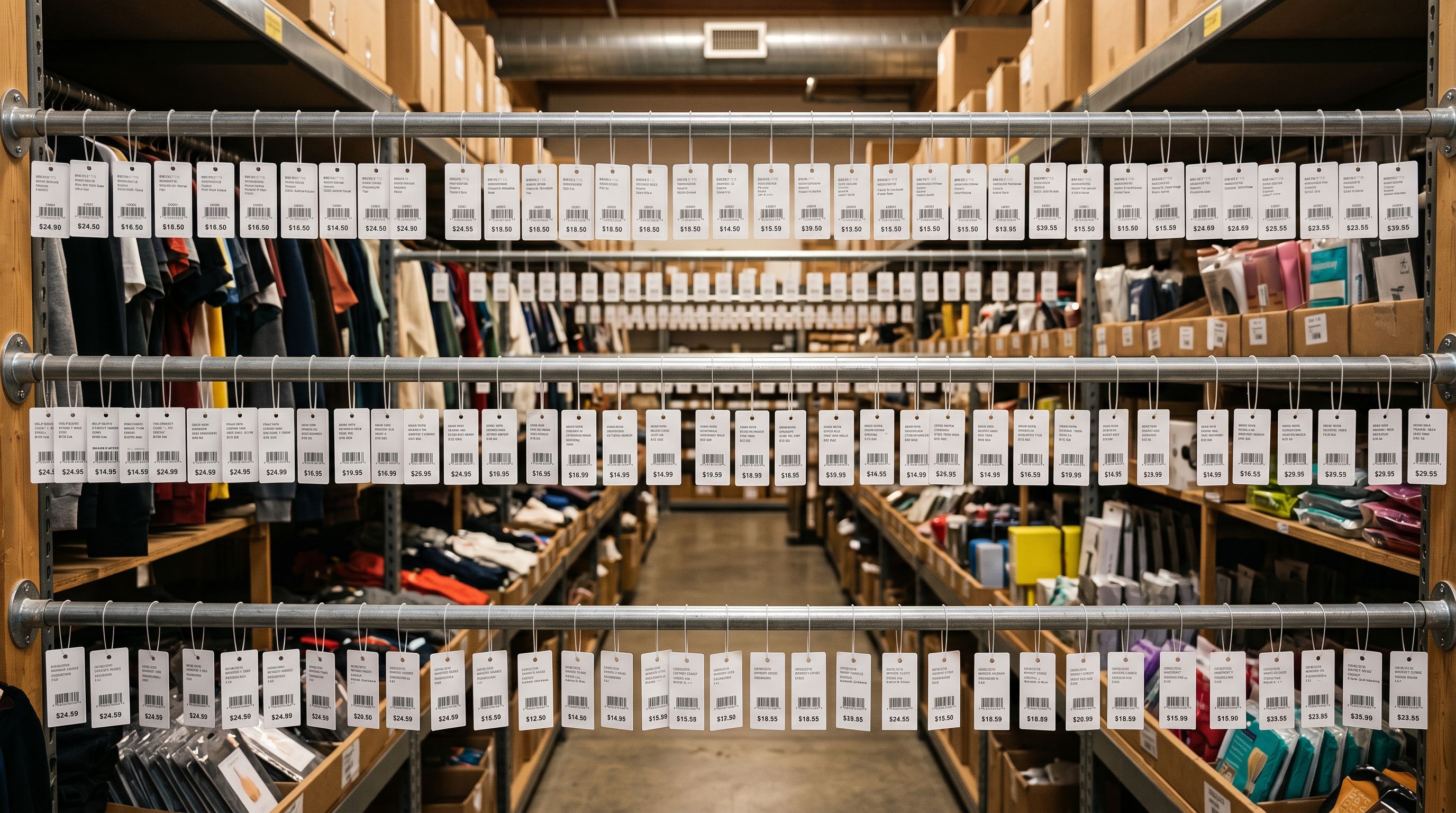
The binocular example is worth pausing on. 8X42 ED Binocular<br> looks like a normal title in a spreadsheet: the renders as a space and the <br> is invisible in most editors. It is only when that title arrives in Shopify and appears in search results, or when the AI tries to generate a description from 8X42&nbsp;ED Binocular<br> as its input, that the problem surfaces. Decoding and stripping HTML entities in the bulk editor prevents this before anything reaches Shopify.
Time Saved
How Long Manual Title Cleanup Actually Takes
For a 300-product import, manual title cleanup typically takes between two and four hours. That estimate covers a mix of casing fixes, trailing code removals, and space cleanup, done row by row in a spreadsheet or in Shopify admin after import.
The spreadsheet approach requires writing formulas or using Find and Replace sequences for each transform type, then copying results back as values. The admin approach means opening each product, editing the title, saving, and moving to the next. Neither approach is difficult. Both take time that compounds across every import from every supplier.
With Importier's bulk title editing tools, the same 300-product cleanup runs in seconds. Applying Capitalize Each Word across 300 selected rows is one click. Adding Trim Ends and Collapse Repeated Spaces after that takes two more. Every selected row updates consistently, not "mostly the same" with a few rows that got missed.

Bulk Title Editing Versus the Title Optimizer
Importier's Bulk Title Editing Tools and Importier's Title Optimizer solve different problems at different points in the product lifecycle.
Bulk title editing happens before import, inside the import wizard, on titles that have not yet reached Shopify. It is about cleaning raw supplier data: fixing casing, stripping codes, removing HTML, and eliminating invisible characters before those titles are used to generate descriptions and before they are pushed to the store.
Title Optimizer works on products already in your Shopify store. It applies marketplace-specific presets (Google Merchant Centre titles up to 150 characters, eBay at 80, Amazon at 200), front-loads keywords for Google Shopping performance, and includes a compliance checker for GMC requirements.
Use bulk title editing first, during import. Use Title Optimizer after import if you need to reformat existing product titles for marketplace distribution or if you are running a GMC compliance sweep on your existing catalogue.
How Clean Titles Improve AI Description Quality
Importier's AI description generator uses the product title as its primary input. The description is built from the title, plus any product type, vendor, and enrichment data collected during import. But the title carries the most weight.
A title of BLUE DENIM JEANS | SLIM FIT | W32 L30 tells the AI the product is jeans, slim fit, size W32 L30. But it also signals the writing style of the source system: fragment-heavy, shouted, delimiter-separated rather than the merchant's store voice. The AI reflects the pattern it reads. A cleaned title of Blue Denim Jeans Slim Fit W32 L30 carries the same facts with a clear signal about how the name should be presented. The resulting description is more likely to match the tone and structure you configured in your AI settings.
Google's title attribute requirements for Shopping specify that titles should clearly identify the product and include key attributes such as brand, size, colour, and material where relevant. Cleaning supplier titles before import means your Shopify product titles, and by extension your Shopping feed titles, are already closer to compliance before you run any separate optimisation step.
- Open each product in Shopify admin to fix casing
- Find and Replace in a spreadsheet with limited transform options
- No HTML entity or invisible character detection
- Subtle inconsistencies persist between rows
- Risk of re-importing and overwriting corrections
- 2-4 hours for 300 products
- Select all rows in one click
- Four transform groups: case, add text, remove text, clean up
- Decodes HTML entities and strips non-printing characters
- Every selected row updated consistently
- Titles fixed before descriptions are generated
- Seconds for 300 products
Key Takeaways
- Supplier product titles arrive with predictable problems: wrong casing, trailing SKU codes, stray HTML, delimiter-separated attributes, and invisible characters.
- Importier's Bulk Title Editing Tools appear in the Generate Descriptions step of the import wizard, before the AI runs. This is the correct point in the workflow to clean titles.
- The four transform groups cover case changes, adding text by position, removing characters by position, and cleaning up spaces, delimiters, and non-printing characters.
- Cleaning titles before generation means the AI works from accurate, well-formatted input, which produces more relevant descriptions in fewer passes.
- Invisible characters and HTML markup are the title problems most merchants do not notice until something breaks downstream in search or the Shopping feed.
Part 3 of this series covers importing supplier invoices priced in a foreign currency: how to convert cost, price, and compare-at to your store currency before tax is calculated, and why sequence is the detail most tools get wrong.
Try Importier free at importier.app
Set up your first import in under five minutes.
Importier brings products into Shopify with AI descriptions, category metafields, and data enrichment on every run.