How to Bulk Update Shopify Product Descriptions (Without Touching Each Product)

On this page
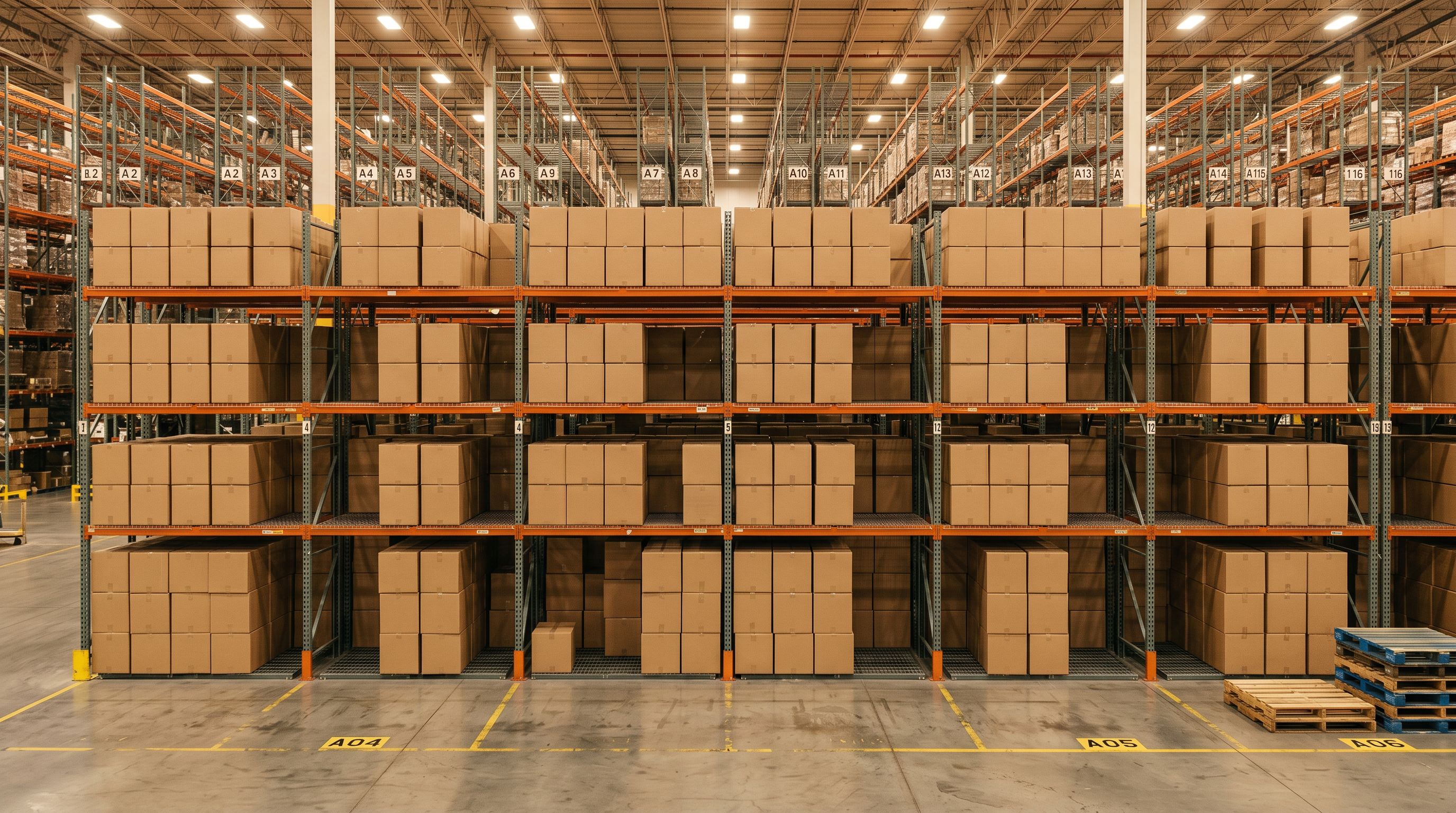
Most Shopify stores have a description problem that never fully gets fixed. It might be 200 products imported from a supplier CSV with identical two-line descriptions. Or a catalogue of 800 items where a third have nothing at all. Or products that were added quickly during a busy period and got placeholder text that was never updated.
The native Shopify admin doesn't make this easy to fix. You can bulk edit up to 100 products at a time in the built-in editor, but it only lets you edit existing content, not generate new descriptions from scratch. Export to CSV, write descriptions in a spreadsheet, re-import with overwrite enabled: that's the standard workaround. For 500 products, it takes weeks.
Importier's Store Scanner takes a different approach. It scans your entire catalogue, identifies products with missing or short descriptions, and lets you push AI-generated descriptions to all of them in a single run. This article explains how it works and when to use it.
Why Bulk Description Updates Are Harder Than They Look
Shopify's built-in bulk editor is designed for structured edits: changing a price, updating inventory, toggling availability. It can display the description field for multiple products at once, but you're still manually typing or pasting content into each row. For 500 products, that's 500 manual interventions.
The CSV export-and-reimport method works technically. You export your full product list, paste descriptions into a spreadsheet column, then reimport with "overwrite existing products" enabled. The problems:
- The CSV has to be formatted precisely: any structural error on reimport can corrupt product data
- Writing 500 unique descriptions outside of Shopify means working in a context where you can't see the product images, specifications, or how the page will render
- Supplier-copy descriptions are often technically correct but SEO-damaging, duplicated across your site and across other stores using the same supplier, meaning Google treats every page as thin content
None of these methods address the underlying issue: you need unique, quality descriptions for hundreds of products, and you need them without spending two weeks in a spreadsheet.
- Export full CSV, edit in spreadsheet, reimport
- Risk of corrupting product data on reimport
- No visibility into product images or page rendering
- 500 products = weeks of manual writing
- Scan catalogue, filter, generate, push in one run
- Descriptions pushed directly to Shopify, no CSV
- AI draws on product images, specs, and attributes
- 500 products processed in minutes with 25 AI models

How Importier's Store Scanner Works
The Store Scanner is an Importier feature designed specifically for retroactive description work on existing catalogues. Rather than importing new products, it analyses the products already in your Shopify store.
Here's what it does:
Scans for missing or short descriptions. The scanner goes through your entire product catalogue and flags products that have no description, or descriptions that fall below a minimum length threshold. You choose what "short" means for your store: a product page with two sentences is functionally missing a description for SEO purposes.
Filters to the right subset. You can narrow the scan by collection, SKU pattern, or barcode pattern. If you imported a new supplier range last month and only those products need descriptions, you can isolate them without touching products that already have good content.
Generates AI descriptions for every flagged product. Once the scan identifies the products that need attention, Importier's AI description generator runs against each one. You choose the style (seven options, from Benefits-First to Emotional Storytelling to Technical Gadget), the persona (156 expert personas across 43 industry categories), and the tone. Every product gets a unique description tailored to its attributes.
Pushes the descriptions in Replace or Append mode. Replace mode overwrites whatever is there, useful when you're starting clean or replacing supplier copy. Append mode adds the AI content after the existing description, which works when products have partial descriptions that just need rounding out.
Scale & Impact
The Scale of the Problem It Solves
To understand why this matters, consider the manual comparison.
A product description typically takes 15-30 minutes to research and write well. That means 500 products with missing descriptions represents 125-250 hours of writing work, roughly 3-6 weeks of full-time effort for one person. For a growing wholesale merchant who has just imported a new supplier catalogue, or a store migrating from WooCommerce where the old descriptions don't transfer cleanly, that backlog can sit unaddressed for months.
500 products with missing descriptions represents 125-250 hours of writing work, roughly 3-6 weeks of full-time effort for one person.
Importier's AI description generator produces descriptions in bulk. Where a human writer takes 15-30 minutes per product, Importier generates descriptions for 500 products in minutes, drawing on whichever of the 25 AI models your plan includes. The output quality depends on how much product data exists in your catalogue: the more attributes, the stronger the output.

Setting Up a Store Scanner Run
Before running the scanner, check one thing: do your products have enough data for the AI to work with? Title, product type, vendor, tags, and any existing description fragments are all inputs the AI uses. Products with only a title and no other metadata will produce more generic descriptions. If you have products with rich specifications in their titles or tags, those produce the best output.
To run the Store Scanner:
- Open Importier in your Shopify admin
- Go to Store Scanner in the left navigation
- Choose your filter criteria: all products, or narrow by collection, SKU pattern, or barcode
- Set the minimum description length threshold (any description shorter than this gets flagged)
- Review the flagged products before committing
- Choose Replace or Append mode
- Configure your AI description settings: style, persona, tone
- Run the scan
Importier shows you a preview of flagged products before the AI runs, so you can confirm the scope of the update. After the run, descriptions are pushed directly to your Shopify product pages, with no CSV, no reimport, no overwrite risks.
Choosing the Right Description Style
This is where the Store Scanner becomes more than a bulk editor. The AI isn't filling in a template. It generates distinct, SEO-aware content for each product based on its data.
The seven available styles give you control over the output tone:
- Standard: Clean, factual description covering key product details. Works for most B2B and general retail products.
- Technical Gadget: Specification-led, precise language. Ideal for electronics, tools, and hardware.
- Emotional Storytelling: Narrative approach that focuses on how the product makes the buyer feel. Works for gifts, homeware, fashion.
- Benefits-First: Leads with what the product does for the buyer before describing what it is. Strong for direct-response categories.
- Sensory-Rich: Heavy on descriptive language about texture, taste, scent, or visual detail. Best for food, candles, beauty products.
- Ingredient Spotlight: Emphasises component materials or ingredients. Suited to supplements, skincare, natural products.
- Custom: You define the headings and structure. Full control for brands with specific description templates.
Pairing the right style with the right persona (156 options across 43 categories) means the descriptions are written from the perspective of an expert in your product category, not a generic copywriter.
If your catalogue spans multiple product types, you can run the Store Scanner multiple times with different style configurations: once for electronics with Technical Gadget, once for lifestyle products with Benefits-First, and so on. Each run only touches the products the filter selects.

Pairing Store Scanner with Title Optimisation
Descriptions are one half of the on-page content problem. The other half is product titles. Many catalogues imported from supplier CSVs arrive with titles that are too long, incorrectly cased, or missing the keywords that Google Shopping needs front-loaded.
If you're running a Store Scanner pass to fix descriptions, it's worth also running a Title Optimizer pass to standardise and keyword-front-load your titles at the same time. Both tools operate on your existing catalogue without requiring a reimport. Running them together means the full on-page product content, including title and description, gets addressed in one session.
After a Store Scanner run, the next logical step is confirming that your products have category metafields assigned, since category attributes affect Google Shopping feed quality alongside descriptions. If you've recently imported a new product range, those metafields may be missing. Importier's data enrichment can fill them retroactively.
When to Use Store Scanner vs Import Wizard
The Store Scanner is for products already in your Shopify store. The 14-step import wizard is for bringing new products in.
If you're importing a fresh supplier catalogue, generate descriptions during the import flow: the wizard runs AI description generation as part of the import step, so new products arrive with descriptions already written. Store Scanner is the retroactive fix for products that were imported before you had Importier, or products that were added manually without descriptions.
A common workflow for merchants switching to Importier mid-catalogue:
- Run Store Scanner on existing products to fill in missing descriptions
- Going forward, run all new imports through the Importier wizard so new products arrive with descriptions already generated
This way the entire catalogue reaches a consistent standard, and no future products are added without descriptions.
The Right Tool for Existing Catalogues
For merchants with hundreds or thousands of products sitting in Shopify with missing or thin descriptions, the Store Scanner removes what would otherwise be a months-long manual task. Scan the catalogue, apply filters to the right subset, choose a description style, and push.
The AI descriptions that come out aren't placeholder content. They're unique, SEO-structured text generated by the same 25 AI models available in Importier's full import pipeline. Each product gets content written specifically for it, not a template with the product name swapped in.
See how Importier handles this at importier.app
Related Articles
Set up your first import in under five minutes.
Importier brings products into Shopify with AI descriptions, category metafields, and data enrichment on every run.