How Importier's Import Review Step Prevents Bulk Data Errors

On this page
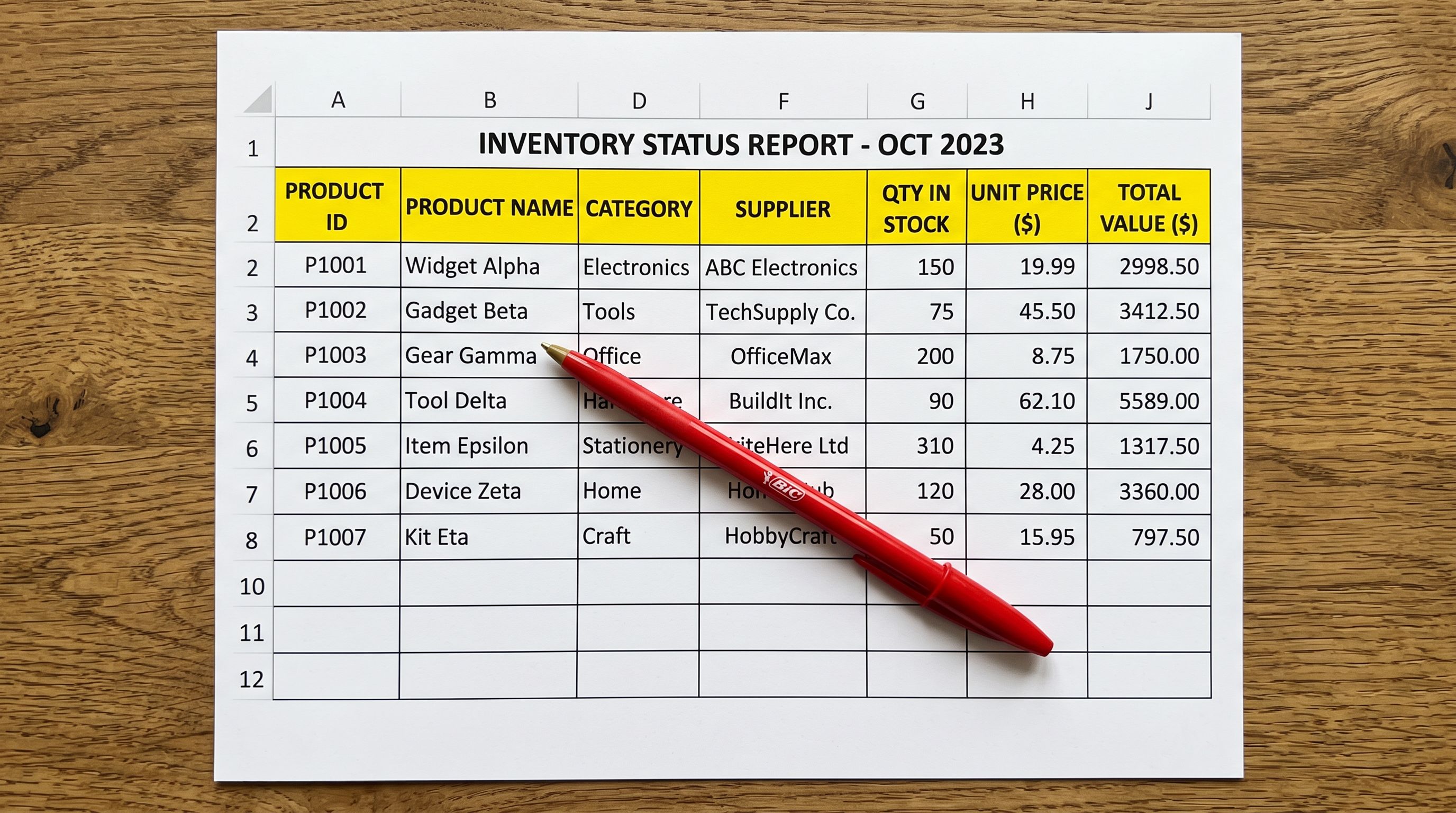
A home goods merchant imports 620 products from a new supplier file. They have three columns to map: product title, description, and internal reference notes. They confirm the mapping without checking the preview. The import completes in under five minutes. When they check a product page, the description field contains the supplier's internal reference number. The "Item Notes" column (containing warehouse codes like "W4-SHELF-B12") has been mapped to the Shopify product description for all 620 products.
The import completed without an error. The mapping was wrong, not the file. Without a review step, the only way to find the error is to check a live product page after the damage is done.
Importier's import wizard includes a Review step before any product in Shopify is touched. The Review step shows the exact values that will be written, for every mapped field, for every product in the batch. A merchant who sees "W4-SHELF-B12" in the proposed description column on row 1 of the review table can return to the mapping screen and fix it before the import proceeds. No products are modified until the merchant confirms in the Review step.
What the import Review step shows you
The Review step is the second-to-last step in Importier's 14-step import wizard. It appears after all configuration is complete (column mapping set, AI generation options chosen, variant detection confirmed) and before the final push to Shopify.
The review table displays one row per product variant in the import batch. For each row, it shows:
- The product title and variant identifier (SKU or match key)
- Every mapped field and the value that will be written to Shopify for that field
- Whether the product is a new addition or an update to an existing Shopify record
- For update imports: the current Shopify value alongside the proposed new value, so you can see what is being replaced
For a batch of 620 products, the review table is paginated. You do not need to scroll through all 620 rows. Checking the first 10-20 rows from several pages of the review confirms whether the mapping is producing the expected output.

What errors the Review step catches
Column mapping errors are the most common cause of bulk data damage in product imports. They happen for several reasons: a supplier changes a column header between files, two columns have similar names (Description vs. Short Description), or a column is auto-mapped to an unintended destination.
The Review step catches these errors before they reach Shopify:
Wrong column mapped to description. If your supplier file contains both a "Description" column and an "Item Notes" column, and the import wizard auto-maps "Item Notes" to Body HTML because the "Description" column header was ambiguous, the Review step shows the notes text in the Description column. You see the warehouse code, not the product description. Fix: return to column mapping, set "Item Notes" to "Do not import", confirm "Description" maps to Body HTML.
Match key not resolving. For update imports, each row in the review table shows whether it matched an existing Shopify product or is being treated as a new addition. If your batch is supposed to update 500 existing products but the review table shows 500 "new product" indicators, the match key is not resolving. SKU, barcode, or Handle in the file does not correspond to any existing Shopify record. Shopify's product import and export documentation lists Handle, Variant SKU, and Variant Barcode as the recognised match fields for update imports. Any of these must be present and populated in both the file and the existing Shopify records for the match to succeed. The Shopify import SKU mismatch article covers how this happens in practice. The Review step makes it visible before 500 duplicate products are created.
Price field showing zero. If the price column maps to a currency field and the source file uses a format the parser did not recognise (comma decimal separators, currency symbols in the cell), the Review step shows $0.00 in the price column. Visible before any product goes live at zero price.
Inventory column in an update file. If you are running a price update and accidentally left an Inventory Quantity column mapped, the Review step shows proposed inventory values from the supplier's file next to your current Shopify stock counts. The mismatch between "52 on hand" (your count) and "0" (the supplier's export) is visible before the import zeros out your stock. This is the same scenario covered in detail in Shopify import without overwriting inventory. The Review step is what makes that problem catchable before it reaches Shopify.

AI description style mismatch. If you set up AI generation to use a different persona or tone than intended (or left it on the default from a previous import), the Review step shows a sample of the generated descriptions before they are pushed. A product description written in a Technical Gadget style when you needed Sensory-Rich is visible here. You can return to the AI settings step, adjust the style, and regenerate before confirming.
How to read a review table efficiently
For large batches, review the table in a structured way rather than scrolling all 620 rows:
- 01Step 1Check the first 3-5 rows of the review table. These represent the top of your supplier file. Confirm that the description, price, and title columns contain what you expect: not column headers, internal codes, or empty cells.
- 02Step 2Jump to a page in the middle of the batch. Supplier files sometimes change structure partway through (a sub-header row, a blank separator row, or different data in the lower half). A mid-file spot-check confirms the mapping holds across the whole file.
- 03Step 3Check the last 3-5 rows. Supplier files often have summary rows or totals at the bottom that can create odd import results if they are not filtered out. Seeing 'Total' in the product title column is a signal to filter out those rows before confirming.
- 04Step 4For update imports, check the match key column. Confirm that the import is showing 'update existing product' for the rows you expect, not 'add new product'. If every row shows as a new addition, stop and fix the match key mapping before proceeding.
Three minutes reading a paginated review table costs nothing. Recovering from 620 incorrectly overwritten product descriptions costs hours.
The review table supports sorting by field, so you can sort by the description column and scan for unexpected values quickly across the whole batch without reading every row in order.
When to return to configuration vs. proceed
After reviewing, you have two choices: confirm the import, or go back to fix something.
Return to configuration when:
- Any field in the review shows values that should not be there (warehouse codes, totals rows, empty cells where you expect content)
- The match key is not resolving. You see "new product" for rows that should be updates
- Price or inventory values are zero or clearly wrong
- The AI-generated content visible in the review does not match the style, tone, or persona you intended

Proceed when:
- The description column shows the correct product content (not notes, codes, or headers)
- Price, inventory, and variant data match the source file
- For update imports, match key resolution shows the expected product records
- Column mapping errors are only discovered after products are updated in Shopify
- A wrong match key creates 500 duplicate products with no warning
- A zero-price error takes live products offline
- Fixing bulk mapping errors requires an undo import or a second corrective import
- The only signal that something went wrong is a live product page showing incorrect data
- The review table shows proposed values for every field before anything is written
- A wrong match key shows as 500 'new product' indicators in the review table, visible before any duplicates are created
- A price field parsing error shows $0.00 in review, correctable before any product goes live at the wrong price
- Fixing a mapping error in review costs three minutes and a configuration adjustment
- The review step is the last checkpoint before the import commits
Reviewing AI-generated content in the preview
The Review step is also where AI-generated content from the import becomes visible for the first time. If you configured Importier to generate AI descriptions, meta titles, and FAQs as part of the import, the review table shows the generated content alongside the source file data.
This is useful for two reasons:
Confirming the style and persona worked as intended. A description generated in Benefits-First style for a cycling accessory should open with a clear statement of what the product does for the rider, not a list of specifications. If the review shows a specification-heavy opening, you can adjust the description style and regenerate before confirming. According to Shopify's product listing guidance, product descriptions that lead with benefits rather than specifications tend to perform better across sales channels.
Spotting a generation failure. If AI generation encountered an error for a specific product (insufficient product data in the source row, a title that was too ambiguous, or a variant combination the AI could not resolve), the review table shows an empty description cell or an error indicator for that row. You can either fix the source data and regenerate, or proceed with the batch and address those products individually after import.

The Review step with variant-heavy catalogues
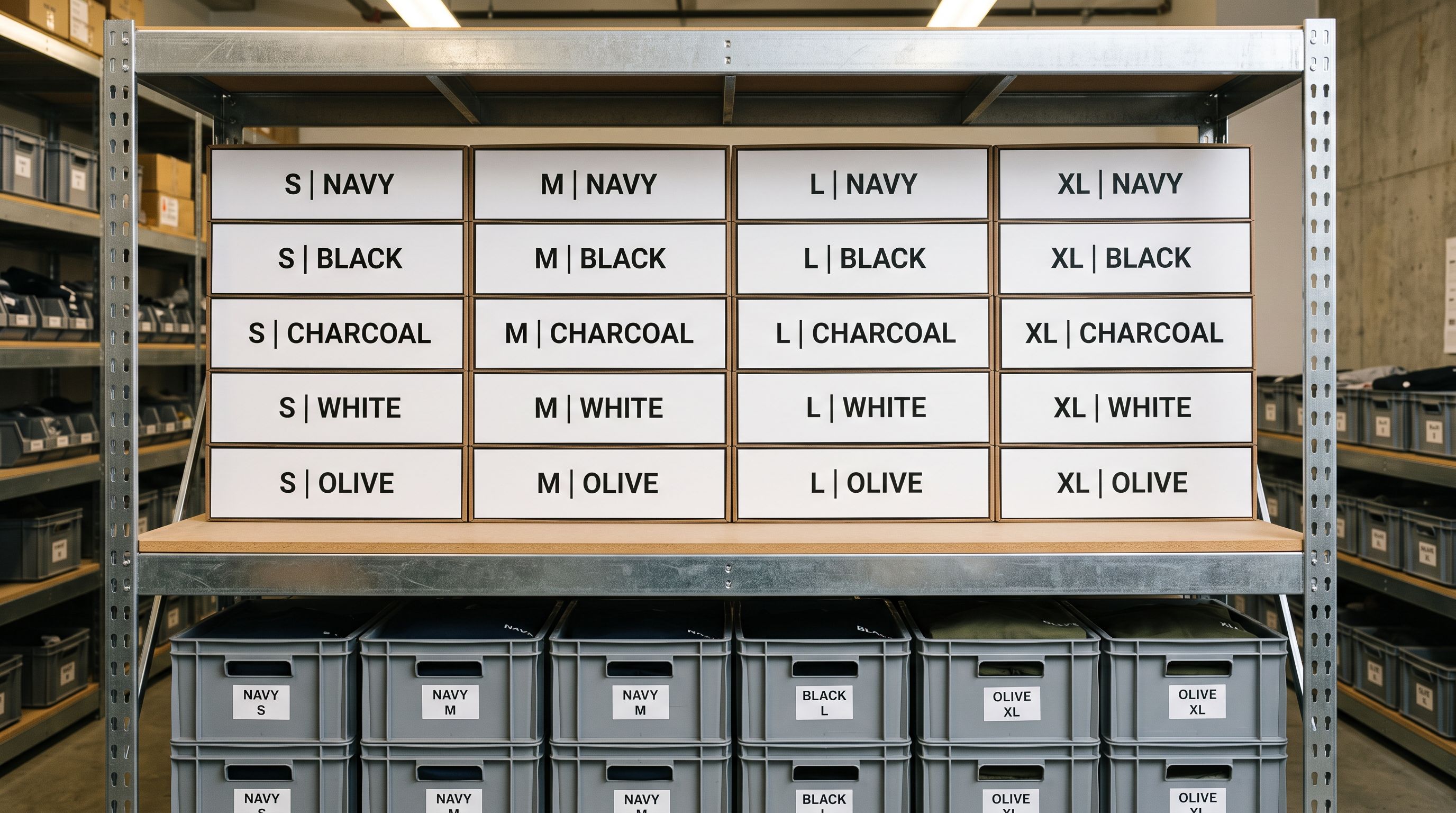
Variant-heavy catalogues (apparel, footwear, accessories) produce review tables where each size/colour combination appears as its own row. A product with four sizes and three colours generates 12 review rows. For a 50-product apparel import, that produces a 600-row review table.
For these catalogues, do not try to read every variant row. Instead:
- Filter the review table to show only parent products (not individual variants)
- Confirm that the parent product description, title, and price look correct for each product
- Spot-check two or three variant rows per product to confirm the variant attributes (size, colour, SKU) parsed correctly from the source file
- Check the variant grouping preview. Importier's variant detection feature shows which rows it grouped into the same product variant set; the review step reflects these groupings
If a variant that should be part of a product appears as a standalone product in the review, Importier's variant detection feature did not recognise the pattern. Return to the variant detection configuration, adjust the grouping logic, and re-run the review before confirming.
Review before you commit
Key takeaways
The import Review step is the dividing line between configuration and commitment. Every step before it is adjustable. Once you confirm, the import writes to Shopify.
- Read the review table before confirming every import. Check the first rows, a middle section, and the last rows. For update imports, verify the match key column shows the expected "update existing product" indicators.
- Wrong values in the review table mean a configuration error, not a file error. Return to the column mapping screen or AI settings and fix the issue. The review table tells you what to fix.
- Match key resolution is visible in the review. If your update import shows "new product" for rows that should be updates, the match key is not resolving. Fix it in the column mapping before confirming.
- AI-generated content is visible in the review before it is pushed. Check a sample of generated descriptions for style, tone, and persona accuracy. Adjust and regenerate if the output does not match expectations.
- For variant-heavy catalogues, filter the review table to parent products. Spot-checking parent-level fields is faster than reading every variant row.
Run your next import with Importier's 14-step guided wizard at importier.app.
Set up your first import in under five minutes.
Importier brings products into Shopify with AI descriptions, category metafields, and data enrichment on every run.