How to Import Product Variants in Shopify Without Restructuring Your Supplier CSV

On this page
If you've imported a supplier catalogue and ended up with 600 separate product listings when you expected 100, you've hit one of the most common problems in Shopify product management. Every colour and size landed as its own product. Your store is cluttered, navigation is broken, and customers can't compare options without clicking through dozens of individual pages.
This is what happens when you import product variants in Shopify from a real-world supplier CSV. It's not a glitch. It's a format mismatch. Once you understand why it happens, you can fix it for good.
What the Problem Looks Like
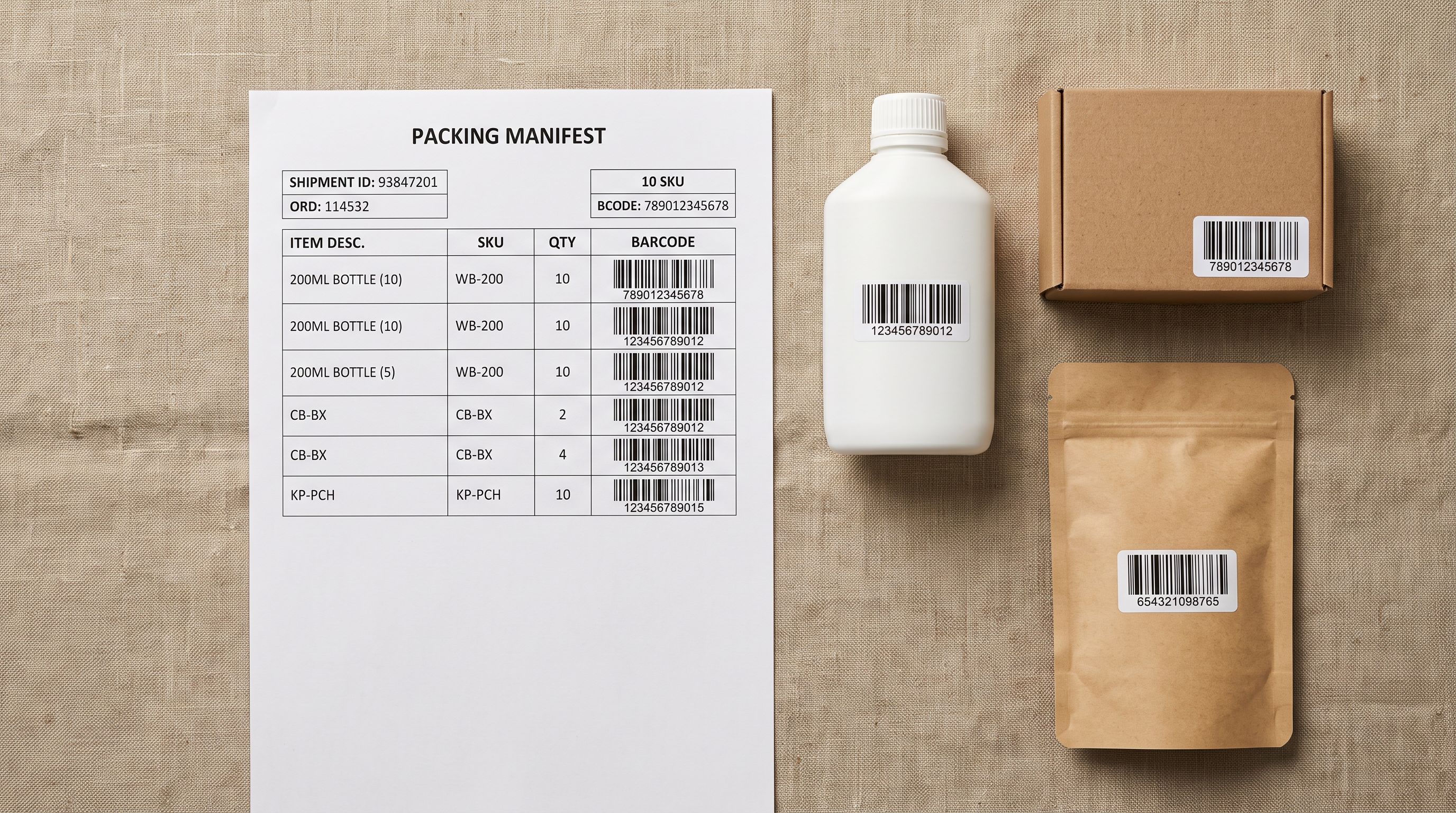
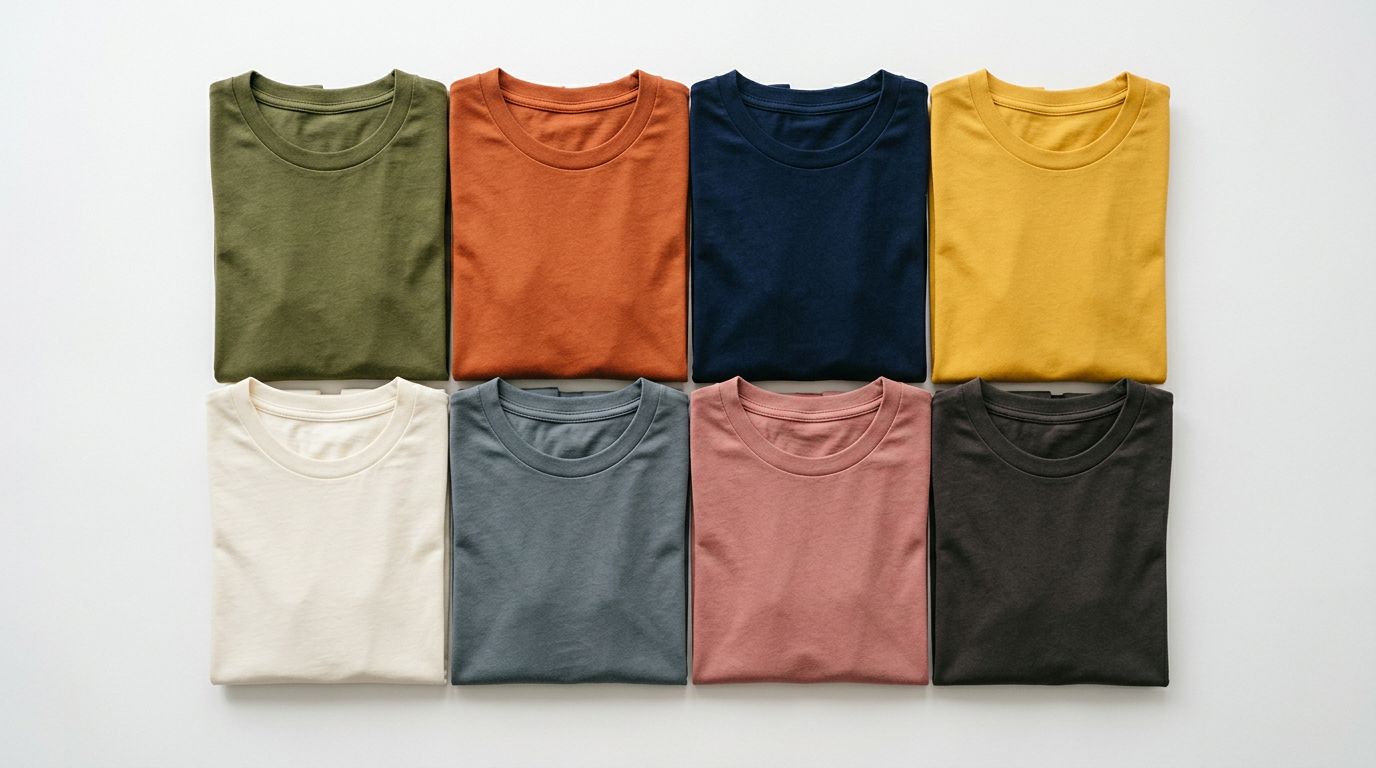
Your supplier sends a wholesale price list. It lists every SKU on a separate row: "Blue Cotton T-Shirt S", "Blue Cotton T-Shirt M", "Blue Cotton T-Shirt L", "Red Cotton T-Shirt S", "Red Cotton T-Shirt M", "Red Cotton T-Shirt L". Each row has its own SKU, price, and description. That's how their inventory system works.
You format the file as a Shopify CSV and run the import. When you check the products page, you have hundreds of listings instead of tens. Every single size and colour has become its own product. Customers searching for a t-shirt in red have to scroll past all the blue variants to find it. Adding those products to collections means manually handling every listing. If you need to update a price or description, you're editing dozens of records instead of one.
This happens to wholesale merchants, dropshippers, and anyone migrating a catalogue from another platform. The supplier's file format and Shopify's expected format are fundamentally different.

Why Shopify's CSV Format Works the Way It Does
Shopify groups variants using a column called Handle. Every row that shares the same handle value is treated as a variant of the same product. Three rows with the handle blue-cotton-tshirt become one product with three variants. Three rows with different handles become three products.
This logic is consistent and predictable once you know it. The problem is that supplier catalogues are not built around Shopify's handle concept. A wholesale price list assigns a unique identifier to every SKU. There is no grouping mechanism. The supplier's system treats each size as a distinct inventory item, which is correct for their purposes and wrong for yours.
The result is that every CSV import from a real-world supplier requires you to restructure the file before Shopify can group the variants correctly. You need to:
- Identify which rows belong together as variants of the same base product
- Assign identical handle values to every row in each group
- Populate the
Option1 Name,Option1 Value,Option2 Name, andOption2 Valuecolumns with the correct option labels - Ensure the product Title and description only appear on the first row of each group, with subsequent rows left blank in those columns
- Correct any column headers that don't match Shopify's expected format
That's a significant amount of manual work before the import even begins. For the complete details of how Shopify's native CSV format works, see our guide on how to bulk import products to Shopify from CSV.
The Manual Fix Takes Longer Than You Think
Restructuring a supplier catalogue in a spreadsheet editor is not a quick task. For each product group, you need to make a judgement call: are these rows variants of the same product, or separate products?
"Blue Cotton T-Shirt S/M/L" is obvious. But what about "Natural Shampoo 250ml" and "Natural Shampoo 500ml"? That could be two variants (Size option: 250ml and 500ml) or two separate products with different pricing strategies. What about "Stainless Steel Pan 20cm" and "Stainless Steel Pan Set (20cm + 24cm)"? That's a single item and a bundle: different structures, different handling.
These judgement calls stack up fast. For a 500-row supplier catalogue with 100 base products and an average of 5 variants each, restructuring the file to group variants correctly typically takes 3-4 hours in a spreadsheet editor. You're making hundreds of decisions, checking them against Shopify's requirements, and reformatting columns by hand.
Then the next supplier catalogue arrives, and you do it again.
For merchants receiving weekly or monthly price list updates, this becomes a recurring time cost that never goes away.
For merchants receiving weekly or monthly price list updates, this becomes a recurring time cost that never goes away. The import tool stays the same; the manual prep work doesn't.

AI-Powered Variant Detection
Importier's Smart Variant Detection analyses your incoming catalogue and groups products into the correct variant structure automatically, before anything is created in Shopify.
Rather than requiring you to pre-format your CSV, Importier reads the product data and applies 150+ regex-based detection patterns to identify variant relationships. These patterns are tuned for 15+ industries and cover the variant dimensions that appear most often in real supplier catalogues:
- Size: S/M/L/XL, numeric clothing sizes, EU sizes, shoe sizes in UK and US formats
- Colour: standard colours, compound colours ("Navy Blue", "Dark Red"), finish descriptors ("Matte Black", "Brushed Nickel")
- Storage and Memory: 64GB, 128GB, 1TB and combinations
- Weight and Volume: 250g, 500ml, 1kg, 2L, common in food, cosmetics, and supplement ranges
- Pack Size: 10-pack, box of 50, sets of 3
- Material: Cotton, Polyester, Stainless Steel, Bamboo and others
When a grouping is unambiguous (three rows whose titles clearly vary only by size), the pattern matching resolves it automatically. When a grouping is ambiguous, Importier's AI variant analysis steps in. It evaluates the context around each row: pricing relationships, description similarity, and image data. It then makes a recommendation you can review before confirming the import.
Importier maps up to 3 Shopify options per variant group, matching Shopify's maximum of three options per product. A product with Size, Colour, and Material as separate options will group with all three option dimensions correctly assigned.
The 500-row catalogue that would take 3-4 hours to reformat manually is processed in the time it takes to upload the file.
- 3-4 hours of spreadsheet reformatting per import
- Hundreds of manual grouping decisions
- Handle values, option columns, and row ordering by hand
- Repeated for every new supplier catalogue
- Automatic grouping in the time it takes to upload
- 150+ regex patterns across 15+ industries
- AI resolves ambiguous cases with context analysis
- Preview and adjust before anything is created
What You See Before Confirming the Import
Importier shows you the variant groupings in a preview step before any products are created. You can see exactly how each group has been formed: which rows have been combined, what option names have been assigned, and what the resulting product will look like in Shopify.
If the AI has made an incorrect grouping, you can adjust it in the preview. If a product has been left ungrouped (for example, a bundle or an accessory that genuinely is a separate product), you can confirm that separation before the import runs.
This review step means you stay in control of your catalogue structure without having to do the grouping work yourself. The AI handles the pattern-matching; you handle the exceptions.
After Grouping: Descriptions and Category Data
A correctly grouped supplier catalogue still needs content. Supplier spreadsheets rarely include usable product descriptions. What descriptions exist are typically copied from a manufacturer spec sheet, stripped of any customer-facing language, or duplicated across the entire product range.
Duplicate and thin descriptions damage your store's search ranking. Google treats pages with identical or near-identical content as lower quality, which means your products are less likely to appear in organic search results. That includes the buying-intent queries that drive sales. For a detailed breakdown of how to structure product descriptions for search, see our guide on how to write product descriptions that rank on Google.
Once Importier has grouped your variants, it can generate unique AI descriptions for every product in a single pass. Importier's AI description generator draws on 25 AI models, 7 description styles, and 156 expert personas across 43 industries to produce descriptions matched to your product category and target customer.
Importier also assigns category metafields automatically during the same import. These structured attributes, drawn from Shopify's Standard Product Taxonomy across 22 industry packs covering 3,758 category attribute types, help Google Shopping, on-site search, and filtering tools understand exactly what each product is. For more on what category metafields are and why they affect discoverability, see what are Shopify category metafields and why they matter.
A raw supplier CSV becomes a properly structured Shopify catalogue with grouped variants, unique AI-generated descriptions, and complete taxonomy data, all in one import workflow.
Getting Started
Smart Variant Detection is built into Importier's 14-step import wizard. It's available on every plan, including the free Explore tier.
To run an import with variant detection:
- Open Importier from your Shopify admin
- Upload your supplier CSV, Excel, or TSV file
- Step through the import wizard: Importier maps column headers automatically and surfaces the variant groupings it has detected
- Review the preview, adjust any groupings that need changing, then confirm the import
If you've already imported a catalogue that landed as separate products, you can re-import the original file with variant detection enabled. Importier will apply the grouping logic and create correctly structured variant products.
Unlike Shopify's developer-facing tools, which require knowing the exact CSV format in advance, Importier works with the catalogue your supplier actually sends. No pre-processing, no spreadsheet reformatting, no Shopify-specific column mapping before you can start.
Import your first products in under 5 minutes at importier.app.
Related Articles
Set up your first import in under five minutes.
Importier brings products into Shopify with AI descriptions, category metafields, and data enrichment on every run.