Shopify Store Scanner: Audit and Fix Your Catalogue
On this page
Shopify Store Scanner: How to Audit and Fix Your Entire Product Catalogue
Most Importier articles are about getting products into Shopify. This one is about fixing what is already there.
If you imported 500 products a year ago, the catalogue you have now is probably not the catalogue you want. Some products have supplier boilerplate. Some have nothing. Most have no SEO meta title. A third might be missing HS codes, and the Google Merchant Centre feed has been quietly suppressing a chunk of your Shopping inventory as a result. You have not re-imported these products because they are live, selling, and you cannot take them offline to fix them one by one.
The Shopify Store Scanner in Importier handles this. It reads your existing Shopify products, identifies what is incomplete, generates what is missing, and pushes the updated content back. Nothing leaves Shopify. No import wizard. No file to prepare. Just your live catalogue, scanned and improved.
This guide covers the full Store Scanner workflow: the four-gap audit, the Replace vs Append decision, retroactive data enrichment, category metafield assignment, and the safe order to run each pass.
What the Shopify Store Scanner Finds
Store Scanner checks every product in your Shopify store against a configurable description-length threshold and surfaces the ones that fall below it. It does not modify anything on the first pass. It reads your catalogue and shows you what needs work.
The four content gaps Store Scanner surfaces:
- Missing descriptions: products where the body_html field is blank
- Thin descriptions: products below a character threshold you set (adjustable per run)
- Missing SEO meta titles and meta descriptions: these are separate from the product description and most catalogues have them blank; Store Scanner generates them in the same batch as the product description
- Missing product data: weight, HS codes, country of origin, and barcode fields that are empty; these are surfaced through the data enrichment panel, which works alongside Store Scanner
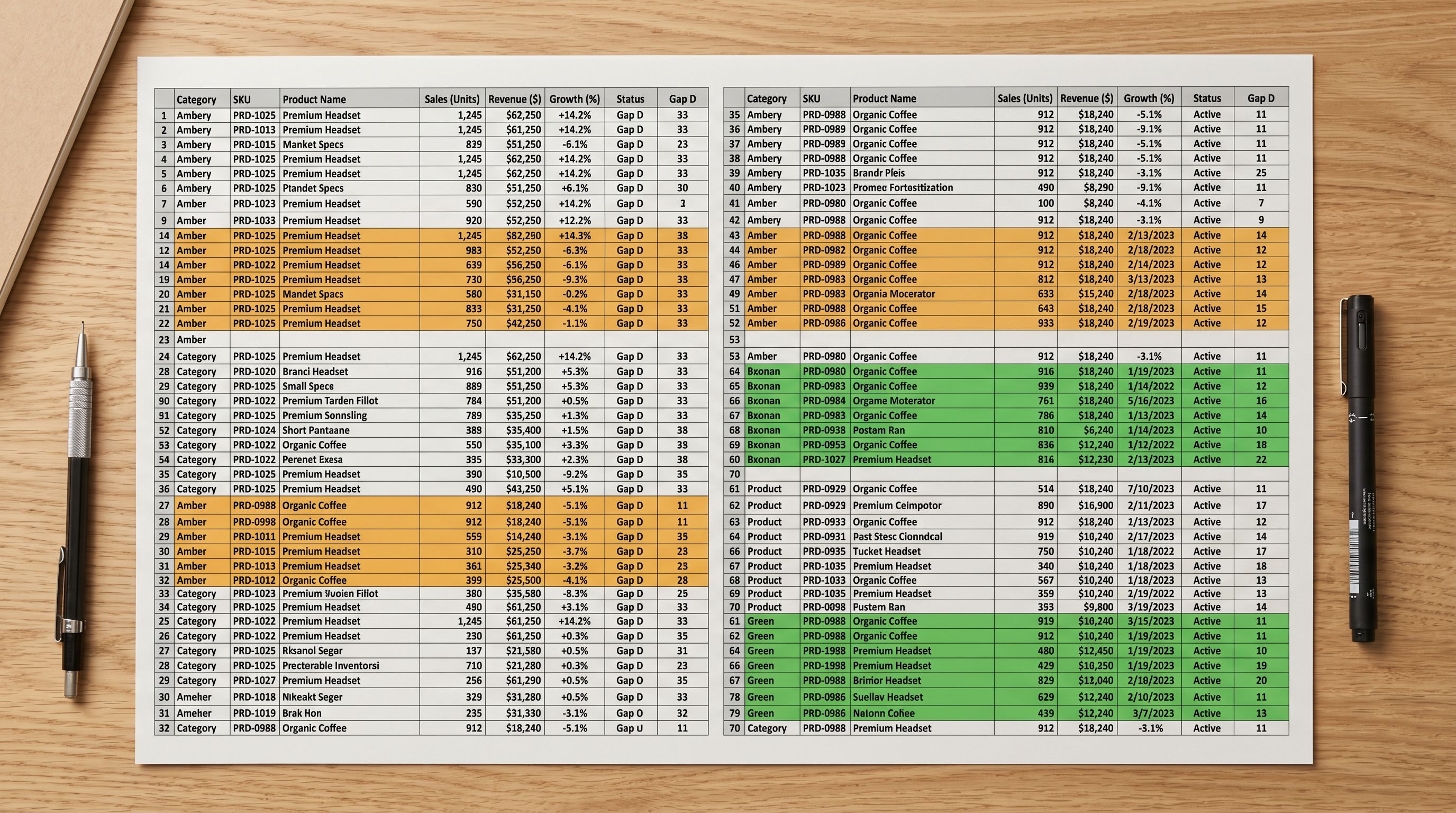
Store Scanner filters by collection, vendor, SKU prefix pattern, or barcode pattern. This matters more than it might seem. Running Store Scanner on your entire catalogue at once is rarely the right first move. A focused first pass on the worst-affected collection gives you a sample to review before committing to the full run.
Store Scanner does not scan for title formatting issues; that is the Title Optimizer. It does not assign category metafields; that is a separate step covered below. These are deliberate distinctions, not limitations.
For a detailed breakdown of finding products with missing descriptions specifically, that article covers the gap-finding workflow in more depth.
Run the Two-Minute Audit Before You Touch Anything
The most important thing you can do before running Store Scanner is export the SEO Audit preset. This gives you a CSV file mapping every product against four content fields: description length, SEO title status, meta description status, and product type. It takes about two minutes to generate and tells you exactly how large the problem is before you commit to any fix.
Open Importier, go to Product Export, and select the SEO Audit preset. Open the export in Excel or Google Sheets. Sort by description word count (column B in the export). What you will typically find: a handful of collections account for most of the content gaps, while the rest of your catalogue is reasonably complete.
This sort is the key step before deciding between Replace mode and Append mode. Products with 0 to 80 words are almost certainly supplier boilerplate or blank. They are Replace candidates. Products with 400 or more words might be descriptions your team wrote, brand stories, or carefully structured content that you do not want to lose. Those are Append candidates.
Google's product content requirements for Shopping make clear that thin and duplicate descriptions affect Shopping eligibility directly. The audit export is your map to which products are suppressed and which are not.
For the complete audit approach covering meta titles, product types, and Shopping feed gaps across the whole catalogue, running a full product SEO audit covers the broader workflow in detail.
From audit to action
Fix Descriptions: Replace Mode vs Append Mode
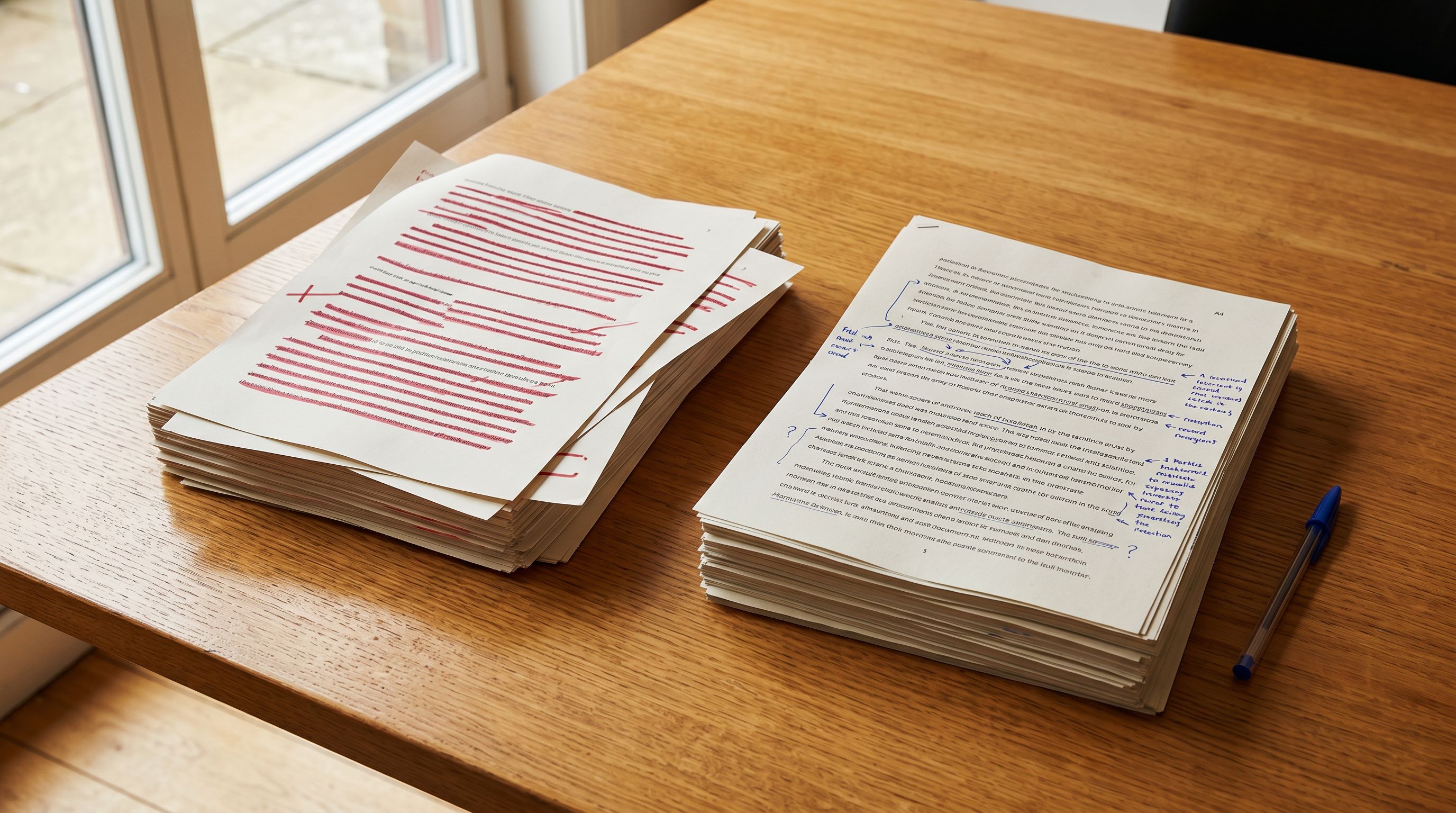
Replace mode overwrites whatever is in the description field. Append mode adds content after what is already there. The choice between them is not cosmetic. Once you run Replace, Import Undo cannot recover the original content.
This is the detail most Store Scanner guides skip. Import Undo does create a snapshot before every run, and you can revert to it if the AI output looks wrong.
But the snapshot stores the pre-run state as it existed in Importier's records. If you run Replace on a collection that included 30 products with hand-written descriptions, those descriptions are gone from that snapshot. The undo restores the generated content back to blank. It does not restore the originals that predated your first Importier interaction.
The safe workflow:
- Export the SEO Audit CSV
- Sort by description word count
- For collections where most products have under 80 words, run Replace
- For collections where some products have 400+ words, split that collection into two Store Scanner runs: one for the obvious supplier-copy products (Replace), one for the longer-content products (Append to add meta titles, policies, or compliance text)
Configuring the AI: Store Scanner uses the same AI configuration as the import wizard. You select from 25 AI models across four plan tiers, 7 description styles (Standard, Technical Gadget, Emotional Storytelling, Benefits-First, Sensory-Rich, Ingredient Spotlight, Custom), 156 expert personas across 43 industries, and 5 tone options. The same batch that generates your product description also generates the SEO meta title and meta description: three fields in one run, no extra step.
If you have configured Brand Voice in your Importier settings, it carries through automatically to every Store Scanner run. 500 products get the same tone restrictions, vocabulary choices, and writing style.
Start with a small first run: filter Store Scanner to one collection of 50 to 100 products. Review five to ten of the generated descriptions in your Shopify admin before scaling to the rest of the catalogue. This catches configuration mistakes early, when they only affect a small batch.
For the full how to bulk update Shopify product descriptions workflow, including Replace vs Append mode examples, that article covers the mechanics in detail.
- Open each product individually in Shopify admin
- Write description from scratch or edit supplier copy
- Update SEO meta title and meta description separately
- Repeat across 500+ products: 125+ hours total
- No record of what changed or when
- Filter Store Scanner to the affected collection
- Set AI style, persona, model, tone
- Run: product description + SEO meta title + meta description generated in one batch
- 500 products: 8–15 minutes
- Every run creates an Import Undo snapshot
Fill Missing Data on Existing Products
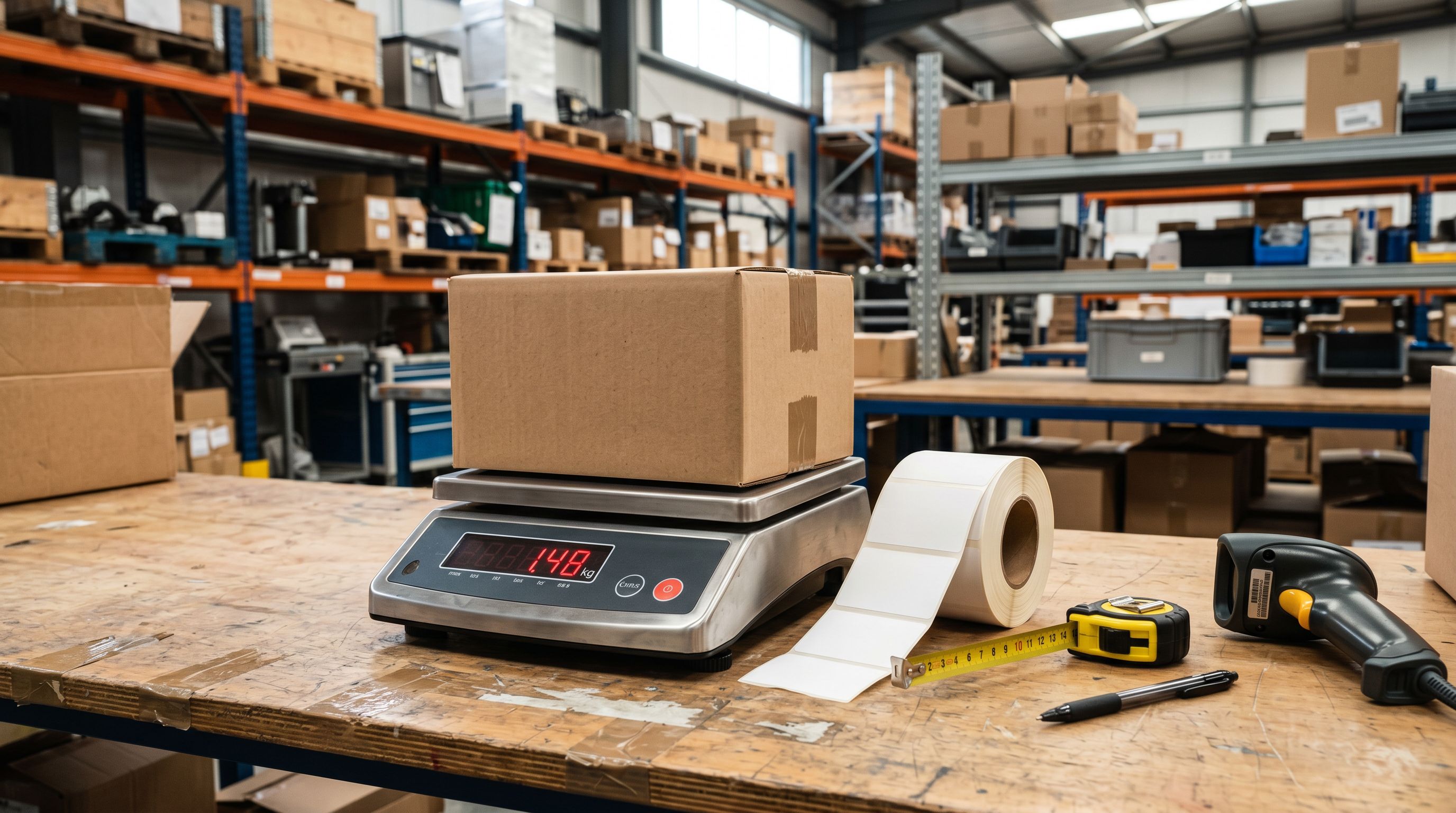
Data enrichment in Importier is not exclusive to new imports. You can run it retroactively on any product already in your Shopify store to fill missing weight, HS codes, country of origin, and barcode fields.
Open the data enrichment panel in Importier. Filter by collection, vendor, or SKU prefix to scope the run. Importier reads each product's title, product type, and any data already present, and fills the blank fields with the most accurate data available.
Enrichment fills four specific fields:
- Weight: in the unit you specify (grams, kilograms, pounds, ounces)
- HS codes: Harmonised System codes required for customs declarations and international shipping compliance
- Country of origin: also used in customs declarations and some Google Shopping requirements
- Barcode/GTIN: required for Google Shopping eligibility and POS scanning
Enrichment does not overwrite existing values. If a product already has a barcode, enrichment skips it. It only fills blank fields. This makes enrichment non-destructive in a way that Replace mode for descriptions is not. You can run it across your entire catalogue without reviewing each product first.
One important note on barcode enrichment: if your products have internal supplier codes in the barcode field rather than valid GTINs, enrichment will not overwrite them. The field is not blank, so enrichment skips it. To replace internal codes with valid GTINs, you will need to clear the barcode field first or filter specifically for those products. The adding missing barcodes in bulk guide covers this case.
For products in specialist categories, use the enrichment context field. A plain-text hint like "cast iron hand tools, 400–800g, made in Taiwan" helps the AI generate accurate weight and origin values instead of generic estimates.
The practical cost of missing data: missing product weight breaks carrier-calculated shipping rates at checkout (zero weight produces wrong rates; blank weight triggers no rate at all, which is safer). Missing HS codes cause customs delays on international orders. Missing GTINs produce "Limited performance due to missing identifier" notices in Google Merchant Centre. All three are fixable in the same enrichment run.
For the filling missing product weight specifics, including the zero-weight vs blank-weight distinction, that article goes into the carrier rate consequences in detail.
Enrichment only fills blank fields. Running it across your entire catalogue is safe because it skips anything that already has a value.
Assign Category Metafields Without Re-importing
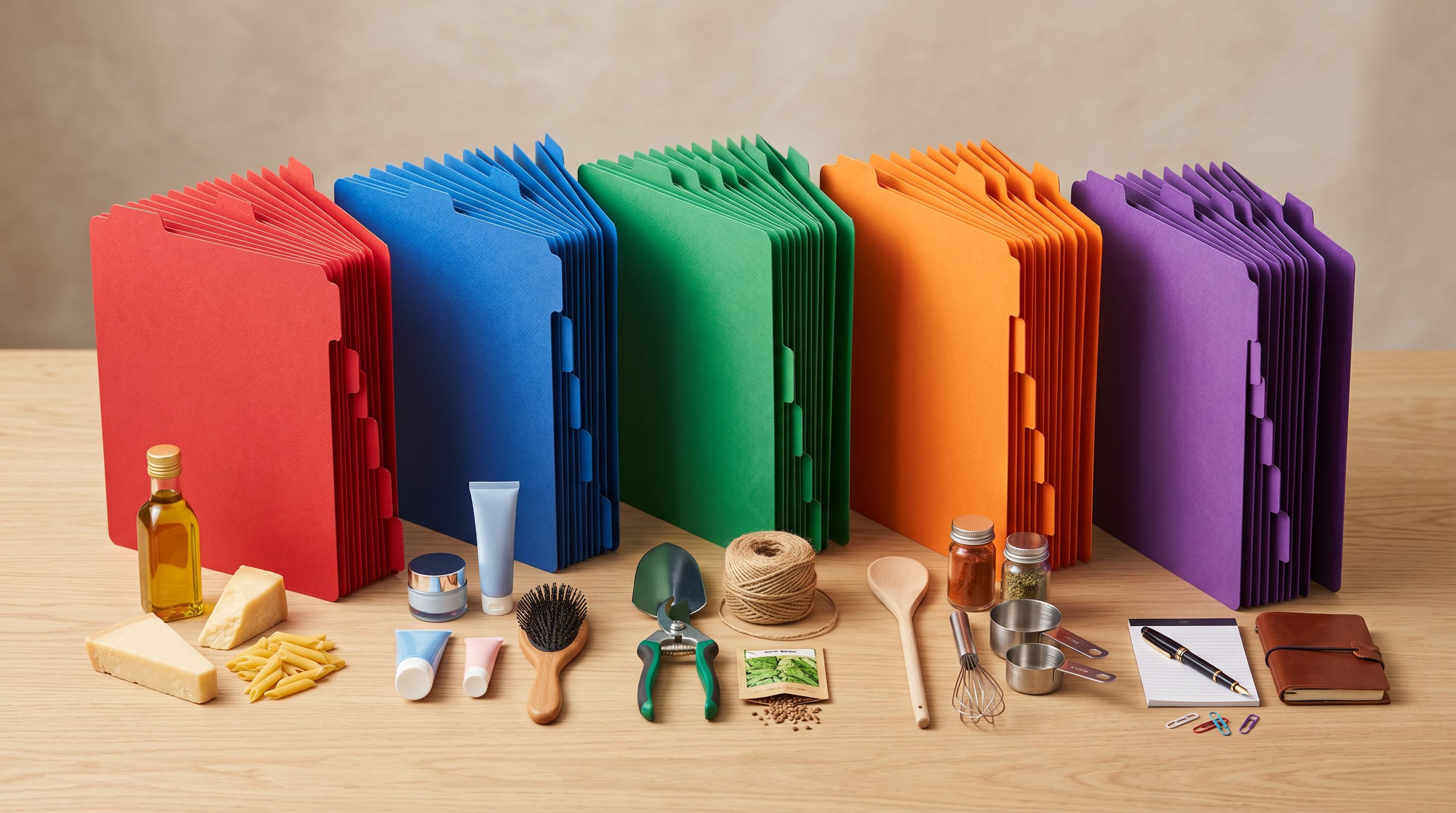
Category metafields are Shopify's structured attribute system, tied to the Standard Product Taxonomy. They feed Google Shopping's taxonomy classification, Smart Collection rules, and product filtering on your storefront. If your products were imported before you enabled Importier's category metafield packs, you can assign them retroactively without touching the import wizard.
Shopify's Standard Product Taxonomy organises products into a hierarchical category structure with standardised attributes at each level. A "women's running shoe" gets attributes like closure type, shoe width, and upper material. A "wireless headphone" gets frequency response, connectivity standard, and driver type. These attributes feed Google Shopping's product eligibility scoring and, if your theme supports it, your storefront's faceted filter sidebar.
To assign category metafields to existing products in Importier, open the category metafields panel, select one or more of the 22 industry packs, and choose the collection or product set to target. Importier runs a two-phase matching process: text matching first (fast, high-confidence for unambiguous products), then AI matching for cases where text matching alone is insufficient.
The 22 industry packs cover 3,758 category attribute types. Install only the packs that match what you sell. A clothing retailer does not need the Electronics pack. A power tools merchant does not need the Beauty and Personal Care pack.
Run category metafield assignment last in the Store Scanner workflow. It is the most time-intensive step, running a taxonomy lookup per product, and it builds on the description and enrichment data you have already fixed. A product with a good description and accurate weight is a better input for taxonomy matching than a product with supplier boilerplate and no product type field.
The Four-Pass Store Scanner Workflow
Here is the full Store Scanner workflow in the order it should run:
- 01Audit (2 minutes)Export the SEO Audit preset from Importier's Product Export panel. Open in Excel or Google Sheets and sort by description word count. Identify which collections have the worst content gaps and decide Replace vs Append per collection before you touch anything.
- 02Fix descriptions and SEO meta (largest impact first)Filter Store Scanner to the worst-affected collection. Configure AI: style, persona, model, tone. Run. Review 5–10 samples in Shopify admin to confirm quality. Scale to remaining collections. One batch generates the product description, SEO meta title, and meta description with no extra step.
- 03Run data enrichment (non-destructive)Open the data enrichment panel. Filter by the same collection or by products missing specific fields (weight, HS code, barcode). Run. Enrichment fills blank fields only and does not modify existing values; you can run it across the full catalogue confidently.
- 04Assign category metafields (run last)Select the appropriate industry packs from your 22 available options. Filter to the product set you want to classify. Run. This is the slowest step; set it going and move on to something else.
- 05Review and confirmCheck a sample of updated products in Shopify admin. Verify descriptions read correctly, meta titles are under 60 characters, enrichment fields are populated. If a description run produced incorrect output, use Import Undo to restore the affected batch to its pre-run state.
Import Undo coverage for Store Scanner:
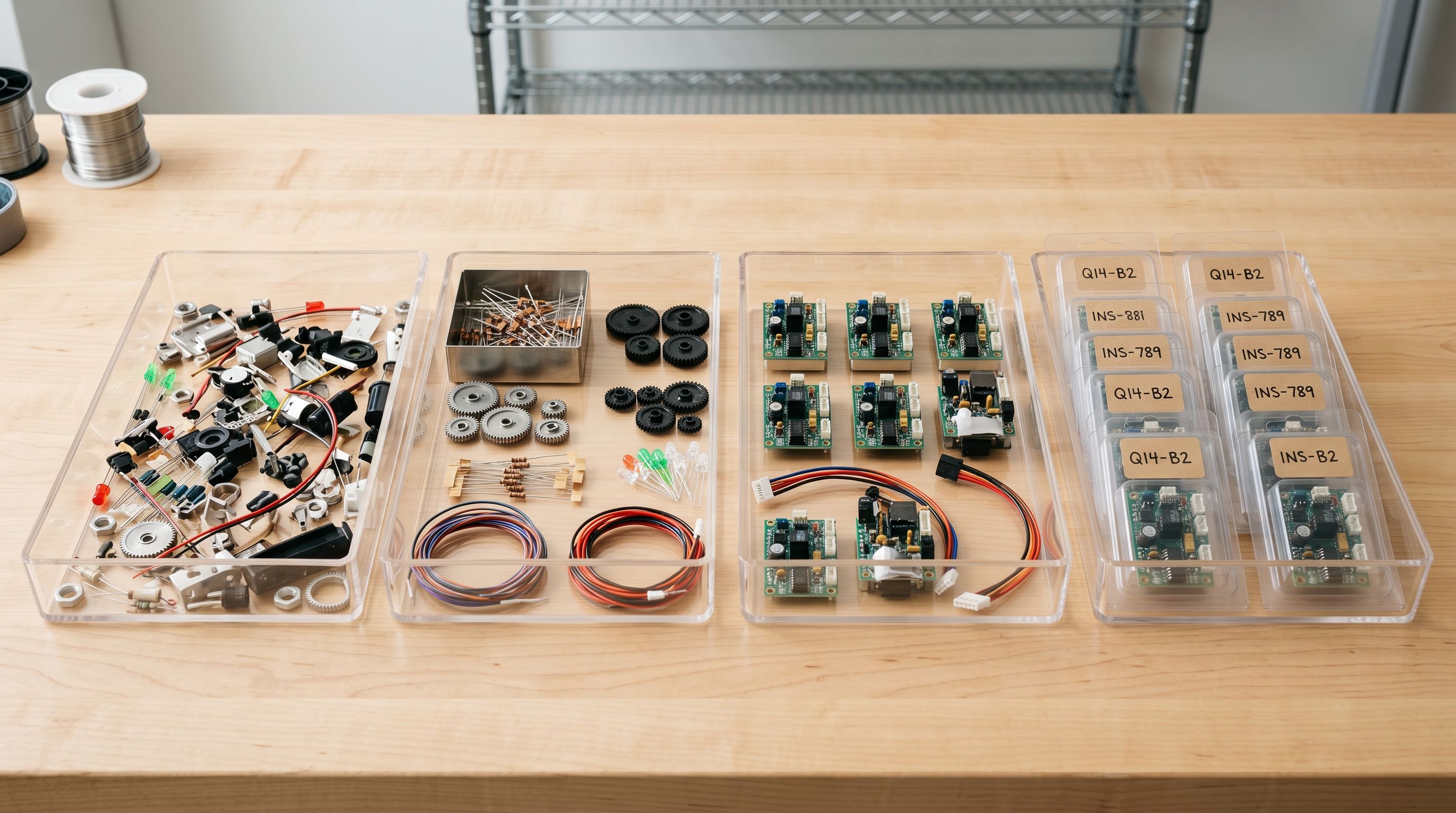
Every description run creates an Import Undo snapshot. You have 20 snapshots retained per store, each available for 60 days as a downloadable CSV. If a run produces wrong output, undo reverts all affected products to their pre-run state.
Enrichment additions are not currently covered by Import Undo. Enrichment adds to blank fields, and reversing that would mean deleting data rather than restoring a previous state. Verify a sample after the first enrichment run on any new collection before running at full scale.
How Long Does Store Scanner Take?
A 200-product description run typically completes in 3 to 8 minutes, depending on the AI model tier and description style complexity. Data enrichment on 500 products runs in 5 to 12 minutes. Category metafield assignment on 500 products takes 10 to 20 minutes.
A full four-pass on a 500-product catalogue runs in under 45 minutes when you queue the passes consecutively. The manual equivalent (writing descriptions, adding meta content, looking up HS codes, and assigning taxonomy attributes for 500 products) runs to 125 hours or more.
Store Scanner works on products in any status, including drafts. Filtering by collection gives you control over which status groups are included: if you run a filtered collection that does not include a draft-only collection, draft products in that collection are not touched.
Key Takeaways

- Store Scanner reads and fixes products already in Shopify, with no re-import, no import wizard, and no downtime for live products
- Export the SEO Audit preset before running anything; the description word count column determines whether you should use Replace or Append mode per collection
- Replace mode is not reversible via Import Undo once it runs. Always audit first.
- Data enrichment fills blank fields only and never overwrites existing values; it is safe to run at full catalogue scale without a review pass
- Run category metafields last; they depend on accurate product descriptions and data to produce the most accurate taxonomy matches
- A full four-pass fix on 500 products takes under 45 minutes; the same work done manually takes 125+ hours
Try Importier free at importier.app.
Set up your first import in under five minutes.
Importier brings products into Shopify with AI descriptions, category metafields, and data enrichment on every run.