Squarespace to Shopify Migration: Product Catalogue Guide
On this page
Squarespace to Shopify Migration: How to Move Your Product Catalogue
Squarespace makes exporting your products straightforward. What it does not tell you is that the CSV file it produces will not import to Shopify without significant manual preparation. The column structure is wrong for Shopify, variant rows arrive as separate products, and fields like weight and country of origin are missing entirely.
This guide covers the specific data incompatibilities that make a squarespace to shopify migration harder than expected, how long manual cleanup actually takes for a real catalogue, and how to run the migration through Importier's automated pipeline from export to live Shopify products.
What a Squarespace CSV Export Actually Contains
Squarespace exports products through Settings > Commerce > Products, producing a CSV formatted for Squarespace's own data model. You will typically find columns like Title, Description, URL Slug, SKU, Price, Sale Price, and Option Name/Value pairs for variants.
That sounds workable until you try to load it into Shopify. Shopify's importer expects a Handle column to group variant rows under the same parent product. Squarespace exports no Handle column. It outputs each variant row with the parent product title, but without the Handle link that Shopify needs to treat those rows as variants rather than separate products.
If your Squarespace store has 200 products averaging three variants each, Shopify imports 600 separate products rather than 200 grouped ones. Every variant group then needs to be reconstructed manually.
Why Squarespace to Shopify Migration Breaks at the Variant Step
The Handle column problem
This is the most disruptive incompatibility. Squarespace stores variant attributes in Option Name and Option Value columns on separate rows. Shopify requires those rows to share an identical Handle value, with Option Name 1/2/3 and Option Value 1/2/3 in a specific positional structure.
Fixing this manually means going through the CSV row by row, assigning matching Handle values to every variant group, then restructuring columns to match Shopify's expected order. For a catalogue with 200 products and multiple variants each, that is three to four hours of spreadsheet work before a single import attempt. The specific mechanics are covered in detail in how to import product variants in Shopify.
Column name mismatches
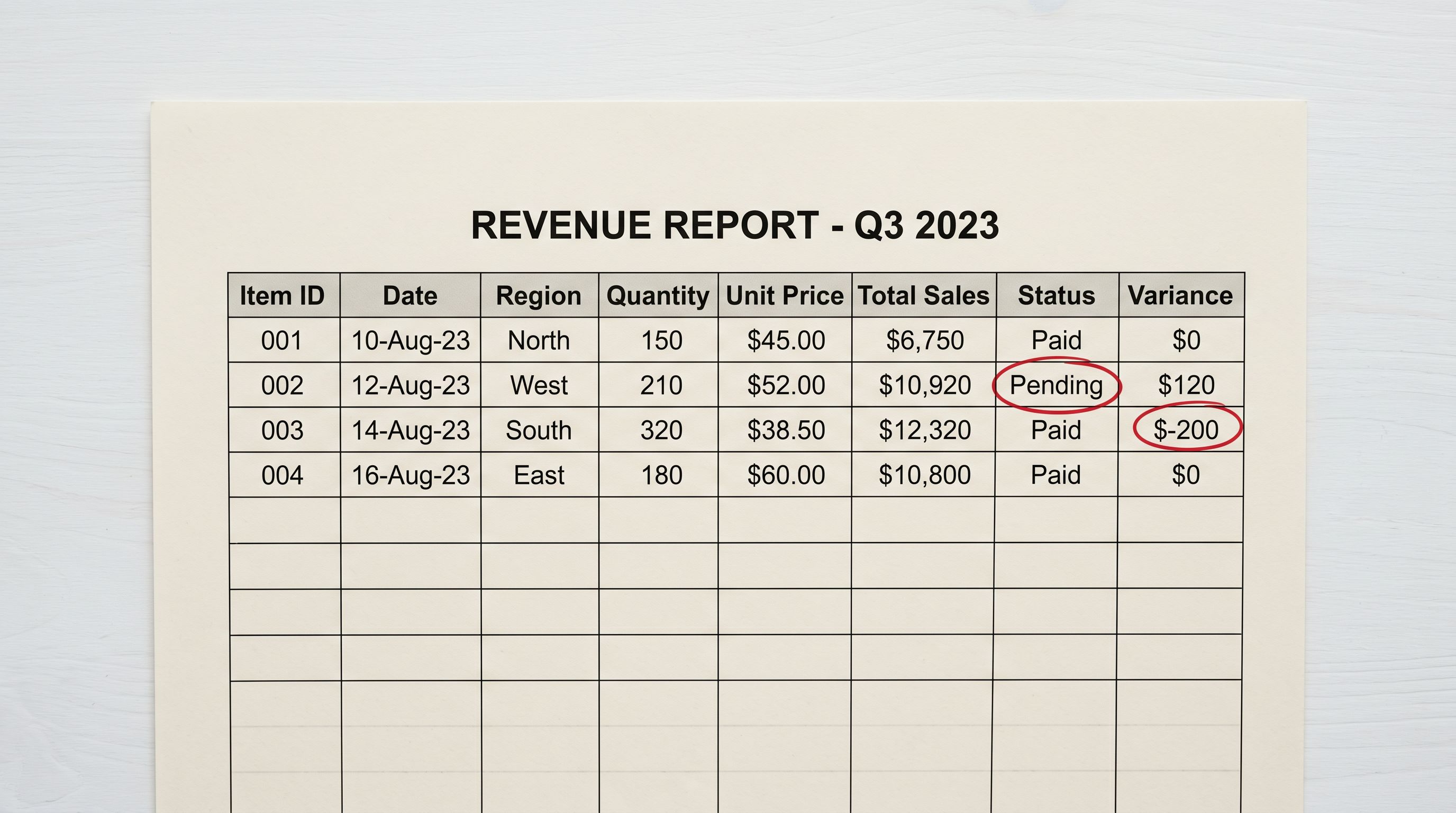
Shopify's CSV importer is strict. "Title" maps correctly. But "Sale Price" does not map to Shopify's "Variant Compare At Price". "Option Name 1" may or may not match depending on Shopify's current importer version. HTML in Squarespace descriptions often renders with stray paragraph tags in Shopify's admin and on the storefront.
Each mismatch is a manual column rename or a mapping decision. A Squarespace export typically has eight to twelve non-standard columns. Working through each one adds an hour to the cleanup before the first import attempt.
Missing product data
Squarespace product exports regularly omit fields that Shopify and downstream channels require. Weight is absent unless you specifically configured it for shipping. HS codes for international customs are almost never present. Country of origin and barcode/GTIN fields are typically blank.
Those gaps create cascading problems after migration: carrier-calculated shipping fails at checkout when weight is missing, Google Merchant Centre disapproves products with no GTIN, and customs documentation requires HS codes for international orders. Product data enrichment covers exactly what each missing field costs and how to fill them in bulk.
From Problem to Solution
How Long Manual Squarespace to Shopify Migration Actually Takes
A homewares boutique moving 280 Squarespace products to Shopify encountered every one of these issues. Their catalogue had an average of four variants per product, producing 1,120 variant rows in the export. They had 14 non-standard column mismatches and no weight data for any product.
Manual cleanup took the better part of a working week:
- Variant restructuring and Handle assignment: 18 hours
- Column renaming and mapping: 3 hours
- Weight research and entry across 280 products: 9 hours
- Re-downloading images from Squarespace CDN links that had expired partway through the process: 5 hours
- First import attempt, error review, and corrections: 4 hours
Total before the first product went live: 39 hours. And that figure does not include any work on descriptions, which were Squarespace-formatted lifestyle copy that needed rewriting for Shopify product pages.
This pattern is consistent across Squarespace migrations. Unlike migrating from WooCommerce, where the export at least has a more recognisable product structure, Squarespace's proprietary CSV requires structural transformation rather than simple column renaming. The gap between what Squarespace hands you and what Shopify expects is larger.
The variant grouping problem is invisible until after the import runs. By the time you discover 1,120 separate products instead of 280 grouped ones, you have already committed the time.
Running Your Squarespace to Shopify Migration Through Importier
Importier's 14-step guided import wizard handles the structural transformation that makes this migration painful. It reads your Squarespace CSV, maps columns to Shopify's expected fields automatically, and detects variant groupings without requiring a Handle column in your source file.
- 01Upload your Squarespace CSVDrag the export file into Importier. The wizard reads all column names and surfaces a mapping panel for review.
- 02Map your columnsImportier auto-maps standard fields (Title, Price, SKU, Description). Non-standard Squarespace columns are flagged with suggestions. Confirm or adjust each mapping.
- 03Review variant detectionSmart Variant Detection analyses Option Name and Option Value columns to reconstruct variant groups. The preview shows which rows will be grouped under each parent product.
- 04Configure data enrichmentEnable AI data enrichment to fill missing weight, HS codes, country of origin, and barcodes. Add an enrichment context note for specialist or handmade products if needed.
- 05Generate descriptionsConfigure the AI description generator with your preferred style and persona. Importier generates Shopify-ready content to replace thin Squarespace copy.
- 06Preview before importingThe import preview shows the full product list, variant groupings, and enriched data before anything touches Shopify. Review and confirm.
- 07Import to ShopifyConfirm the run. Products arrive in Shopify with correct variant structure, enriched data fields, and new descriptions.
How Smart Variant Detection handles Squarespace exports
Importier's variant detection applies over 150 regex-based patterns spanning 15+ industries. For a fashion boutique with size and colour variants expressed in Squarespace's Option Name columns, the detector groups rows by product title, assigns Shopify-compatible Handle values, and constructs the Option 1/2/3 columns Shopify needs.
For more complex cases, such as a candle store where variants combine scent and size in a single column, AI-powered analysis interprets the grouping logic and produces a preview for review before committing. The preview step is where you verify the detected groupings match your expectations, not after the import has already run.
AI data enrichment fills what Squarespace omitted
When weight is missing (which applies to most Squarespace exports), AI data enrichment fills it from product title, product type, and category context. The enrichment step also resolves HS codes for international shipping, country of origin, and GTIN barcodes where the product can be matched against registered records.

For handmade or custom products where automated lookup cannot find a match, Importier defaults to blank rather than inserting a placeholder. You can add an enrichment context note to guide the AI for your specific catalogue. An enrichment context of "hand-thrown ceramic tableware, individual pieces weigh 180g to 850g" produces more accurate weight estimates than leaving the field open.
Descriptions: from Squarespace copy to Shopify-ready content
Squarespace descriptions tend to be brand-voice-forward but light on structured product information. They work in Squarespace's design-led layout but often underperform on Shopify product pages, where buyers expect specifications, compatibility details, and clear benefit statements.
Importier's AI description generator produces Shopify-optimised content using 7 description styles and 156 expert personas across 43 industry categories. A homewares merchant can select Sensory-Rich style with a home styling persona. An outdoor retailer can select Technical Gadget with a wilderness gear specialist persona. Each run generates the product description, SEO meta title, and meta description together, removing the need for a separate post-migration metadata pass.
For a 280-product Squarespace catalogue, AI description generation takes minutes. Writing equivalent-quality content manually runs to 70-140 hours.
Category Metafields: Starting on the Right Taxonomy
Squarespace has its own category structure that does not align with Shopify's Standard Product Taxonomy. After migration, your products arrive in Shopify without category metafields, which means no structured data for Google Merchant Centre, no taxonomy-aligned attributes for on-site filtering, and likely Google Shopping disapprovals within the first feed sync.
Importier assigns Shopify category metafields during the import run through 22 industry packs covering 3,758 category attribute types. Two-phase matching (text matching first, AI for ambiguous cases) aligns each product to Shopify's Standard Product Taxonomy automatically. Your Google Merchant Centre feed receives structured data from the first post-migration sync rather than after a separate backfill pass weeks later.
This is the same taxonomy gap that appears in a BigCommerce to Shopify migration. Both platforms have proprietary category structures that do not carry across to Shopify. Handling it during the import run is significantly less work than retrofitting a live Shopify catalogue.
Migration Safety: Preview and Undo
Importier's import preview step shows the full proposed product list, variant groupings, enriched data, and status settings before committing anything to Shopify. You can review every detected variant group, verify that auto-mapped columns have resolved correctly, and check enriched data fields against your source records.
If a batch needs to be reversed after import, Import Undo reverts all products from that batch in a single action. Importier retains up to 20 import snapshots, each with a 60-day CSV download window. For a one-time migration from a live Squarespace store, that safety net is worth having before you start redirecting traffic to the new Shopify store.
Time Comparison: Manual vs Importier
- Variant restructuring and Handle assignment: 16-20 hours
- Column renaming and field mapping: 3 hours
- Weight, HS code, and barcode research: 8-10 hours
- Description rewriting for 280 products: 70-140 hours
- Category taxonomy assignment: 4-8 hours
- Error review and re-import cycles: 3-5 hours
- Column auto-mapping with review step: under 30 minutes
- Variant grouping via Smart Variant Detection: automatic
- AI data enrichment for weight, HS codes, barcodes: minutes
- AI description generation for 280 products: minutes
- Category metafields assigned during import: no extra step
- Import preview before committing: built in
Key Takeaways
- Squarespace CSV exports are structurally incompatible with Shopify. The missing Handle column turns every variant catalogue into a flat product list that has to be reconstructed before the first import.
- Column name mismatches require mapping every non-standard field to Shopify's expected structure. Plan for eight to twelve columns that will not auto-map.
- Missing data fields (weight, HS codes, barcodes) create shipping, customs, and Google Merchant Centre problems after migration. Filling them during the import run is faster than backfilling a live catalogue.
- Squarespace descriptions are optimised for Squarespace's layout, not Shopify product pages. AI description generation during the migration produces SEO-ready content and meta fields in the same run.
- An import preview step and Import Undo protect a one-time migration. Review the proposed product list before committing, and keep the rollback option available while your Squarespace store is still live.
Try Importier free at importier.app and run your Squarespace CSV through the import wizard before your migration cutover date.
Set up your first import in under five minutes.
Importier brings products into Shopify with AI descriptions, category metafields, and data enrichment on every run.