Shopify Import Integration Patterns: Flow and Metafields
On this page
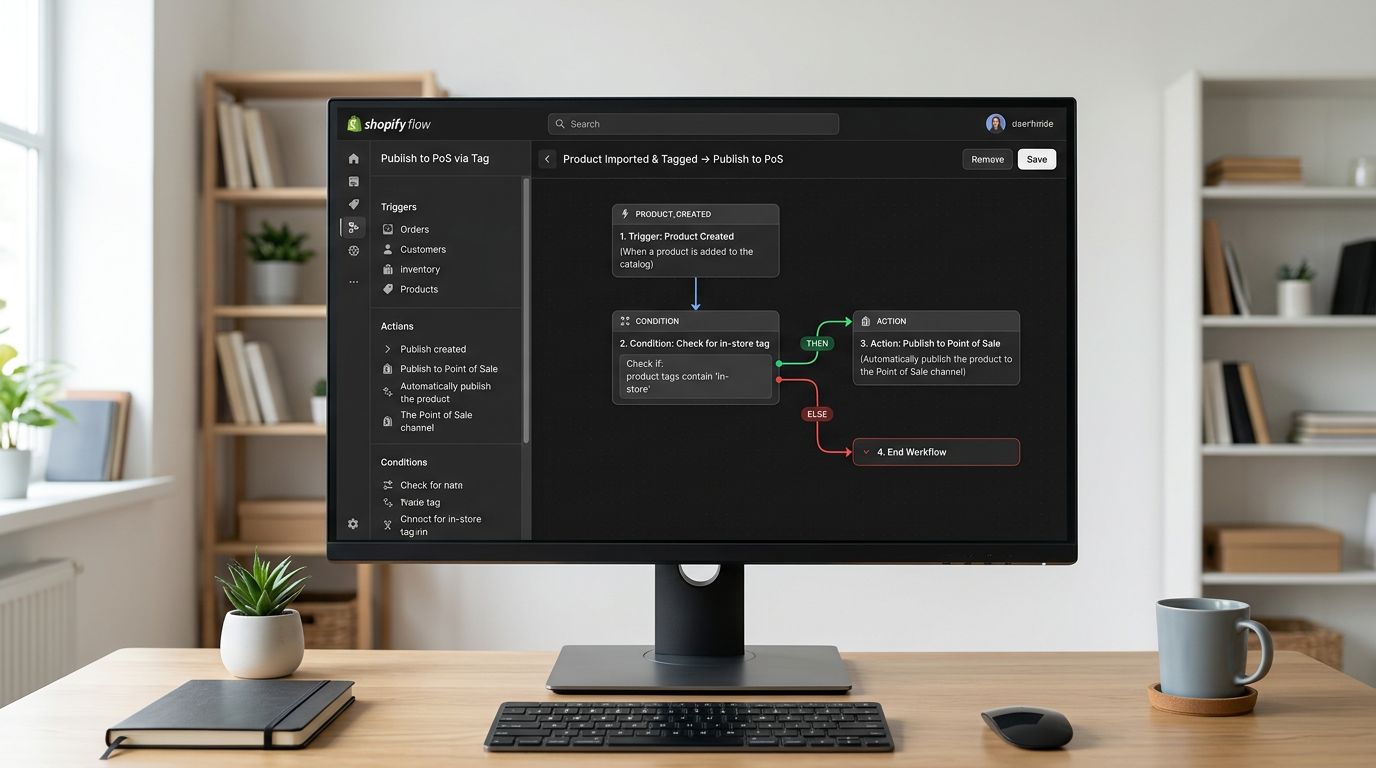
An Adelaide electronics accessories retailer had three systems that should talk to each other and did not. Every week, their supplier sent a CSV with new and updated products. That CSV triggered a manual import, which created products in Shopify. Separately, a Shopify Flow rule was supposed to publish products tagged "in-store" to their POS channel. And their review app read compatibility metafields to filter products by device. The import and the downstream systems shared no connection. Every week: import the CSV, manually add the tags in Shopify admin, manually set the compatibility metafields in Shopify admin. For 40 products per week, this was two hours of post-import admin work.
The problem was not the import tool. It was that the import had been configured as a one-way pipe: data in, products out. But a Shopify store is not a static product database. It is a system of automations, apps, and data structures that depend on product data being in the right shape at the moment a product is created.
The Integration Gap in Most Import Workflows
When a product is created through a manual import, it typically arrives with the data that was in the source file and nothing more. Tags not in the file: not set. Metafields not in the file: empty. Shopify Flow conditions not met: automation does not trigger.
The gap between "product imported" and "product ready for the store's automations" is where the hidden admin time lives. For 40 products per week, two hours of post-import cleanup is workable. For 400 products per week, it is not. And for merchants running scheduled imports against large supplier catalogues, manually fixing tags and metafields after every run is work that accumulates faster than it gets done.
Closing this gap requires treating the import as the starting point for three things: the product's tag structure (which drives Flow triggers), the product's metafield values (which drive app behaviour), and the connection to the external systems that send and receive product data.
Shopify Flow Integration via Import-Time Tags
Shopify Flow uses trigger conditions based on product data to run automated actions. The most reliable trigger condition is a product tag. A tag applied to a product at creation time fires the relevant Flow rule immediately, before the merchant takes any other action.
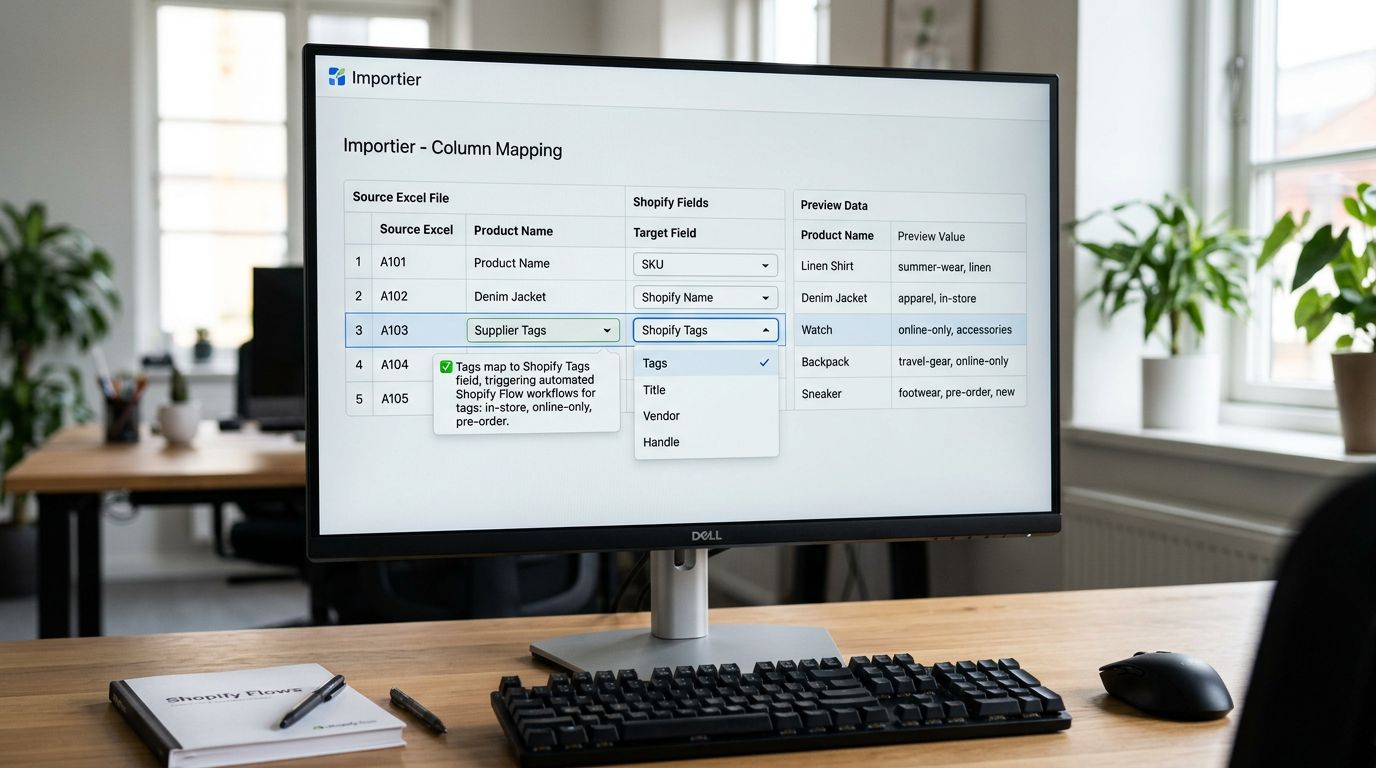
Importier allows tag values to be included directly in the import file. A tags column in the source CSV or Excel file maps to Shopify's Tags field during the column mapping step. Every product in the import run receives the tags in the file. Tags that apply to the entire batch, rather than varying per product, can be set as a fixed value in the column mapping step without modifying the source file.
For the Adelaide retailer, the resolution was a single column addition to their weekly supplier CSV template. Products destined for the in-store channel had an "in-store" tag added to the row before the file went into Importier. When the import completed, Shopify Flow detected each new product with the tag and triggered the POS channel publish rule automatically. The two-hour post-import step became zero.
This pattern applies to any Flow trigger condition that depends on a tag:
- Products tagged "pre-order" routed to a pre-order collection and a back-order notification flow
- Products tagged "clearance" triggering a discount rule and a sale banner application
- Products tagged with a supplier code triggering a vendor-specific notification or collection assignment
- Products tagged "seasonal" feeding a seasonal sale automation that fires on a date condition
The prerequisite is a settled tag vocabulary before building the import template. Tags that vary by product need a tags column in the source file. Tags that apply to every product in a batch go into the column mapping configuration in Importier and never touch the source file.
The Flow automation tags article covers this in detail, including how to set different tag values per row and how to apply fixed batch tags without modifying source files.
Metafields as the Integration Layer
Category Metafields: What Apps Read After Import
Tags drive Flow automations. Metafields drive app behaviour.
A review app that filters by device compatibility reads from a metafield. A size guide app that displays a fit chart reads from a metafield. A B2B pricing app that shows wholesale rates reads from a metafield. Any app that displays, filters, or processes product-specific attribute data is reading from Shopify metafields.
Shopify metafields are structured key-value pairs attached to product records. They store category-specific attribute data outside Shopify's core product schema. For electronics compatibility data, nutritional information, fabric composition, or any attribute that varies by product category, metafields are the correct data structure.
The difficulty for merchants is that metafields do not populate themselves. A product imported from a supplier CSV arrives with whatever was in the supplier's columns. Compatibility data that the supplier stores in a "Compatible With" column does not automatically map to a review app's metafield namespace unless the import process handles that mapping explicitly.
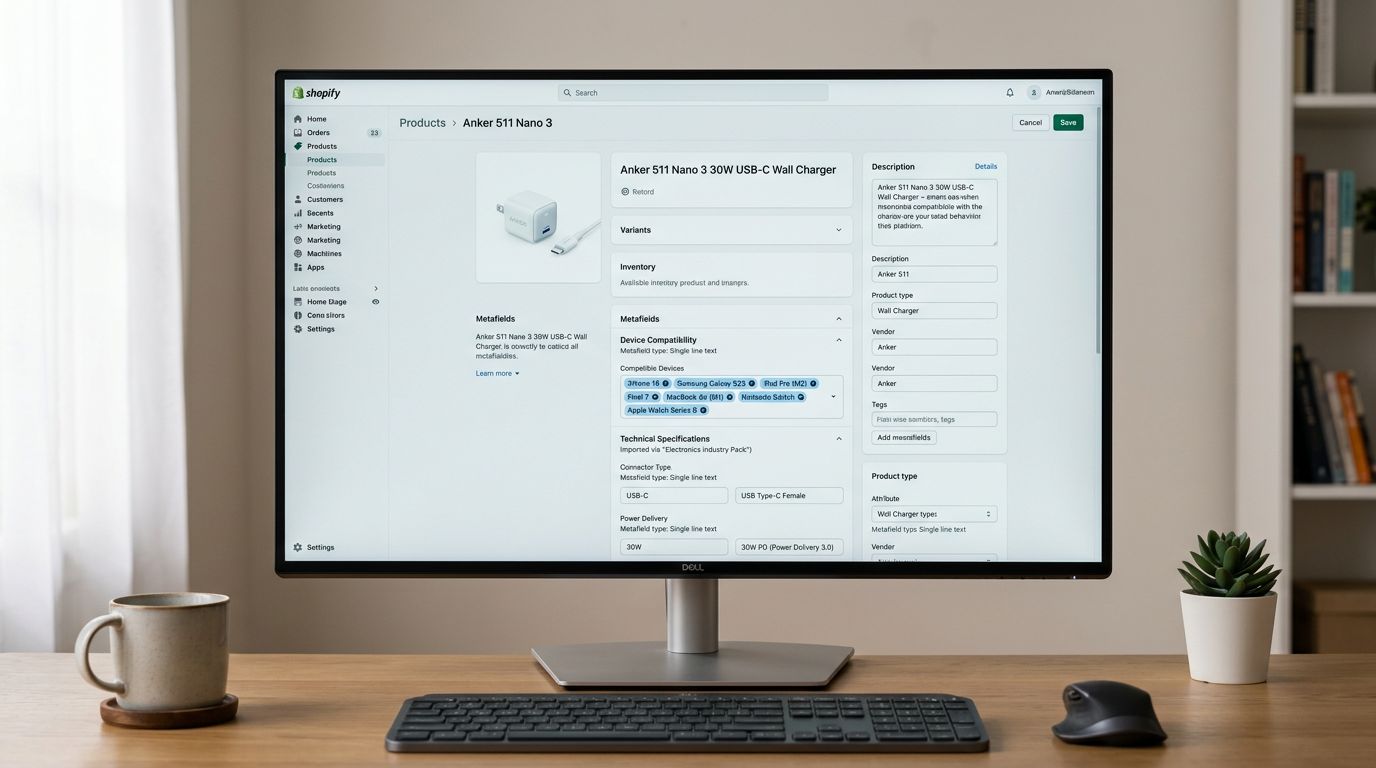
Importier's Industry Pack system handles this at import time. An Industry Pack is a pre-configured set of category metafield definitions that map to Shopify's Standard Product Taxonomy for a specific vertical. Selecting the Electronics pack at import configuration time tells Importier to map the supplier's attribute columns to the correct Shopify metafield keys for electronics products. The two-phase matching process (text matching followed by AI matching for ambiguous values) applies across every product in the batch.
For the Adelaide retailer, applying the Electronics pack resolved the post-import metafield work. Their supplier's CSV had a "Compatible With" column containing device model names. In the column mapping step, they mapped that column to the Electronics Industry Pack's compatibility attribute. Every product from that import run had the compatibility metafield populated at creation time, with values in the correct Shopify taxonomy format. The review app read it immediately.
The 22 Industry Packs cover 3,758 category attribute types across Shopify's taxonomy. Each pack applies to the products in a batch through a single configuration step and requires no per-product edits after the import.
A product imported without its metafields is a half-built product. The metafields are what apps and channels read; setting them at import time costs no additional effort. Setting them after import costs hours.
Scheduled Imports: The Connection to Supplier Systems
The integration between Importier and a supplier's data delivery does not require a direct system connection or API credentials. For most supplier relationships, the integration is a scheduled import.
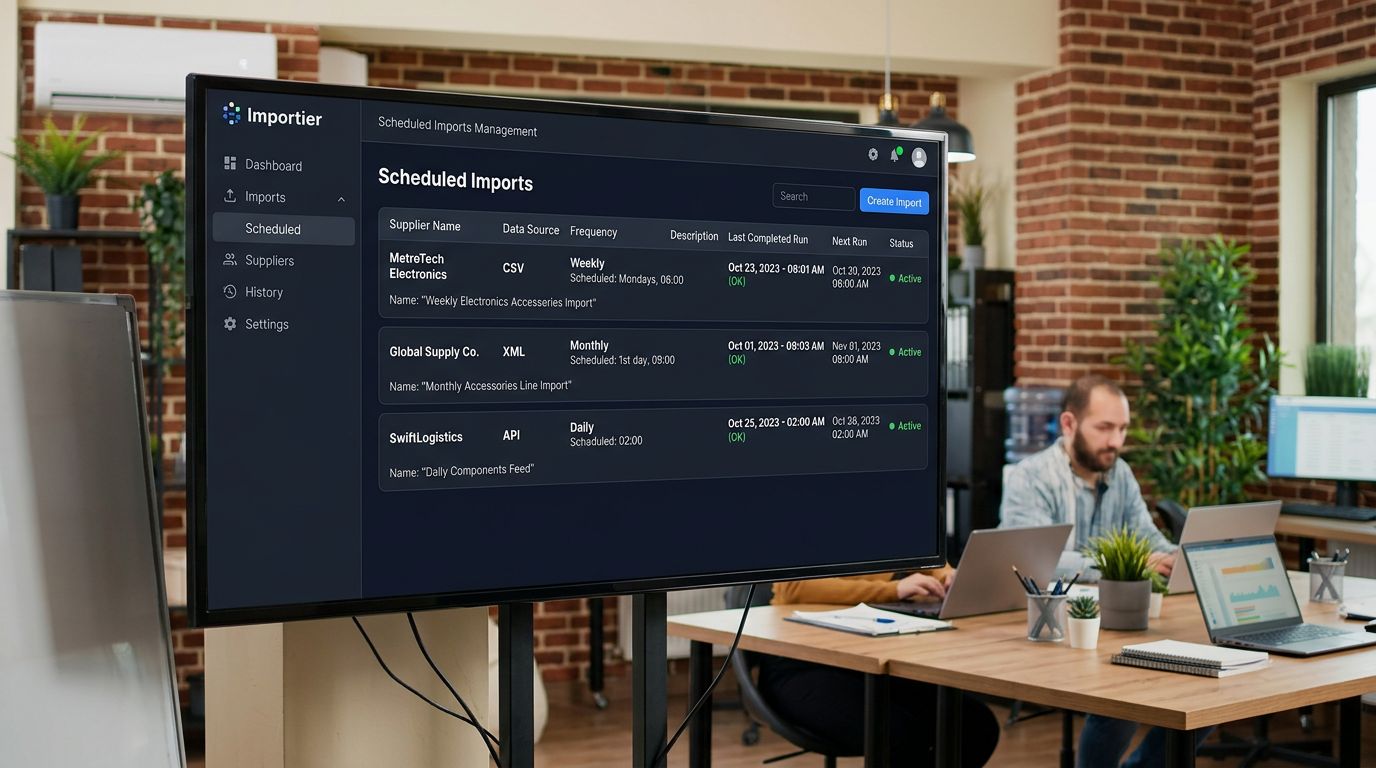
Suppliers send product data in recognisable patterns: a CSV emailed on a weekly cadence, a file dropped into a shared Dropbox folder, or a URL pointing to a product feed. The merchant's role in each case is to retrieve the file and trigger the import. Scheduled imports (available on Scale and Enterprise plans) automate the import run on a configured frequency: once, daily, weekly, or monthly.
The setup is a single configuration session: upload the supplier's file, configure the column mapping and Industry Pack settings, set the schedule and run time. Subsequent runs execute automatically against the same configuration. Tags set in the original column mapping apply on every scheduled run. Metafields from the Industry Pack populate on every scheduled run. The tag and metafield setup from the initial configuration persists across every import, which means the Flow automation triggers and app-readable data stay consistent without any per-run manual steps.
For merchants with multiple suppliers on different delivery schedules, multiple scheduled imports run independently. Each has its own column mapping, pack selection, and frequency. The electronics accessories retailer added a second schedule for their secondary supplier, a monthly accessories line, with a different column mapping and the same Electronics pack applied.
The limitation worth knowing: scheduled imports rely on the source file having a consistent column structure from run to run. If a supplier changes their export format, the column mapping needs to be re-configured. Most suppliers treat their export format as fixed once established, but verifying the column structure before relying on a scheduled run is a reasonable operational check.
Export Presets: The Outbound Data Layer
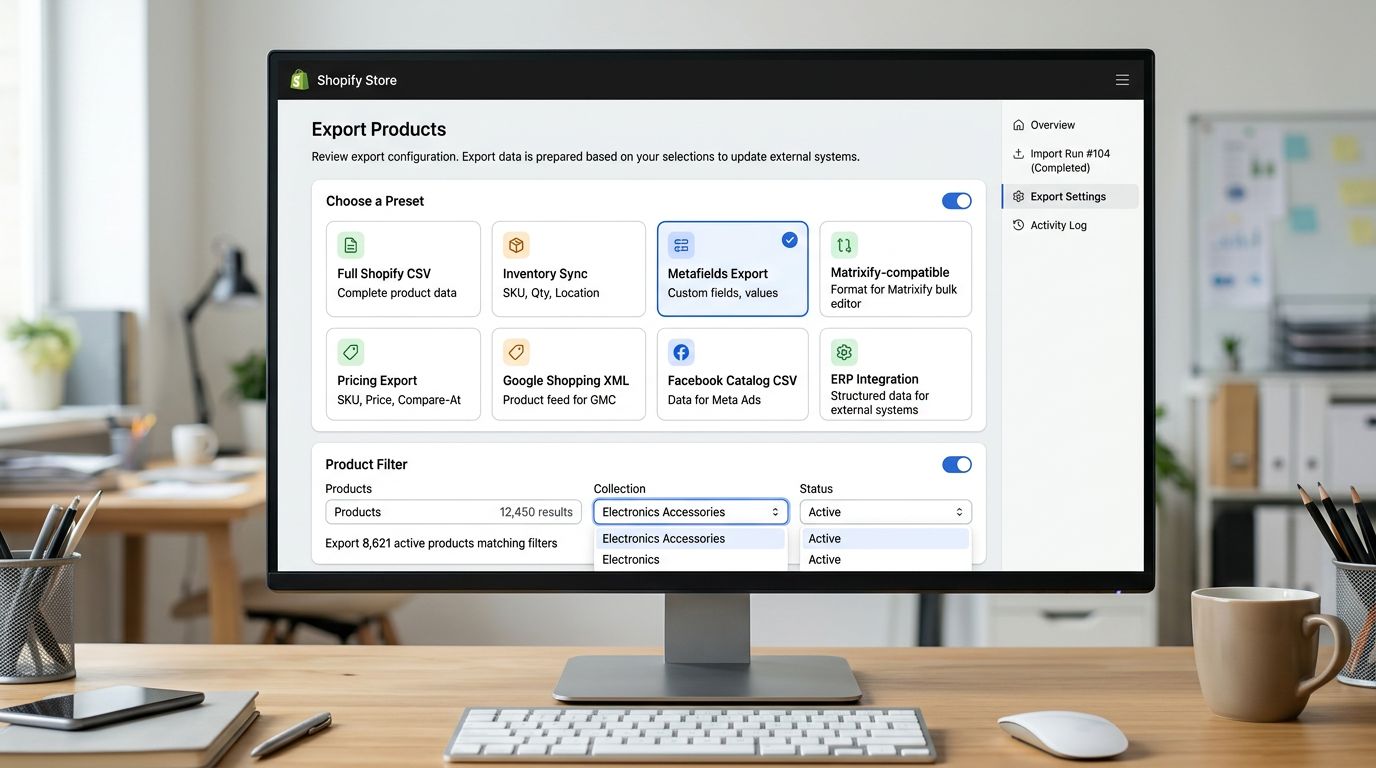
Integration runs in both directions. Importier's export presets provide the outbound layer for sending Shopify product data back to external systems after an import.
The 8 export presets cover the standard data needs: Full Shopify CSV, Descriptions Only, Inventory, SEO Audit, Pricing, Images, Metafields, and the Matrixify-compatible format (Growth plans and above). For merchants feeding product data to a warehouse management system, ERP, or product information manager, the Metafields or Pricing export provides a structured extract filtered by collection or product status.
For the Adelaide retailer, the Metafields export ran after each import to send updated compatibility data back to their inventory system. The import brought data in and populated the Shopify metafields. The export sent those metafield values to the system that needed them. Both directions of the integration (supplier to Shopify, Shopify to internal system) ran through Importier with no manual data formatting.
- 01Settle your tag vocabulary before building the import templatelist the Shopify Flow triggers you need, identify the tag conditions each depends on, and add those tags as a column in your supplier CSV or as fixed values in Importier's column mapping step
- 02Select the relevant Industry Pack for each supplier's category in the import configurationthis populates category metafields for every product in the batch at creation time with no per-product editing after the import runs
- 03Verify that Shopify Flow is triggering correctly after the first import by checking the Flow activity log for the new productsconfirm the expected rules fired and the expected actions completed
- 04For repeat supplier imports, configure a scheduled import with the same column mapping and pack settingssubsequent runs execute automatically and apply the same tag and metafield configuration without manual intervention
- 05After each import, run the relevant export preset to send updated product data to any downstream system that needs itPricing for the pricing system, Metafields for the ERP or PIM, Inventory for the warehouse
- Products created at import; tags and metafields added manually in Shopify admin in a separate pass; 2+ hours of post-import work per weekly batch
- Shopify Flow rules do not trigger at product creation; channel publishing, discount rules, and notifications are delayed until tags are manually added
- Review apps and compatibility filters show empty data until metafields are manually populated for each product
- Multiple post-import manual steps create error risk; missed tags mean missed automations; missed metafields mean broken app filters for those products
- No structured record of which tags and metafield values were applied in which import run
- Tags mapped in the import template trigger Shopify Flow rules the moment each product is created; no post-import step required
- Industry Pack metafields set at import time mean apps read correct attribute data from the moment the product is live in the store
- Scheduled imports connect to the supplier's data delivery cadence; once configured, each weekly run applies the same tag and metafield setup without a manual trigger
- Export presets send updated product data outbound to ERPs, pricing systems, and warehouse tools without manual data formatting
- Column mapping configuration is reusable across every scheduled run from that supplier, maintaining consistent tag vocabulary and metafield values
The multi-team import workflow covers how to coordinate import configuration across team members so that tag vocabulary and Industry Pack selection stay consistent when multiple people run imports for different supplier sources.
The integration patterns here require no custom development and no API credentials. Tags, metafields, scheduled imports, and export presets are all configured within Importier's standard import wizard. The setup time for a fully integrated workflow (configured tags, Industry Pack applied, schedule running) is one import session per supplier source. The post-import admin time after that is zero.
Try Importier free at importier.app.
Set up your first import in under five minutes.
Importier brings products into Shopify with AI descriptions, category metafields, and data enrichment on every run.