Shopify Import Column Mapping: Match Supplier CSV Columns to Shopify Fields
On this page
Shopify Import Column Mapping: Match Supplier CSV Columns to Shopify Fields
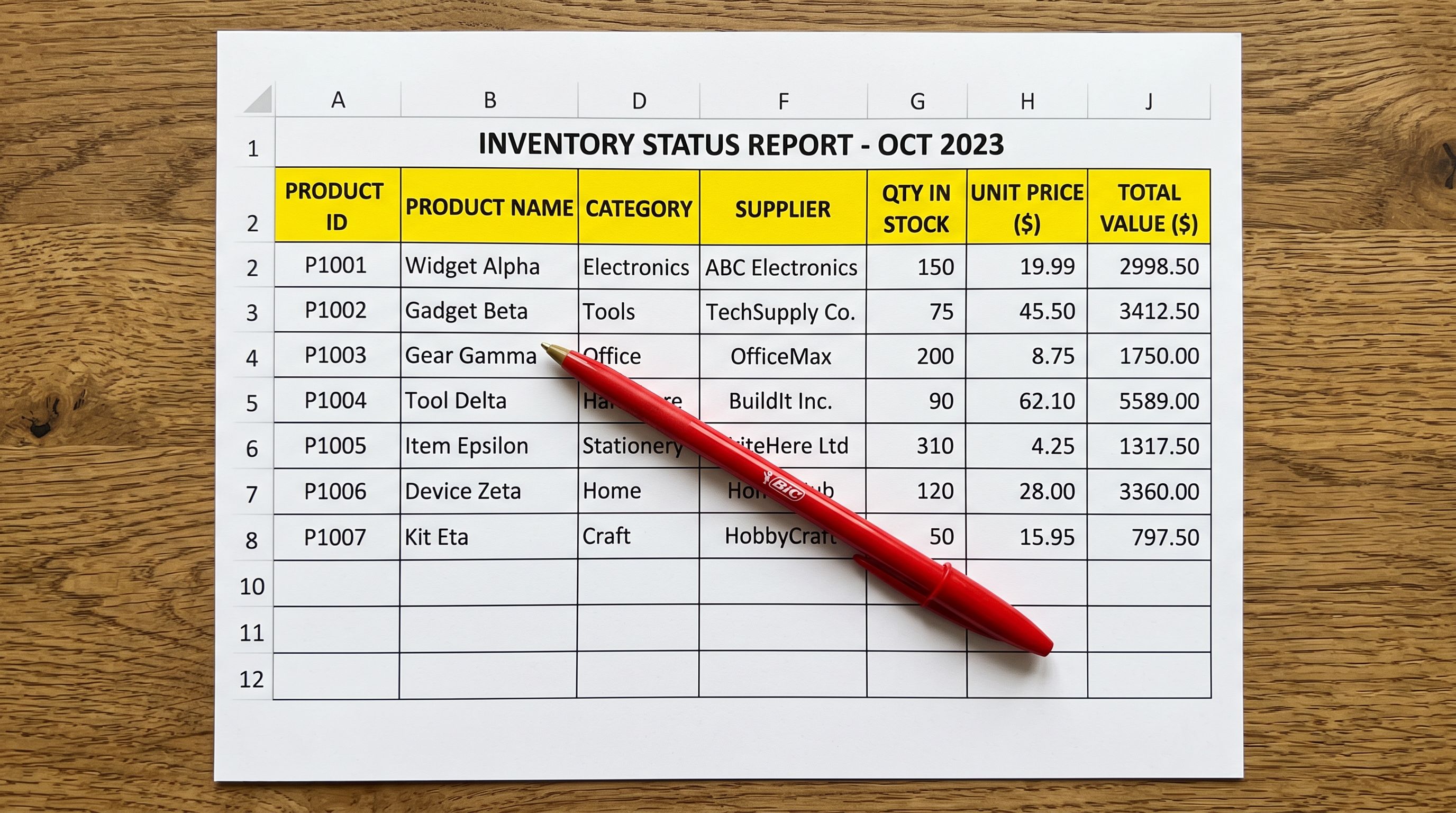
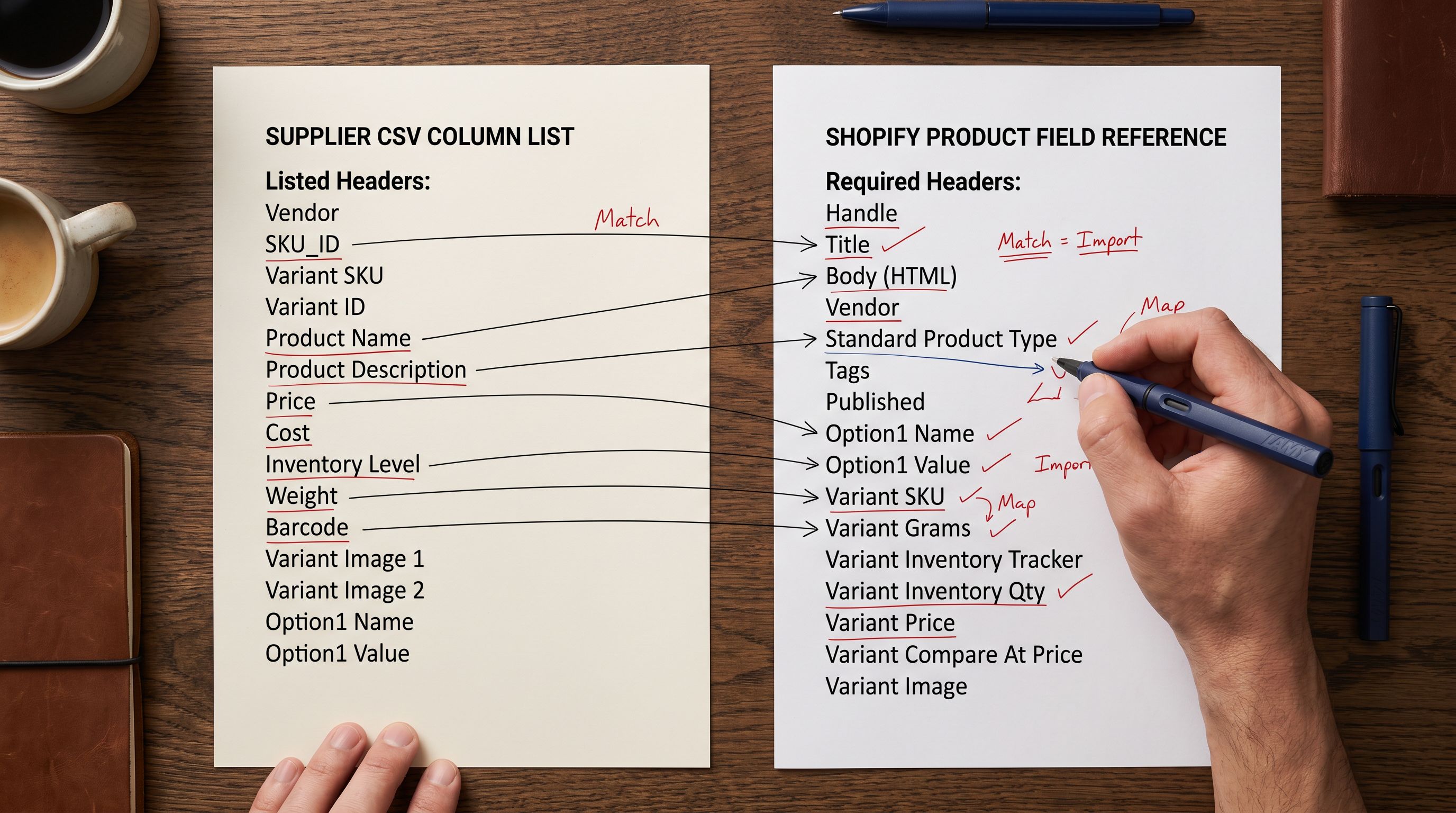
Open ten product CSV files from ten different suppliers and you will find ten different naming conventions. One supplier uses "Product Name", another uses "Item Title", a third uses "Description (EN)". One uses "Retail Price", another uses "MSRP", a third has "Sale Price" and "Original Price" side by side. Shopify's native CSV importer expects exact column names: "Title", "Body (HTML)", "Variant Price". When those names do not appear in the source file, the import fails or maps to the wrong fields.
Column mapping is the step that bridges a supplier's naming convention to Shopify's expected structure. Done correctly, every row in the supplier CSV lands in the right field on the Shopify product record. Done incorrectly, or skipped entirely, products arrive with descriptions in the price field, prices in the title, and images that never attached.
The Column Mismatch Problem
Shopify expects a specific set of column names when importing products via CSV. The full list is documented in Shopify's product CSV reference, and includes fields like "Title", "Body (HTML)", "Vendor", "Type", "Tags", "Variant SKU", "Variant Price", "Variant Compare At Price", "Image Src", and "Image Alt Text", among others.
Supplier files almost never use these exact names. A few patterns appear repeatedly:
Title columns: "Product Name", "Item Name", "Product Title", "Name", "Item", "Description Short", "Product Label"
Price columns: "Price", "Retail Price", "MSRP", "RRP", "Sale Price", "Unit Price", "Cost", "Selling Price", "Price (USD)"
Description columns: "Description", "Long Description", "Body", "Product Description", "Description (EN)", "Full Description", "Item Description"
Image columns: "Image URL", "Main Image", "Image 1", "Photo Link", "Product Image", "Primary Image URL"
SKU columns: "SKU", "Item Code", "Product Code", "Part Number", "Item #", "Article Number"
None of these are what Shopify expects, and a supplier who changes their export format between seasons may introduce new column names even for the same data.
How AI Auto-Mapping Works
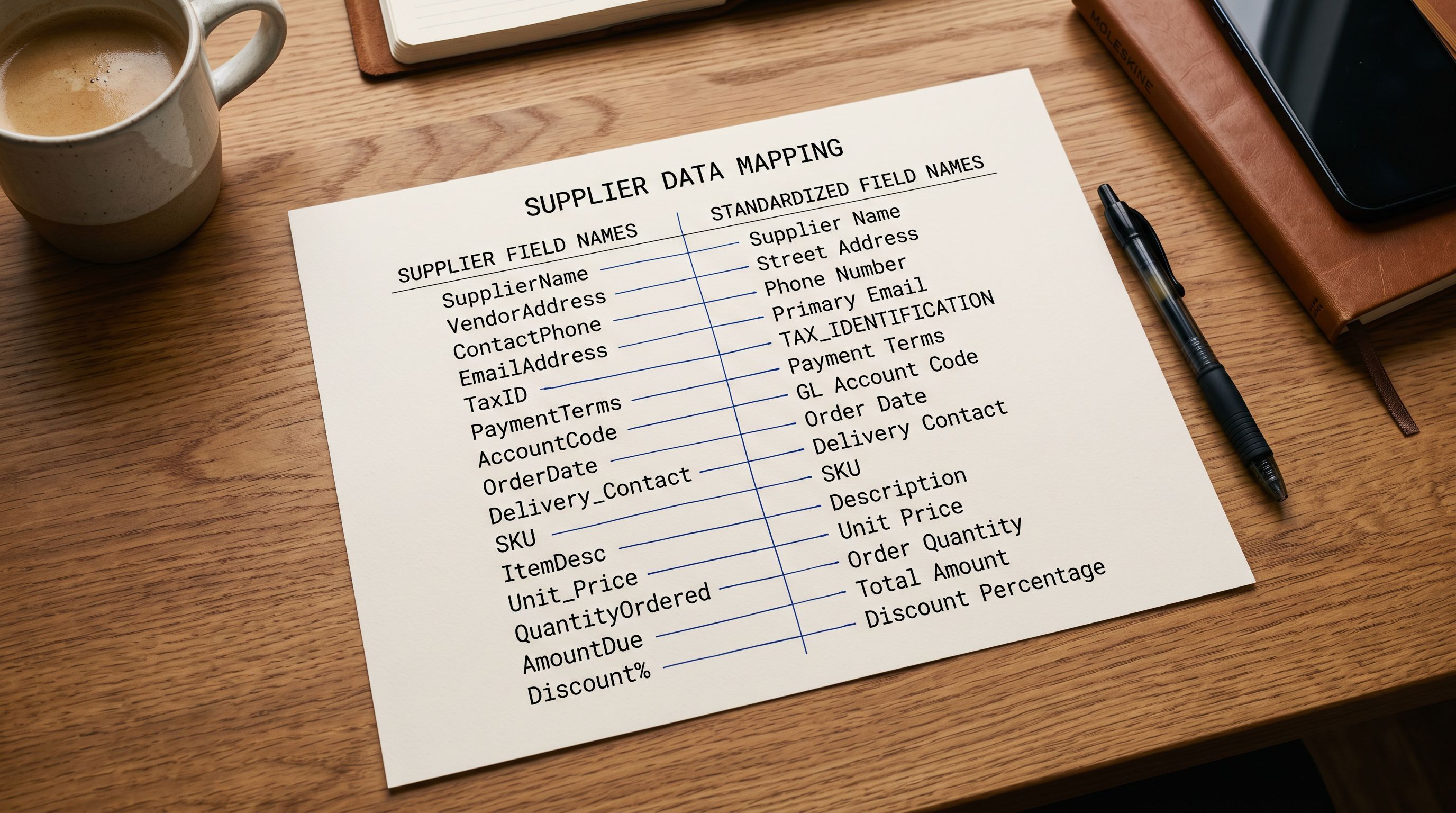
Importier reads the column headers in the uploaded CSV and uses pattern matching to suggest the most likely Shopify field for each column. The auto-mapping runs before you see the mapping interface, so when you arrive at the column mapping step, a proposed mapping is already in place for most columns.
The detection logic handles the common naming variations:
Title detection recognises "Product Name", "Item Title", "Name", "Product Label", and close variants as the Shopify "Title" field. For columns with ambiguous names, it reads a sample of the column values to confirm: a column called "Description (Short)" containing 3-8 word phrases is more likely a title than a description.
Price detection identifies the primary selling price even when the file contains multiple price columns. A file with "MSRP", "Sale Price", and "Cost" columns receives a proposed mapping that puts "Sale Price" in the "Variant Price" field and "MSRP" in "Variant Compare At Price". The logic uses both column name patterns and value ranges to distinguish the selling price from the cost price.
Variant column detection identifies option columns from names like "Size", "Colour", "Color", "Material", "Style", "Finish", and maps them to Shopify's "Option1 Name" and "Option1 Value" fields. When the file contains multiple option types (Size and Colour), the detection maps each to the correct numbered option field (Option1, Option2).
Image column detection recognises URL-shaped values and column names containing "image", "photo", "picture", or "url". Files with multiple image columns map them in order to "Image Src" (primary) and sequential image position columns.
- Must rename every column header before import
- Supplier file must match Shopify format exactly
- One format change breaks the next import
- Each supplier needs its own reformatted template
- Upload supplier file as-is
- AI auto-suggests Shopify field for each column
- Saved profiles remember the mapping per supplier
- Override individual fields in the mapping UI without editing the file
Reviewing and Overriding the Mapping
Auto-mapping handles the common cases, but suppliers with unusual naming conventions or non-standard file structures occasionally need a manual override. The mapping interface shows each source column alongside the proposed Shopify destination field, with a dropdown to change the mapping.
Common situations that need a manual override:
Multiple description columns: some suppliers export a short description and a long description. Auto-mapping picks one for "Body (HTML)", typically the longer one. If your store uses the short description as the product title and the long description as the body, override the mapping to reflect that.
Price columns in the wrong currency: a supplier who exports in their local currency with a column called "Price (EUR)" may have the price detection map it to the Shopify price field. If you are importing into a GBP store and need to apply a conversion multiplier, remap "Price (EUR)" to a staging column and use a separate data transformation before the import, or use Importier's price multiplier field in the mapping step.
Variant rows vs product rows: some supplier exports use a flat format where each variant is a separate row with no product-level grouping. The variant detection identifies this structure and maps accordingly, but a file where the variant identifier column is named unusually may need a manual match to the Handle field so the rows group correctly.
Custom fields and metafields: if the supplier exports fields that map to Shopify metafields rather than standard product fields (for example, a "Material Composition" column for a textile product), the custom field option in the mapping interface lets you direct that data to the correct metafield namespace.
- 01Upload the supplier CSV in Importier's import wizard. The file analysis runs immediately and produces a proposed mapping for each detected column.
- 02Review the proposed mapping in the column mapping interface. Each source column shows a proposed Shopify destination field. Columns where the detection is confident show a solid match; columns where detection was uncertain are flagged for review.
- 03Override any mappings that need correction using the dropdown. You can also mark columns as 'Skip' for supplier data you do not need in Shopify (internal supplier codes, warehouse locations, etc.).
- 04Run the import preview. The preview shows a sample of five products with all fields populated according to the current mapping. This is the fastest way to confirm that descriptions are in the description field, prices are correct, and variants are grouped correctly.
- 05Save the mapping as a named profile (for example, 'Acme Wholesale - March 2026'). The next import from this supplier loads the saved profile and skips the review step unless the column structure has changed.

A saved mapping profile is the difference between a five-minute re-import and a thirty-minute remapping session every time a supplier sends an updated catalogue.
Saved Profiles
Saving Column Mapping Profiles
Once a mapping is confirmed, Importier saves it as a named profile attached to the supplier or file type. The next time a CSV from the same supplier is imported, the saved profile loads automatically when the file headers match the previous import.
Saved profiles store the complete mapping configuration: source column to destination field, any custom field assignments, price multipliers, and the skip list for columns you do not need. They also store metadata about the supplier, which makes the profile list scannable when a store works with a dozen suppliers.
For merchants who import from multiple suppliers on a regular cycle, saved profiles turn column mapping from a repeated configuration task into a one-time setup. The first import from a new supplier takes the longest, as it establishes the mapping. Every subsequent import from that supplier loads the saved profile, reviews a five-row preview to confirm nothing has changed, and proceeds to the import in a fraction of the time.
When a supplier updates their export format (a common occurrence after a supplier changes their ERP or catalogue management system), Importier detects that the column headers differ from the saved profile and prompts for a review of the changed columns only, rather than requiring a full remap. Columns that match the saved profile are pre-confirmed; only the new or renamed columns need attention.
For merchants importing from multiple suppliers in the same session, the multi-supplier import guide covers how to manage separate mapping profiles per supplier and how to combine files from different suppliers into a single Shopify import session.
Edge Cases in Column Mapping
A few structural patterns in supplier files require specific handling in the mapping step.
Multi-language columns: some suppliers export descriptions and titles in multiple languages as separate columns ("Title (EN)", "Title (DE)", "Title (FR)"). Map the primary language column to the Shopify "Title" field and mark the others as skip or custom field targets. Do not map multiple title columns to the same Shopify field as the last-mapped column overwrites earlier ones.
Weight and dimensions in separate unit columns: a supplier who exports weight as "Weight (g)" and dimensions as "Length (cm)", "Width (cm)", "Height (cm)" requires mapping each to the correct Shopify field. Weight maps to "Variant Grams" (note: Shopify stores weight in grams regardless of the unit column name, so a value in pounds needs conversion). Dimension fields can map to metafields for use in shipping rules.
Status and publish flags: suppliers sometimes include a "Status" or "Active" column indicating whether the product should be published. Mapping this column to Shopify's "Published" field controls which products become visible in the storefront immediately and which go in as drafts.
The Mapping Preview
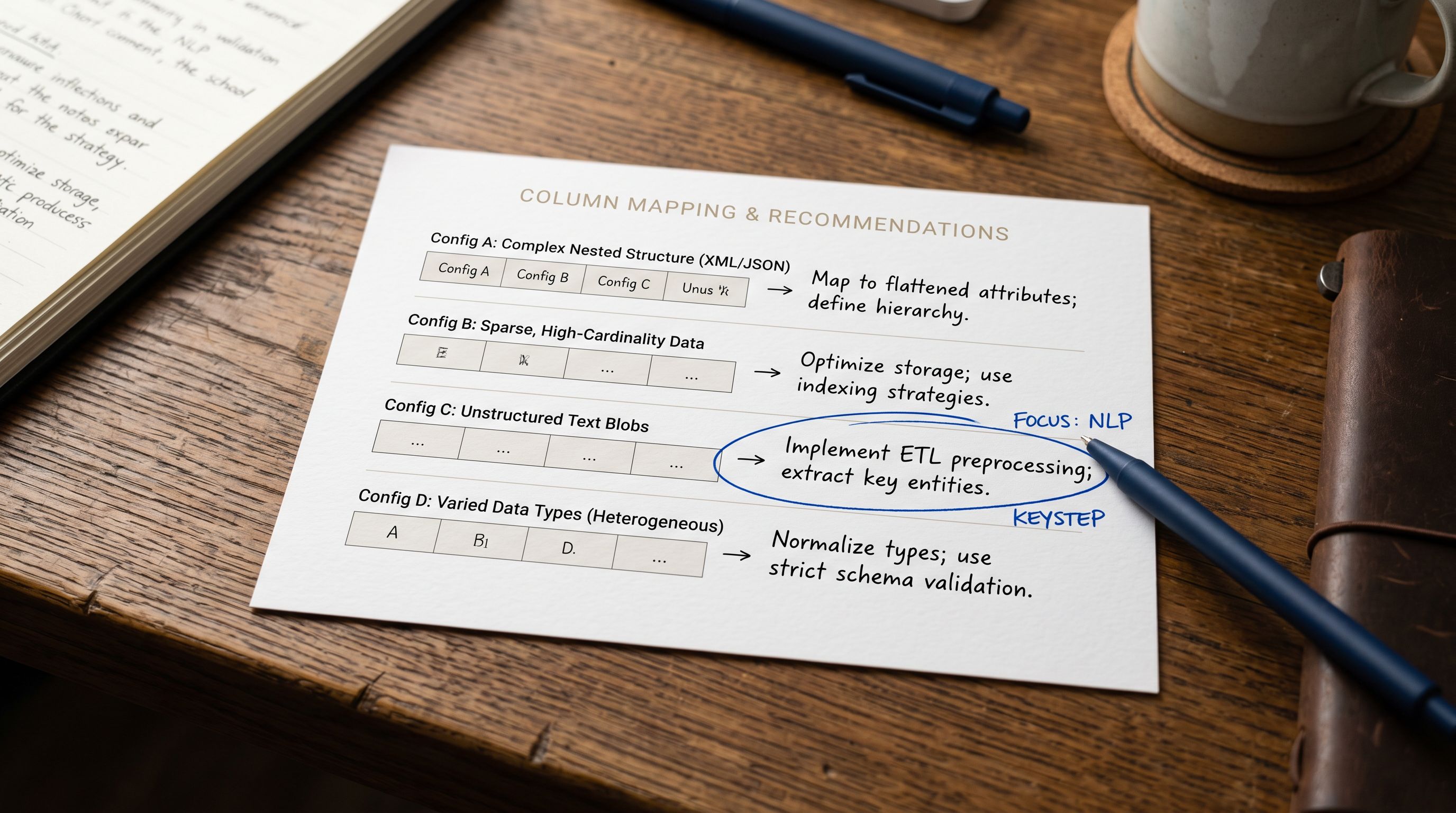
The import preview is the last check before data reaches Shopify. After column mapping is confirmed, Importier renders a five-row sample of the import with all fields populated as they will appear in Shopify.
The preview shows each product row with the mapped field values: title, description, price, vendor, product type, tags, variant options, and image references. Checking the preview takes less than a minute and confirms:
- The title field contains product names, not description text
- The price field contains numeric values, not text strings
- The description field contains the full body text, not a truncated version
- Variants have option values in the correct option columns
- Image fields contain URL strings, not file paths
A mapping error that appears in the preview can be corrected immediately by returning to the mapping step. The same error discovered after 500 products have been created in Shopify requires a bulk export, correction, and reimport.
For a complete walkthrough of the full CSV import process from file upload to product live in Shopify, the Shopify CSV import guide covers every step including the mapping preview in detail.
For merchants setting up Shopify for the first time, the beginner import mistakes guide covers the common errors that happen when column mapping is skipped or rushed.

Try Importier free at importier.app
Set up your first import in under five minutes.
Importier brings products into Shopify with AI descriptions, category metafields, and data enrichment on every run.