How to Brief Shopify Suppliers on Product Data Formatting

On this page
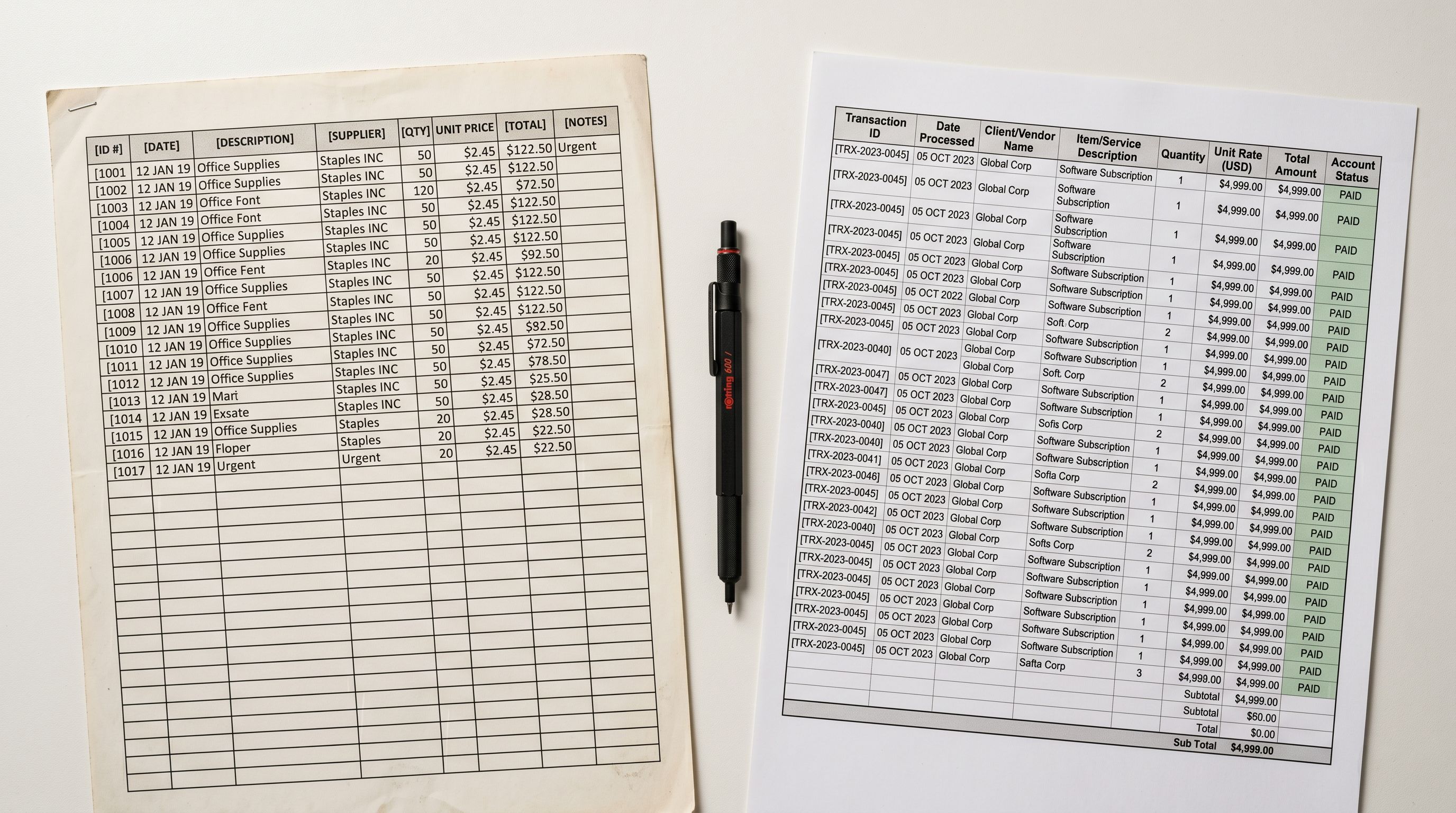
A home goods merchant onboards a new supplier based in Taiwan. The supplier sends a product catalogue: a 400-row Excel file with column headers in Chinese, prices in TWD without a currency indicator, images listed as local file paths ("C:\Photos\product001.jpg"), and no barcode column. The merchant spends three days reformatting the file before anything can import.
The problem is not the supplier's file. The supplier formatted the data correctly for their own systems. The problem is that nobody told the supplier what Shopify needs.
A supplier data brief is a one-page document the merchant sends before the supplier prepares the product file. It specifies the column names, image delivery method, GTIN requirements, and variant structure that make a file importable without manual reformatting. Sending one brief before the first delivery prevents the three-day fix every time.
What a Shopify Supplier Data Format Brief Covers
A useful supplier brief addresses five areas where supplier files most commonly fail to match Shopify's requirements: column names, GTINs, images, variants, and price formatting.
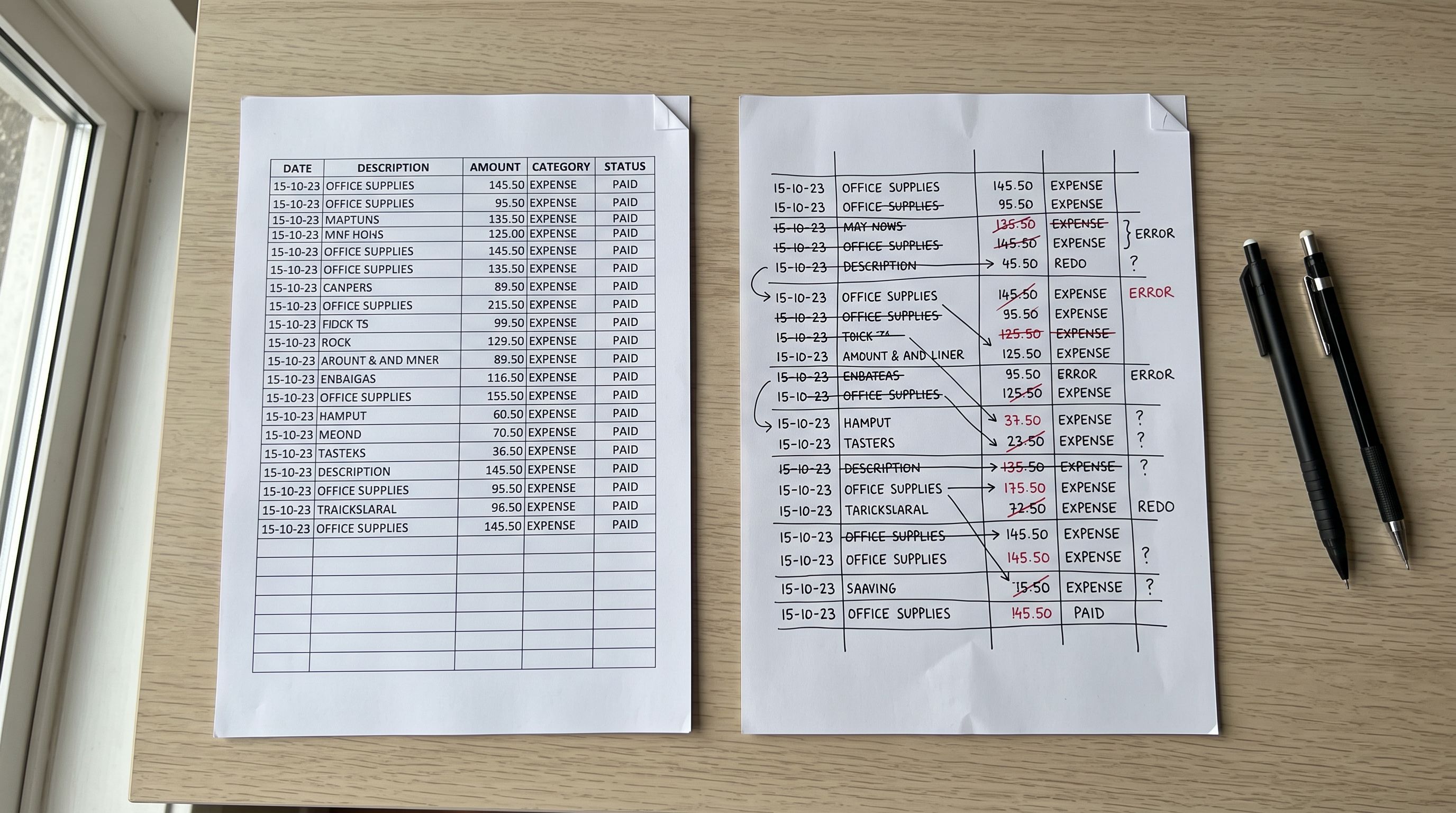
Most suppliers have experience exporting product data to multiple retailers and marketplaces. They have formatted files for Amazon, for eBay, for marketplaces in their home country. Each of those platforms has a different column structure. The supplier knows how to format a file; they just need to know which format you need.
- Column headers in supplier's own naming (Product Name, RRP, Item Code)
- Images as local file paths or compressed archives
- No GTIN column or GTINs listed in a notes field
- Variants as separate rows with no grouping indicator
- Prices in supplier's home currency without label
- Column headers matching Shopify's expected field names or Importier's mapper labels
- Images as publicly accessible URLs (one per row, multiple URLs pipe-separated for galleries)
- GTIN column present for every product that has a registered barcode
- Variants structured with a shared parent product identifier
- Price in the merchant's target currency, clearly labelled
Eight Shopify Supplier Data Format Fields to Specify
A complete supplier brief addresses eight fields. These are the fields where supplier defaults most frequently diverge from what Shopify and its import tools expect.
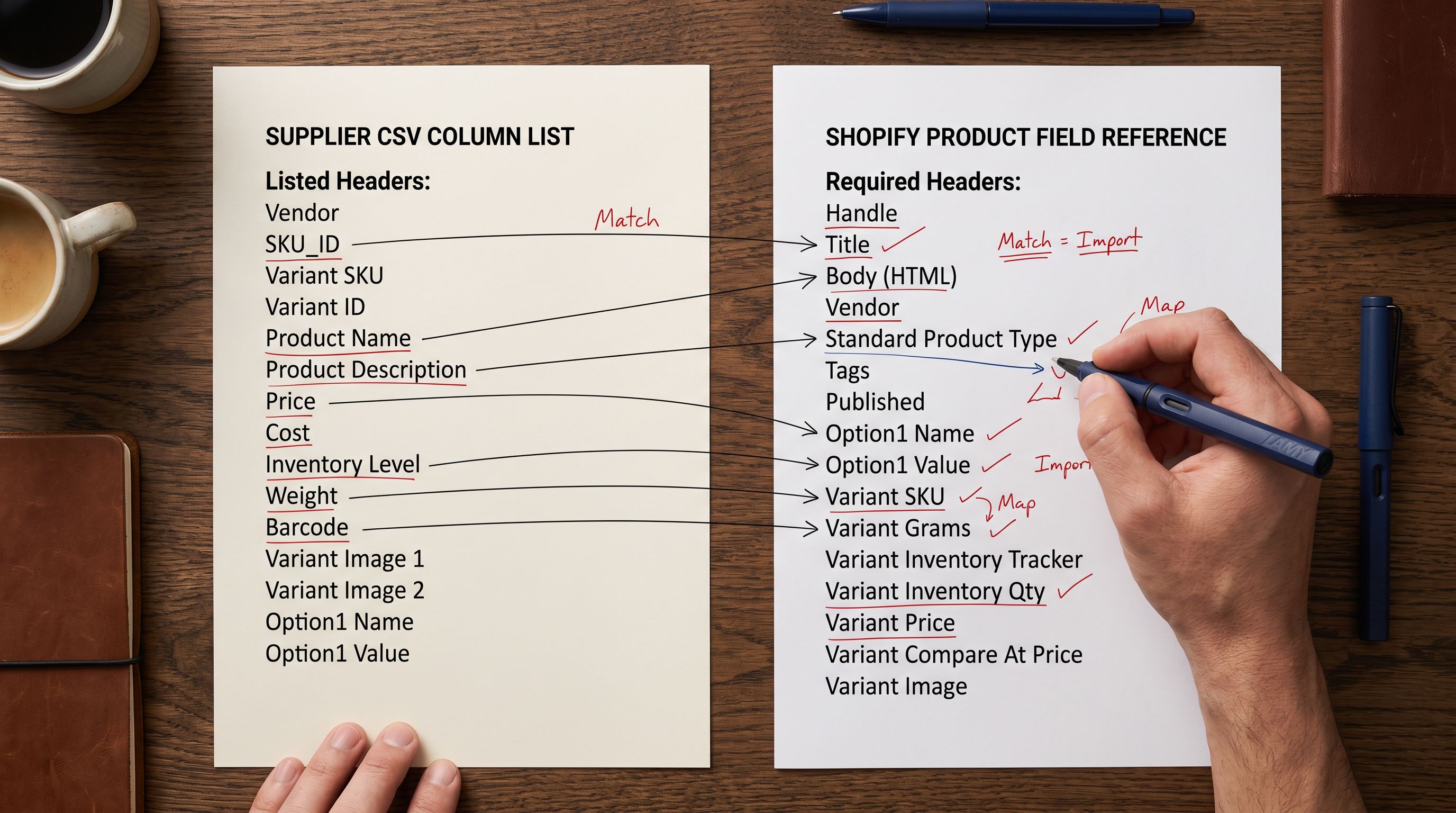
1. Column names. Suppliers name columns according to their own system. "RRP" is not "Variant Price." "Item Code" is not "Variant SKU." "Description" may contain HTML, plain text, or bullet points formatted for a different platform. Specify the column names you need (or the names your import tool maps from) so the supplier can label their export accordingly. Importier's column mapper handles many common variations, but a brief that standardises column names reduces mapping work on every import.
2. Product title. Specify the format: brand name, then product name, then key attribute. "Ceramic Pour-Over Coffee Dripper 350ml" rather than "Coffee Dripper/Ceramic/Medium (Item #KD-350)". The supplier's internal naming convention often includes codes, categories, or abbreviations that serve their warehouse but not your product page.
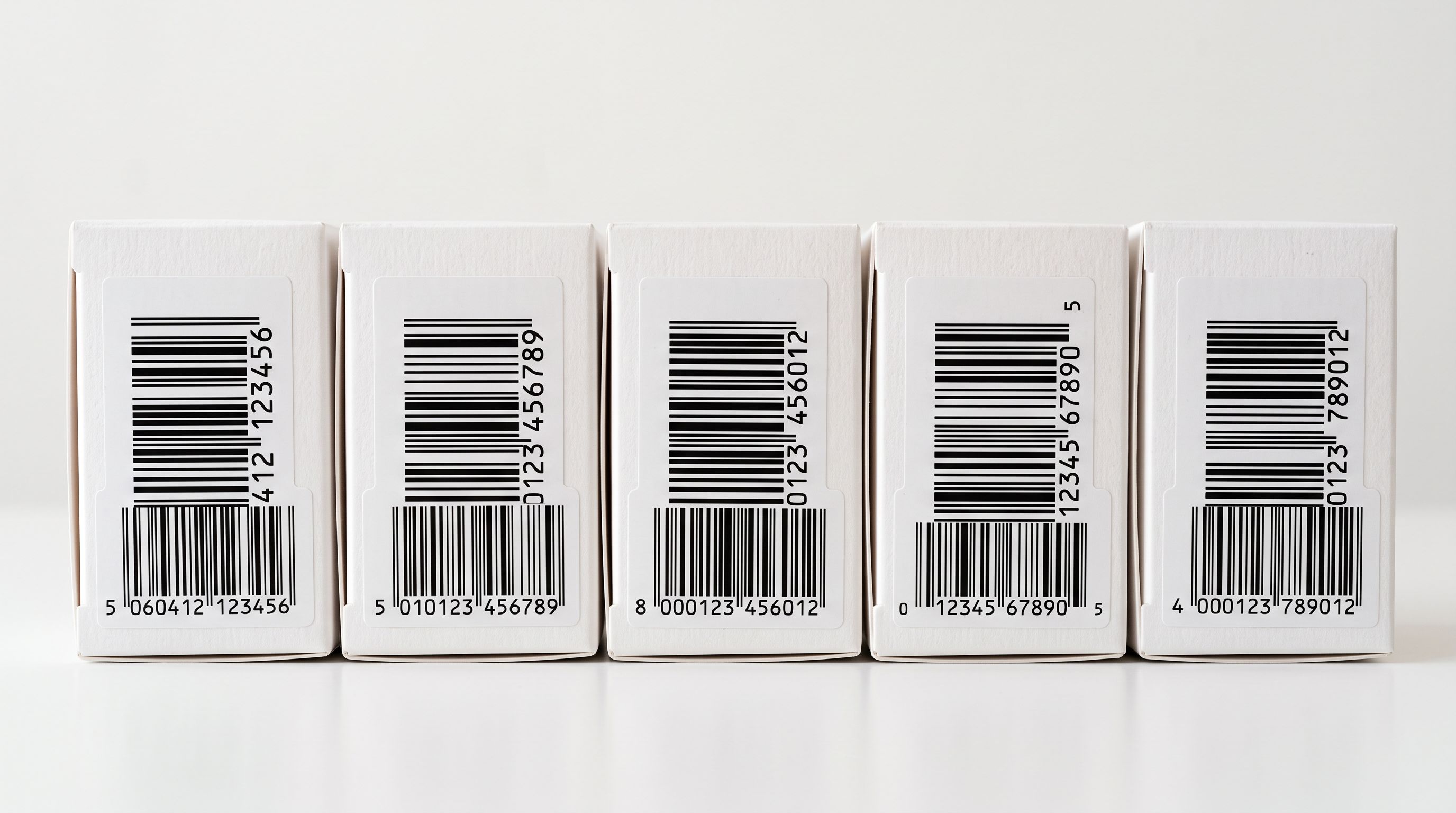
3. GTIN (barcode). Google Merchant Centre's product data specification requires a valid GTIN for most product types to qualify for Shopping ads and enhanced Shopping presentation. Ask your supplier for the EAN or UPC for each product. If the supplier manufactured the product themselves, they may not have registered a barcode. If that is the case, ask them to confirm this in the file (a blank GTIN column is ambiguous; a "No GTIN" entry is a fact the merchant can act on). For products that should have a GTIN but the supplier cannot provide it, the GS1 US company database allows lookup by product name and brand.
4. Images. This is the most common failure point in supplier files. Suppliers routinely deliver images in one of three formats that do not work for direct import: local file paths, ZIP archives, or shared folder links that require login credentials. What works for direct import is a publicly accessible URL for each image, accessible without authentication, ideally hosted on a CDN or the supplier's own product server. Specify in your brief: "Images must be delivered as HTTPS URLs, one URL per column for the primary image, additional image URLs in separate columns labelled Image 2, Image 3."
5. Variants. Products with multiple variants (size, colour, material) are commonly delivered by suppliers as one row per variant, with the parent product name repeated on each row. Shopify treats each row as a separate product unless variants are explicitly grouped. Specify how you need variants structured: parent product on the first row, variant rows immediately below sharing the same title, with the variant type and value in separate columns.
6. Price and currency. Specify the currency and format. "499.00" is ambiguous if the supplier has customers in multiple countries. Specify: "Price in AUD, decimal separator is a full stop, no currency symbol, no thousand separator." If you need both RRP and your trade price, specify that both columns are required.
7. Stock quantity. Suppliers often list stock as a text status ("In Stock", "Low Stock", "Discontinued") rather than a numeric quantity. Shopify's inventory management works with numeric quantities. Specify: "Stock quantity as a whole number. If the exact quantity is not available, use 999 for in-stock products. Use 0 for out-of-stock."
8. Product type and category. Suppliers use their own category taxonomy, which rarely maps directly to Shopify's Standard Product Taxonomy. Ask for the supplier's own category field, but also ask them to include the most specific product type they can provide. Importier uses the product type field to suggest the matching Shopify taxonomy category during import.
Handling imperfect supplier files
When the Supplier Cannot Match the Brief
A brief does not guarantee a perfect file. It gives the supplier a target and reduces the number of fields that need intervention from eight to one or two.

Some suppliers work with legacy export systems that produce a fixed format regardless of what the merchant requests. Others operate in a different time zone and turnaround a corrected file in their own billing cycle. In both cases, the import still needs to happen.
Importier's column mapper handles files where column names do not match expected field names. If the supplier sends "Product Name" instead of "Title", the mapper presents an interface to align source columns to target fields and saves the mapping for future imports from the same supplier. When the same supplier delivers their next quarterly update, the mapping applies automatically. The article on fixing Shopify imports after a supplier format change covers how to handle format drift when a supplier changes their export between deliveries.
For missing GTINs, Importier's barcode lookup searches by product name and brand for products where the GTIN was not included in the supplier file. For a 400-product catalogue where 120 products have no GTIN in the supplier file, barcode lookup commonly resolves 60-80% of those without manual research.
For missing or unusable images, Importier's URL importer can fetch images from any public URL and attach them to the product during import. If the supplier provides a product page URL rather than image URLs directly, Importier can extract the images from that page. The article on importing from multiple suppliers covers managing different image delivery formats across several suppliers simultaneously.
For thin descriptions, Importier's AI description generation can produce a full product description from the product title, type, and available attributes even when the supplier's description column is a two-sentence blurb written for a different market.
A Supplier Brief Template
- 01Field 1Title: Brand Name + Product Name + Key Attribute. Example: 'Nordic Ceramic Pour-Over Dripper 350ml'. No internal codes or item numbers in the title field.
- 02Field 2Description: Plain text, 100-300 words, written for the product's end buyer. No bullet points, no HTML tags, no promotional language from other platforms.
- 03Field 3GTIN/EAN/UPC: The registered barcode for this product. If none exists, leave blank and add a note column confirming 'No registered barcode'.
- 04Field 4Images: HTTPS URLs only. Primary image in the Image column. Additional images in Image 2, Image 3 columns. Images must be publicly accessible without login. Minimum 800x800 pixels.
- 05Field 5Variants: One row per variant. Variant rows share the same Title. Variant type (e.g. Size, Colour) in the Option1 Name column. Variant value (e.g. Small, Red) in the Option1 Value column.
- 06Field 6Price: Decimal number in [your currency], no symbol, no comma separator. Example: 49.95
- 07Field 7Inventory Quantity: Whole number. Use 999 for in-stock products where exact quantity is not tracked. Use 0 for out-of-stock.
- 08Field 8Product Type: The most specific category name for this product in your taxonomy. Example: 'Pour-Over Coffee Drippers' rather than 'Coffee Accessories'.

Send this brief with your first purchase order. Ask the supplier to confirm the format before they prepare the export. A 10-minute confirmation call or email exchange on format requirements prevents the reformatting cycle on every future delivery.
For merchants who work with multiple suppliers, the brief creates a consistent standard across all supplier files. Each supplier may produce a slightly different output, but having the brief on file means Importier's saved column mappings handle the variation between deliveries without manual intervention each time.
Key Takeaways
A supplier data brief is a one-time investment that eliminates recurring reformatting work on every future product delivery.
Key points:
- The five most common failure points in supplier files are column naming, image delivery method, GTIN absence, variant structure, and price format. A brief addresses all five before the first file arrives.
- GTIN is the field suppliers most often omit. Google Merchant Centre requires it for most product types. Ask for it explicitly, and specify how to handle products that have no registered barcode.
- Images must be publicly accessible HTTPS URLs. Local file paths and compressed archives are the most common image delivery format from suppliers and the least useful for direct import.
- Importier's column mapper, barcode lookup, and AI description generation handle the fields a supplier file commonly gets wrong, reducing the reformatting gap from eight fields to one or two.
- A saved column mapping for each supplier means the second and subsequent deliveries from that supplier import without manual column alignment.
Import your next supplier catalogue with a brief in place at importier.app. Starter plan and above includes the column mapper and saved supplier configurations.
Set up your first import in under five minutes.
Importier brings products into Shopify with AI descriptions, category metafields, and data enrichment on every run.