Shopify Product Import From Barcodes: No Supplier Sheet Required
On this page
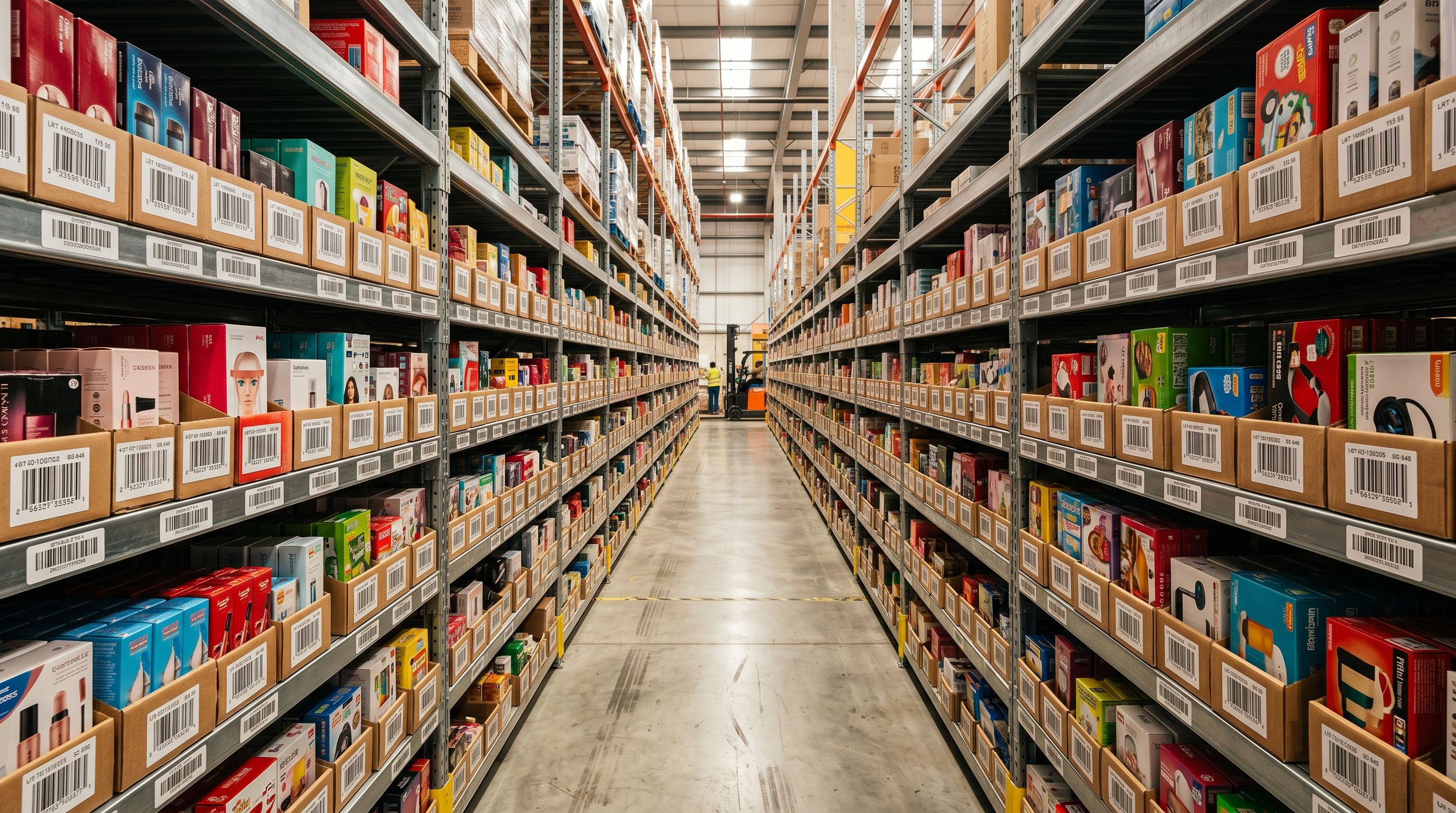
A liquidation buyer wins a pallet of 300 mixed consumer electronics at a trade auction. The manifest lists barcodes, condition grades, and the buyer's purchase price. There are no product names, no descriptions, no images, no supplier data sheets. The buyer needs 300 products live in their Shopify store within the week to start recovering the purchase cost.
The standard product import workflow assumes a supplier file with named columns: title, description, price, images, SKU, category. None of those exist here. What exists is a barcode column: 300 GTINs (Global Trade Item Numbers) registered with GS1, the international barcode standards body.
That barcode column is enough to build a complete Shopify catalogue. Every manufactured good sold through retail channels carries a GS1-registered barcode. That registration includes the product name, manufacturer, brand, category, and in many cases the product's weight and dimensions. From a barcode number alone, it is possible to retrieve the product identity that the manufacturer submitted when registering the product for retail distribution.
What a barcode number actually contains
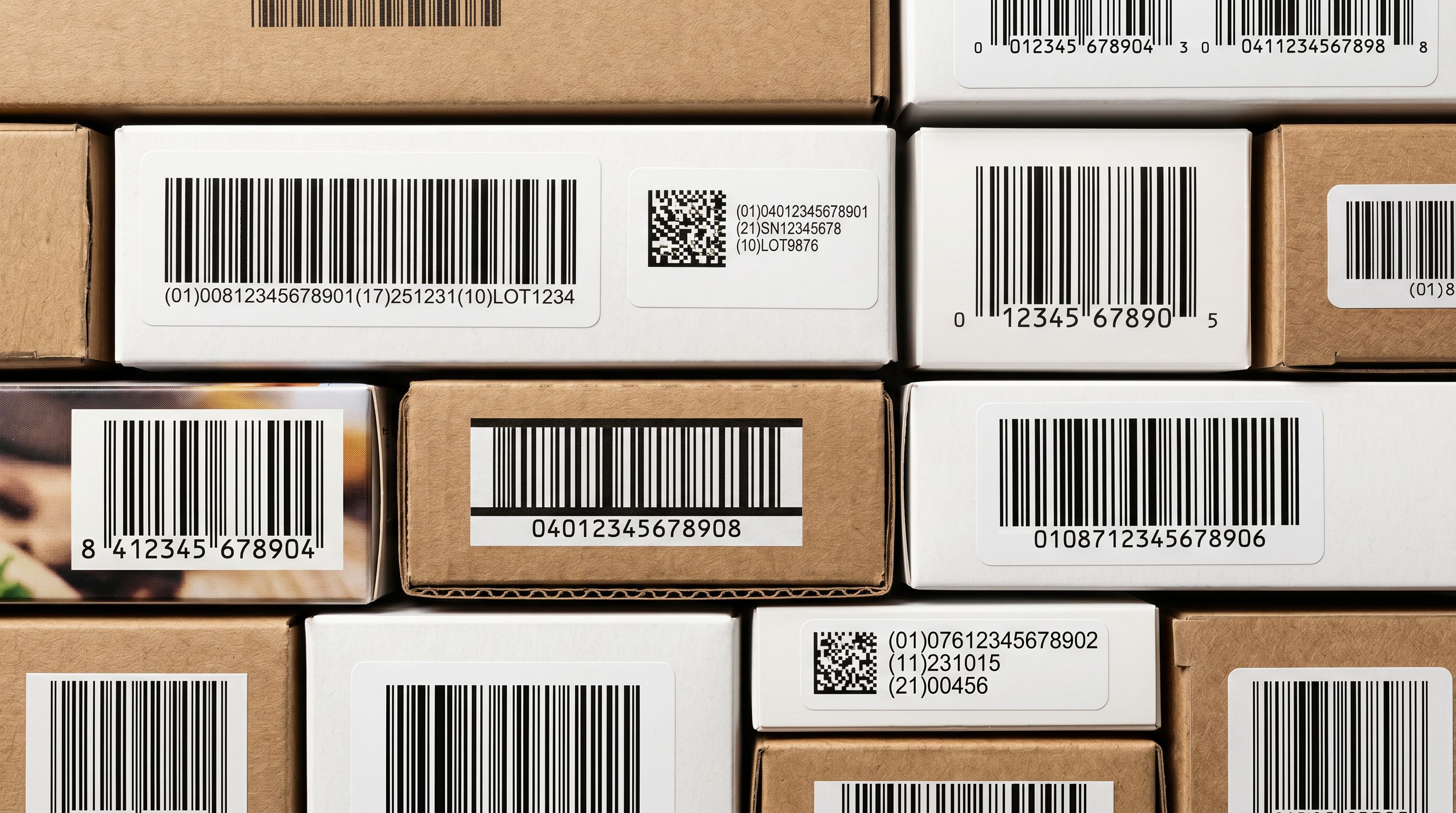
A barcode number (UPC-A, 12 digits; EAN-13, 13 digits; or GTIN-14, 14 digits) is a registered identifier in the GS1 system. GS1 is the global organisation that issues company prefixes and maintains the product registrations associated with each barcode.
The first digits of a barcode identify the issuing country and the company. The remaining digits identify the specific product. When a manufacturer registers a product with GS1, they submit the product name, brand, category, and packaging details. This registration becomes the canonical product record for that barcode.
When a merchant has a list of barcodes, they have pointers to that canonical data. A barcode lookup service queries the registration database and returns the product name and category associated with that barcode. For "049796124035", the lookup returns "Sony WH-1000XM5 Wireless Noise Cancelling Headphones, Black" and the electronics category. The manufacturer registered that name; it is the product's official identity, not a distributor's abbreviated internal code.
How the barcode import workflow differs from a standard CSV import
In a standard Shopify product import, the merchant starts with a supplier file that already contains product names, descriptions, and often images. The import wizard's role is column mapping: match the supplier's "Product Name" column to Shopify's title field, match "Description" to body_html, and so on.
In a barcode import, the merchant starts with a file that has one meaningful column: the barcode. The import wizard's role shifts from mapping to enrichment. The barcode is used to retrieve the product identity from external databases, and the AI description generation step creates the consumer-facing content that the barcode registration does not provide.
The two workflows use the same Importier interface but arrive at Shopify with complete product records through different routes:
- Supplier file contains names, descriptions, specs
- Column mapping required to match supplier fields to Shopify fields
- Description quality depends on what supplier wrote
- Images come from supplier file or separate download
- Works when supplier provides structured data
- Import file contains barcode column only
- Barcode enrichment retrieves manufacturer's registered product name and category
- AI generates consumer-facing descriptions from enriched product data
- Barcode lookup sometimes returns product images registered with GS1
- Works when supplier data is unavailable or only barcodes are known
Setting up a barcode-only import
The import configuration for a barcode-only catalogue requires a few specific steps that differ from a standard column-mapping import.
- 01Step 1Create a CSV with the barcode numbers in one column, labelled 'Barcode' or 'EAN' or 'GTIN'. Add any columns you do know: condition, purchase price, selling price. Leave description, title, and category columns empty (these will come from enrichment)
- 02Step 2Upload the CSV to Importier and proceed to the column mapping step. Map the barcode column to Shopify's Barcode field. Map price columns as available. Leave the title and description fields unmapped; Importier will populate these from barcode enrichment, not from the supplier file
- 03Step 3Enable data enrichment in the next step. Turn on barcode lookup: Importier's AI queries external product databases using each barcode number and returns the manufacturer-registered product name, brand, and category
- 04Step 4Review the enrichment preview. For each barcode, the preview shows the retrieved product name and any additional data found. Confirm the match is correct. If a barcode returns no result or a clearly wrong product, flag it for manual review before proceeding
- 05Step 5Enable AI description generation. The AI reads the enriched product name, brand, and category, and generates a consumer-facing product description. Select a description style and persona appropriate for the product category (Technical Gadget for electronics, Benefits-First for home goods)
- 06Step 6Complete the import. Products arrive in Shopify with titles sourced from barcode enrichment and descriptions generated by AI. Product type and category are populated from the barcode lookup result. Barcodes are stored in the Shopify barcode field for inventory and point-of-sale matching
What barcode enrichment returns and what it does not
Barcode lookup from GS1-registered data returns the manufacturer's submitted information. This varies by product and manufacturer but consistently includes:
Always returned (for registered barcodes): product name, brand/manufacturer, high-level category.
Often returned: product weight, package dimensions, product sub-category.
Rarely returned: retail description (consumer-facing copy), product images in high resolution, colour or size variant details.
The gap between what barcode data provides and what a Shopify product page needs is filled by AI description generation. A barcode lookup tells Importier that barcode 049796124035 is a Sony WH-1000XM5 in Black in the headphones category. The AI description generation step takes that product identity and generates a full consumer-facing description: the noise cancellation capability, the battery life, the carrying case, the voice assistant integration, the fold-flat design for travel. These details come from the AI's knowledge of the product, cross-referenced against the registered product name and manufacturer.
This is why the barcode import workflow requires both enrichment and AI generation as paired steps. Enrichment provides the product identity; AI generation provides the consumer copy.
When barcode data is partial or absent
Not all barcodes return complete data. Several situations produce incomplete lookups:
Private-label products carry barcodes assigned by the retailer or distributor rather than the manufacturer. These barcodes may not have a GS1 product registration. The lookup returns the brand prefix but no product details.
Regional products registered in one country's GS1 database may not appear in international lookup services. A barcode registered only with GS1 Germany may return no result in an Australian lookup.
Older products may predate comprehensive digital registration. Physical barcode registration existed before online databases became the standard.
For barcodes that return no lookup result, Importier falls back to AI generation from whatever data is available: the product name if known, the condition grade, the category estimated from the barcode prefix, and any enrichment context the merchant adds. Read more about how Importier generates descriptions when supplier data is minimal or absent.
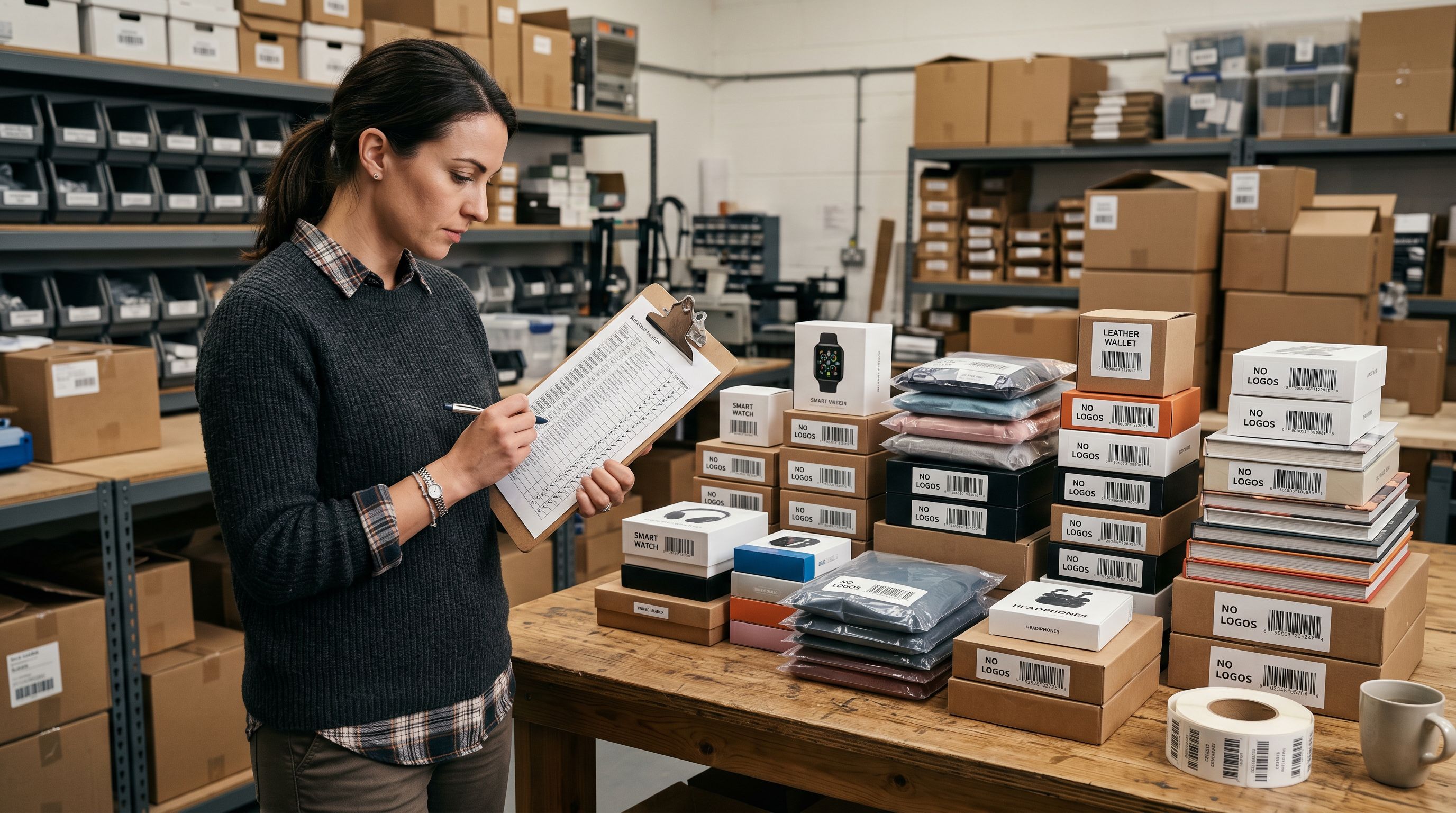
Barcode import for liquidation and trade sourcing
Who uses barcode-only imports
The barcode import workflow addresses specific sourcing models where barcodes are the primary data source:
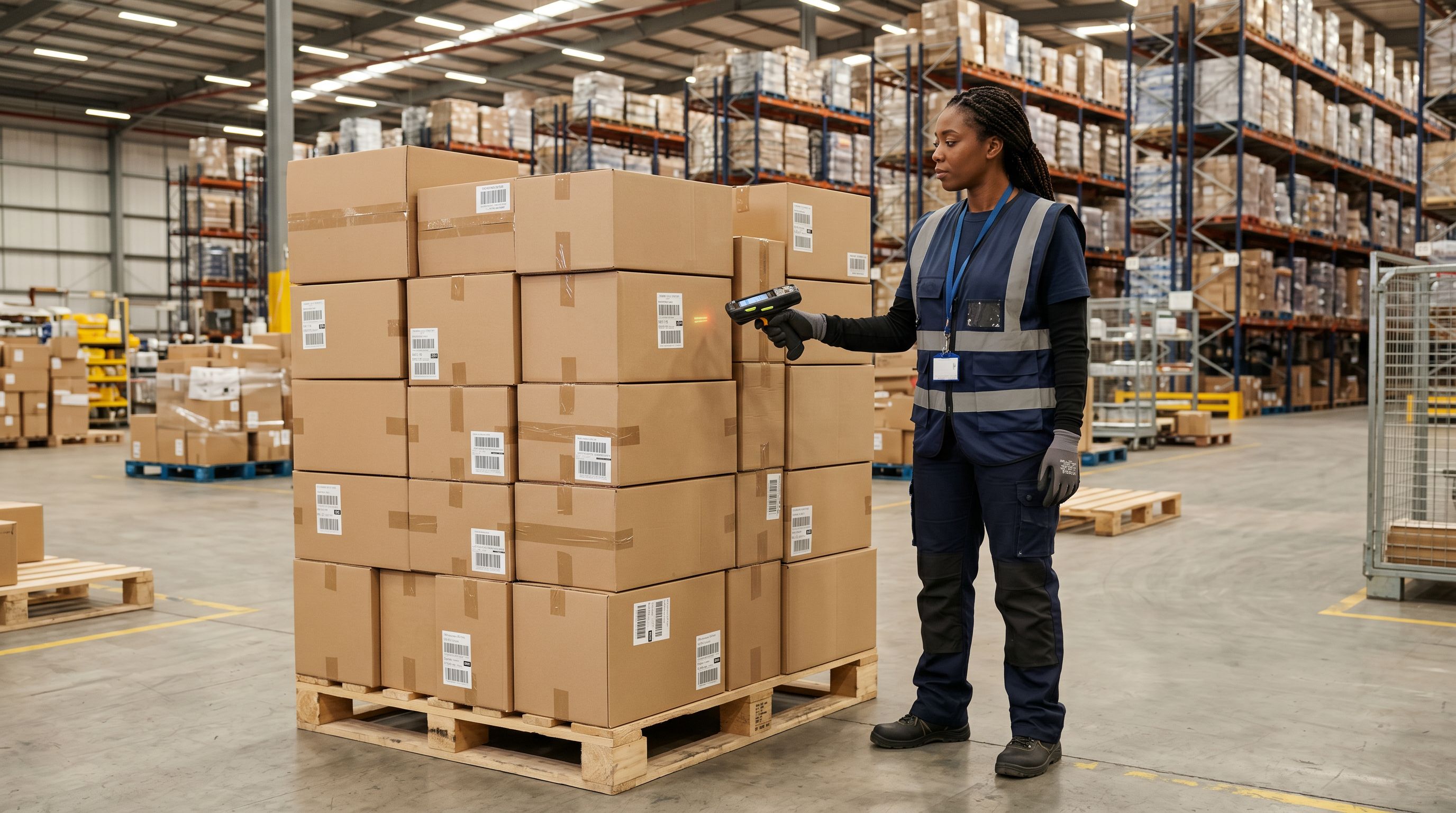
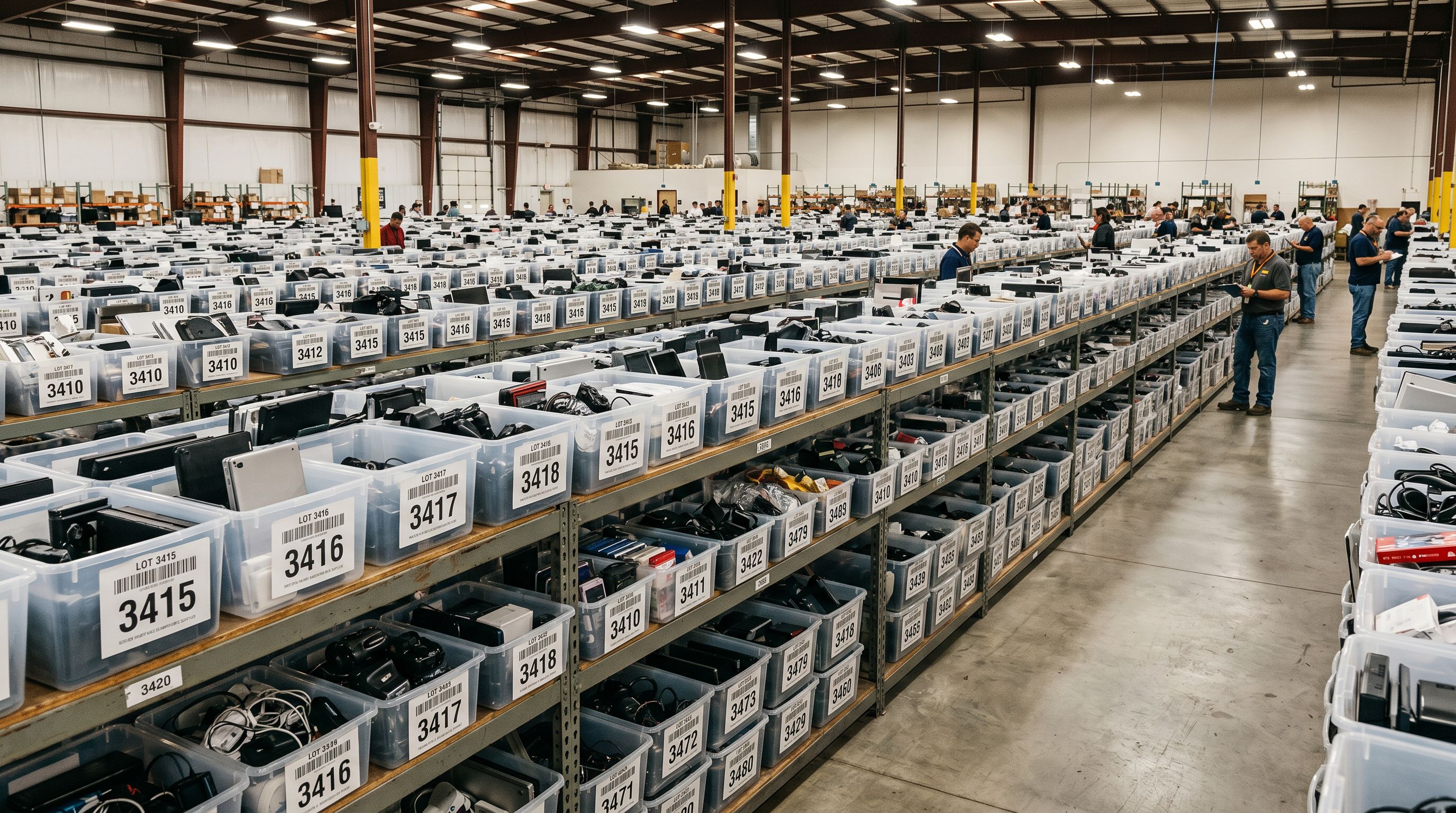
Liquidation and pallet buyers purchase surplus, returned, or excess stock at auction or from liquidation warehouses. The manifest lists barcodes and condition grades. No supplier data sheets exist; the goods came from retail returns or overstock, not from a manufacturer's direct supply chain.
Trade auction purchasers buy lots of mixed goods from industrial auctions, estate sales, or business liquidations. The lot comes with barcodes on the packaging but no structured product data.
Second-hand and refurbished resellers accept trade-ins or purchases where the original packaging is intact. The barcode is present; the product's retail data sheet is not.
Grey market and parallel import merchants source products through channels where the manufacturer's data sheet is not provided. The barcode on the packaging is the only reliable product identifier.
In all of these models, the merchant cannot start a standard import because they do not have supplier data. They have goods and barcodes. The barcode import workflow converts that starting position into a complete Shopify catalogue.
Shopify's inventory documentation for barcodes notes that barcodes help with inventory tracking, point-of-sale scanning, and Google Shopping product matching. For merchants using barcode-only import, the barcode field is populated from the source data, so all downstream Shopify barcode features work from day one without a separate barcode-addition step.
Read more about how to add barcodes to existing Shopify products that were imported without them.
The barcode import workflow inverts the usual product data problem. Most merchants have too much supplier data in the wrong format; barcode merchants have the right identifier in minimal format. Enrichment turns the identifier into a product record; AI generation turns the product record into a page that sells.
Set up your first import in under five minutes.
Importier brings products into Shopify with AI descriptions, category metafields, and data enrichment on every run.