How to Add Barcodes and GTINs to Shopify Products in Bulk

On this page
Barcodes seem like a minor data field until products start getting flagged in Google Merchant Centre. Most merchants who import from suppliers discover the problem only after seeing "Limited performance due to missing identifier" on dozens of products in their Shopping feed. The barcode field in Shopify was populated during import, but with the supplier's internal SKU code rather than a valid GTIN.
Fixing a missing barcode on one product takes a few minutes. Fixing it on 300 products takes the better part of a working week, if you can find the correct GTINs at all.
This article covers what GTINs are, why imported catalogues commonly lack valid ones, what that costs in Google Shopping visibility, and how to add barcodes to Shopify products in bulk using automated enrichment rather than manual searching.
What Barcodes and GTINs Are
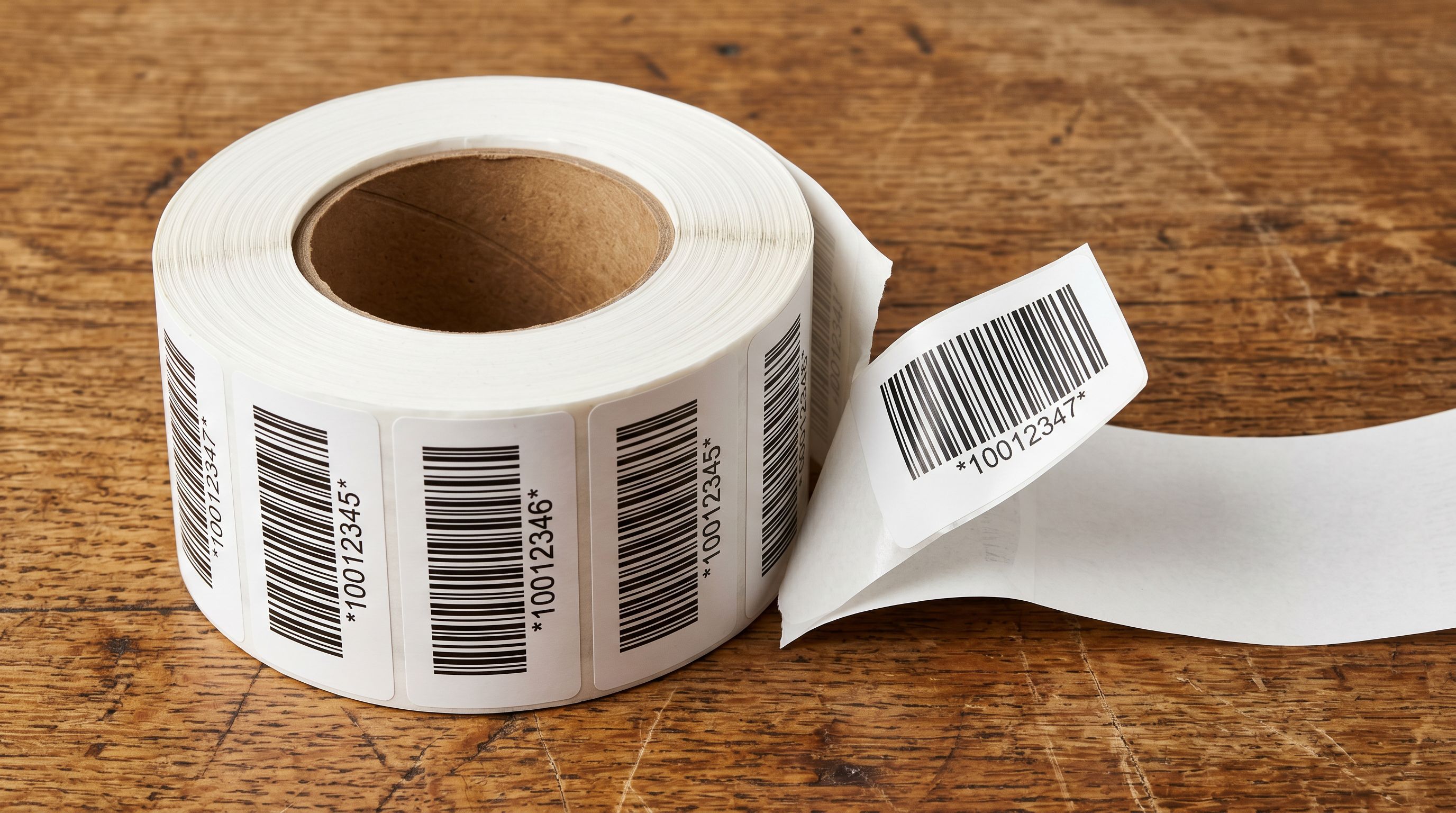
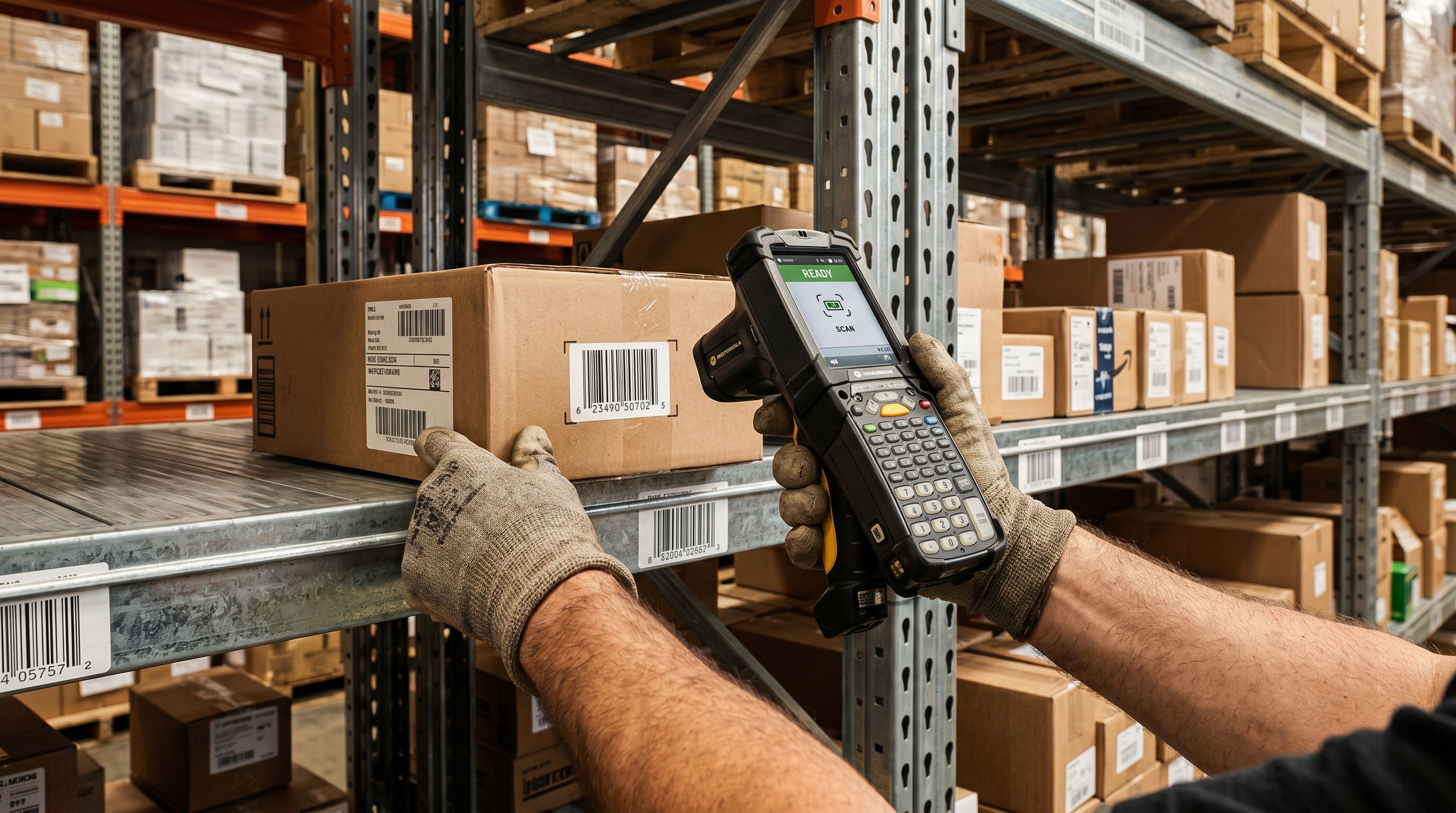
A barcode is the visual symbol scanned at point of sale or in a warehouse. A GTIN (Global Trade Item Number) is the numeric identifier encoded in that barcode. Shopify stores the GTIN in the Barcode field on each product and variant.
The most common GTIN formats are EAN-13 (the 13-digit standard used in Australia, the UK, and most international markets) and UPC-A (the 12-digit standard used in the United States and Canada). ISBN codes for books are also a GTIN variant.
GTINs are assigned by GS1, the international standards body. Every retail product manufactured by a brand with a GS1 membership has a registered GTIN. Google and other platforms use that registration to verify product identity: when a GTIN is submitted, the platform checks it against the GS1 database to confirm it matches the product being listed.
Why Imported Products Often Lack Valid GTINs
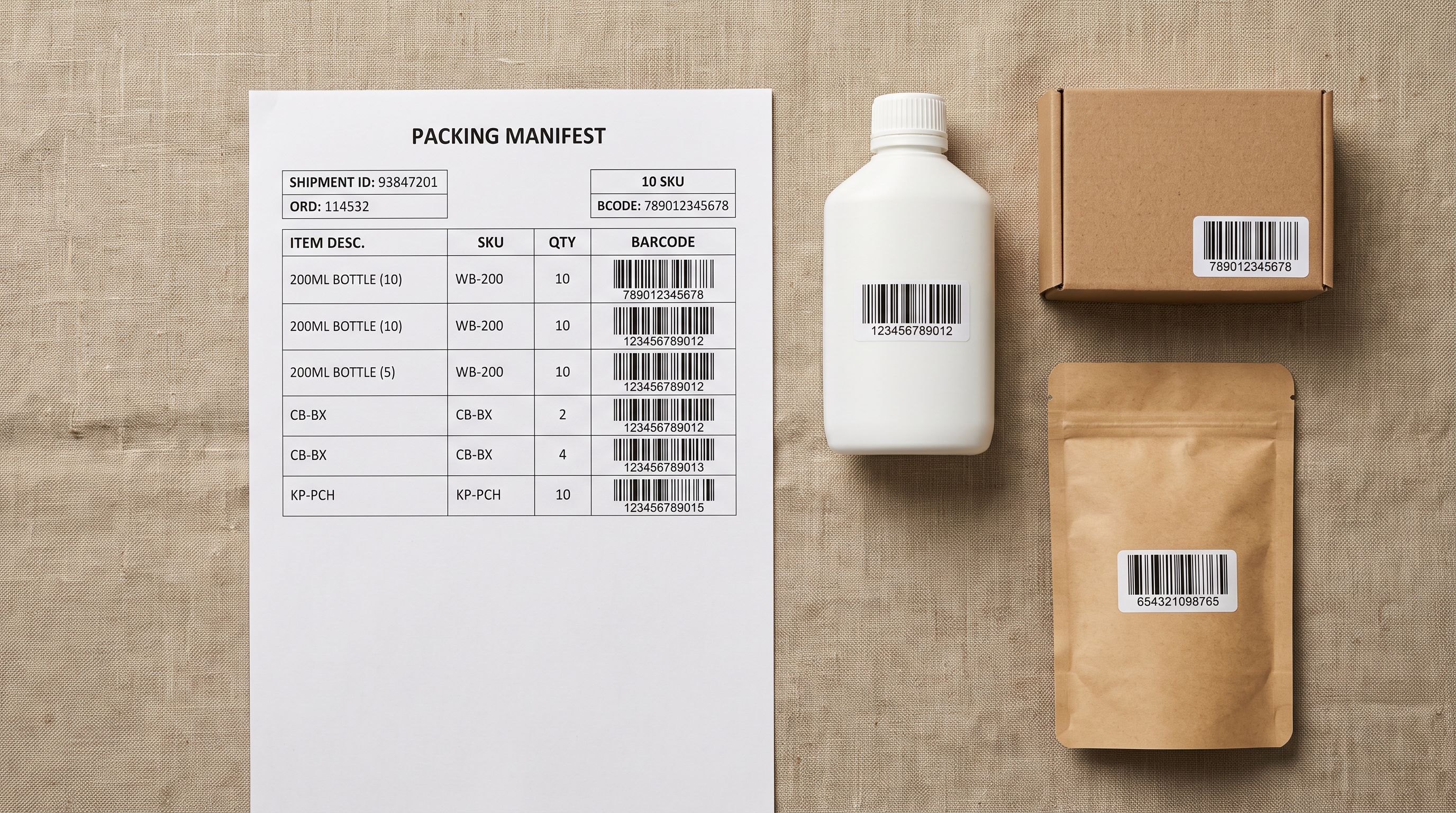
The most common cause is supplier CSV formatting. Take a homewares retailer importing 400 SKUs from a New Zealand wholesaler: their supplier CSV has a "Barcode" column, but every value in it is the supplier's internal stock reference. None of those values are registered GTINs. They look plausible in Shopify's admin, and they only surface as a problem when Google Merchant Centre starts flagging products.
Suppliers often populate the barcode column of their export files with internal product codes or SKUs rather than registered GTINs. These house codes are meaningful within the supplier's own system but do not exist in the GS1 database. When they land in Shopify's Barcode field, they look like barcodes but fail validation wherever barcode verification is required.
Marketplace imports introduce a related problem. Amazon ASINs and eBay item numbers are platform-specific identifiers, not GTINs. A product imported from an Amazon listing may have a valid ASIN in the product data but no EAN-13 or UPC-A in the correct field.
Some products genuinely have no registered GTIN. Custom-manufactured products, private-label goods, and products from small manufacturers who have not registered with GS1 fall into this category. These products cannot be given a GTIN because one does not exist in the GS1 system.
The practical result for most merchants importing from wholesalers: a portion of the catalogue has invalid codes in the Barcode field, a portion has nothing, and a smaller portion has legitimate GTINs that arrived correctly from the supplier.
What Missing GTINs Cost You in Google Shopping
Google Shopping requires valid GTINs for branded products where a GTIN exists in the GS1 database. Products submitted to Google Merchant Centre without a valid GTIN receive a "Limited performance due to missing identifier" status. Google surfaces these products less frequently in Shopping results.
The "should exist" condition matters. Google checks whether a GTIN is registered for a product matching that title and brand. If a GTIN exists but was not submitted, the product is penalised. If no GTIN exists, the product can be marked as custom and given an MPN (Manufacturer Part Number) instead.
For merchants who import branded products from wholesalers, this affects a significant portion of the catalogue. Many catalogues arrived with supplier SKUs in the Barcode field, meaning hundreds of products sit in Merchant Centre with limited performance that a correct GTIN would resolve.
In our experience, this is the single most underestimated data quality issue in imported catalogues. Most merchants assume the Shopping feed penalty is coming from title formatting or category assignment, and spend weeks on those fixes while the barcode problem sits untouched.
The Solution
How Importier Fills Barcodes Automatically
Importier's data enrichment feature includes automated barcode lookup as part of the enrichment pipeline. During the 14-step import wizard, enrichment runs on each product in the import batch.
For each product, Importier locates the registered GTIN and writes it directly to the Shopify Barcode field. Products where no confirmed GTIN can be found are flagged rather than guessed, so you never end up with fabricated codes that fail Google's validation checks.

- Search each product manually on manufacturer sites
- 3-5 minutes per product
- 15-25 hours for a 300-product catalogue
- Risk of entering an incorrect GTIN
- No batch tracking or audit summary
- Automated lookup runs across the full import batch
- Minutes for hundreds of products
- Writes the GTIN directly to the Shopify Barcode field
- Products flagged when no confirmed match exists
- Enrichment summary with full results per run
Running Barcode Lookup on Existing Products
For merchants who already have products in Shopify without valid barcodes, the lookup runs retroactively through Importier's data enrichment panel. You do not need to re-import anything.
- 01Open Importier in your Shopify adminFrom Apps, launch Importier and navigate to Data Enrichment
- 02Select the products to targetFilter by collection, vendor, or SKU pattern to focus on products with blank or invalid Barcode fields
- 03Run the enrichmentImportier locates the correct GTIN for each targeted product and populates the Barcode field where a match is confirmed
- 04Review the enrichment summaryThe report shows how many products received a barcode, how many were already complete, and how many could not be matched
The same enrichment run also fills other commonly missing fields: product weight, product type, HS code, and country of origin. Running it once across the catalogue addresses multiple data gaps simultaneously rather than requiring separate passes for each field.
What Happens After Barcodes Are Filled
Once Shopify's Barcode field contains a valid GTIN, the downstream effects resolve quickly.
Google Merchant Centre feed. Shopify's Google channel integration reads the Barcode field and submits it as the GTIN in the Shopping feed. On the next feed sync after the barcode is populated, the GTIN goes to Merchant Centre. Google verifies it against the GS1 database. If the GTIN is valid and matches the product, the "Limited performance due to missing identifier" status is removed and the product competes at full visibility in Shopping results.
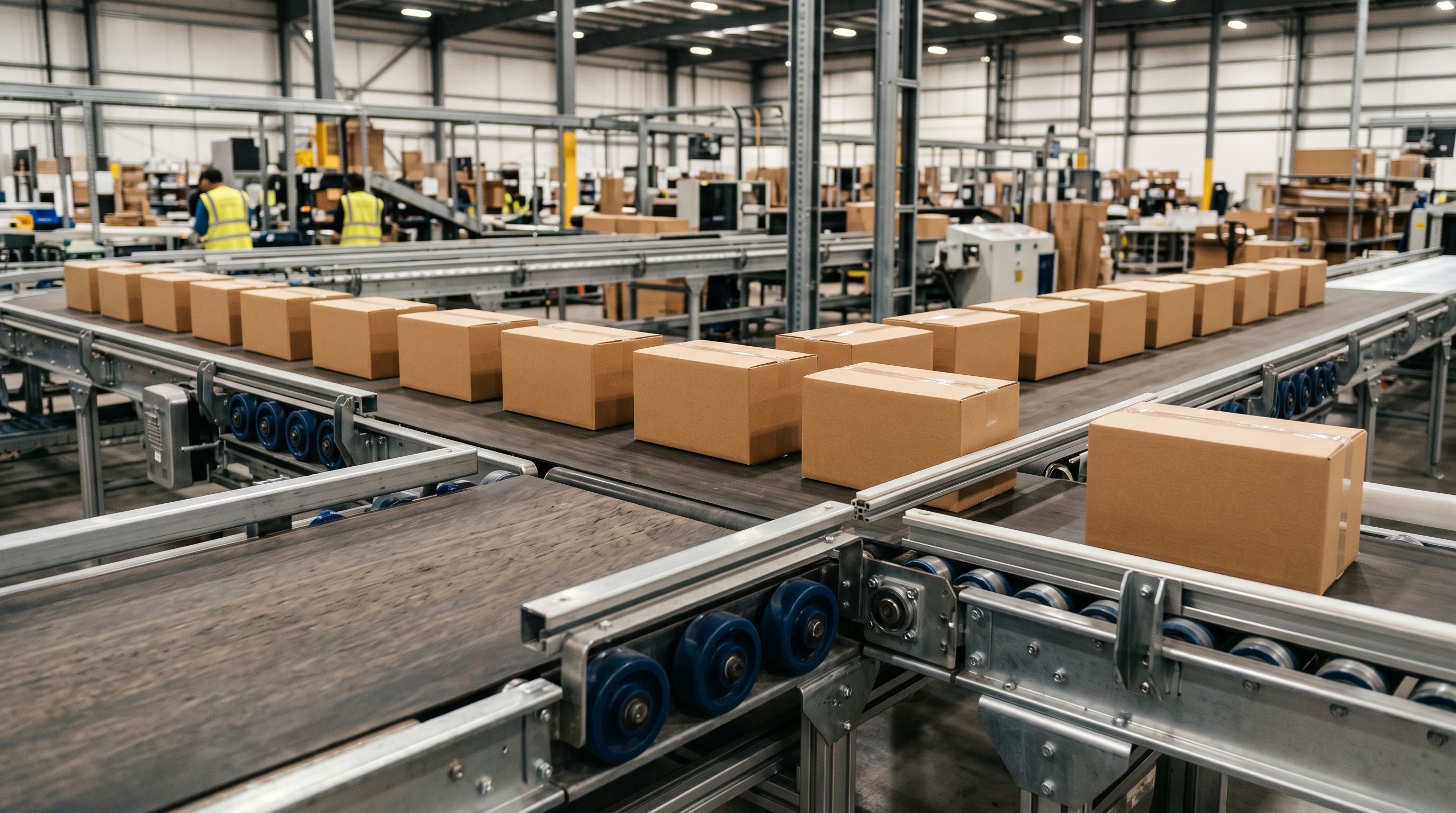
Inventory and fulfilment. Warehouse management systems and 3PL providers that receive products by scanning barcodes now have scannable codes on every product. Receiving workflows that previously required manual entry for products without barcodes become fully scannable.
Supplier and wholesale alignment. When placing repeat orders with a supplier, GTINs are the common identifier across systems. Products with valid GTINs in Shopify match cleanly to the supplier's catalogue, reducing the risk of mismatched orders or incorrect variants being shipped.
Barcode-based product lookup. Third-party tools, POS integrations, and inventory reconciliation workflows that look up products by barcode work correctly across the full catalogue rather than only for the products that happened to arrive with valid codes.
Running enrichment once across the existing catalogue and enabling it on future imports produces a complete catalogue where every branded product that has a registered GTIN has that GTIN in its Barcode field.
When No Valid GTIN Exists
For custom-manufactured products, private-label goods, and items from manufacturers without GS1 registration, no GTIN exists to find. No lookup can return a match because the product was never assigned a registered code.
Google Merchant Centre handles this category differently. For products where a GTIN genuinely does not exist, you mark the product as a custom item and provide an MPN or other unique identifier instead. Google does not penalise custom products for lacking a GTIN. The penalty only applies when a GTIN exists and was not submitted.
When Importier's barcode lookup returns no confirmed match for a product, the product is flagged rather than given a fabricated code. Filling the Barcode field with an incorrect value is worse than leaving it blank, because Google checks submitted GTINs against the GS1 database and will disapprove products submitted with invalid codes.
For truly custom products, the correct action is to mark them as custom and provide whatever manufacturer identifier is available. Products from suppliers who use internal codes rather than GS1 GTINs fall into this category, and their barcode fields should reflect that.
Barcode Lookup as Part of the Full Import Workflow
Barcode lookup is most effective when it runs during the initial import rather than as a retroactive fix. Products that arrive in Shopify with valid barcodes already populated go directly to Google Shopping with complete identifiers. There is no period of limited performance while the fix is applied.
We recommend enabling enrichment on every new import, even for suppliers you trust. Barcode data in supplier files degrades over time as products are added and updated, and catching invalid codes at import is far faster than auditing a live catalogue after the fact.
During Importier's 14-step import wizard, data enrichment including barcode lookup runs as one of the configuration steps before the import completes. You enable enrichment, set any context hints for niche or unusual products, and the imported products arrive in Shopify already enriched.
Pair this with Importier's AI description generation and category metafields to cover the full set of product data fields that Google Shopping evaluates: valid GTIN in the Barcode field, unique descriptions, and structured category attributes.
Key Takeaways
- Valid GTINs in Shopify's Barcode field are required for branded products to perform at full visibility in Google Shopping. Missing or invalid codes cause "Limited performance due to missing identifier" status.
- Most imported catalogues contain supplier SKUs or marketplace IDs in the Barcode field, not registered GTINs. The problem is invisible until Google flags it.
- Automated barcode enrichment during the import wizard is more effective than retroactive fixes. Products that arrive with valid GTINs avoid any period of limited Shopping performance.
- For custom-manufactured or private-label products without a registered GTIN, mark them as custom items. Fabricating a code is worse than leaving the field blank.
- Retroactive enrichment via the data enrichment panel works on existing catalogues without re-importing, and also fills other missing fields in the same run.
Try Importier free at importier.app
Related Articles
Set up your first import in under five minutes.
Importier brings products into Shopify with AI descriptions, category metafields, and data enrichment on every run.