Shopify CSV Import Duplicate Products: Root Causes
On this page
You import a supplier update. The file looks correct. The import finishes without errors. You open Shopify admin and find 300 duplicate products alongside your existing 300: the same products, some with updated prices, some without, creating a catalogue that is now double the size it should be.
Shopify CSV import duplicate products are among the most disruptive problems merchants encounter in recurring supplier feeds, and the problem arrives without any warning from the importer. Shopify confirms the import succeeded. From its perspective, it did. But the outcome is not what was intended.
A wholesale kitchenware merchant on a monthly supplier update cycle described the experience precisely: after importing a price refresh from their supplier, every product appeared twice in the catalogue. The old records with original prices sat next to the new records with updated ones. Nothing indicated which was which. Cleaning up the 400 duplicates took most of a working day.
The root cause is almost always the same: the Handle column.
How Shopify Decides Whether to Create or Update
Shopify uses the Handle column as the unique identifier for products during CSV import. When you import a CSV:
- If a row's Handle matches an existing product Handle, Shopify updates that product
- If a row's Handle does not match any existing product, Shopify creates a new product
Shopify derives the Handle from the product title by default (lowercase, spaces replaced with hyphens, special characters removed) and stores it on the product. When you import a CSV where the Handle values do not match the Handles already in Shopify, the importer creates new products rather than updating the existing ones.
For an initial CSV import this is correct behaviour. For re-imports from the same supplier (price updates, stock refreshes, new products added to an existing catalogue), it is a significant problem if the Handle values have drifted between the original import and the update.
Four Reasons Handle Values Stop Matching
1. The supplier changed the product title.
A supplier who updates product titles between catalogue versions changes the Handle that Shopify would derive from those titles. If you imported "Stainless Steel Water Bottle 750ml" with Handle stainless-steel-water-bottle-750ml, and the supplier's updated CSV uses "Stainless Steel Bottle 750ml BPA-Free" as the title, the Handle Shopify would generate from that new title is stainless-steel-bottle-750ml-bpa-free. That is a new Handle. Shopify creates a new product.
2. Your original import used a different column for the Handle value.
If the original import used the supplier's SKU column as the Handle (a common approach when supplier titles are unstable), and the re-import maps the Handle differently, the values no longer match. The mapping that produced the original Handles must be consistent across every re-import from that supplier.
3. The supplier CSV has no Handle column at all.
Many supplier CSVs do not include a Shopify Handle column. When the Handle column is absent, Shopify generates Handles from product titles. If the original import went through a different tool, or through Shopify's native importer with a different column mapping, the Handles already in Shopify may follow a different generation logic than what the current import would produce.
4. Encoding or spacing differences.
Shopify's Handle generation removes non-ASCII characters, trims extra spaces, and lowercases everything. A supplier title with a special character (degree symbol, trademark symbol, or an accented character) that was present or absent in different versions of the catalogue can silently produce a different Handle.
Finding and Fixing
Finding Duplicate Products After a CSV Import
If a re-import has already created duplicates, the first step is identifying them in the catalogue.
In Shopify admin, go to Products and sort by Title (A-Z). Duplicate products from a CSV re-import have near-identical titles and will appear adjacent in a title-sorted list. Work through the list looking for pairs or groups with matching names.
A faster approach: export your current catalogue using Importier's Full Shopify CSV export preset, then open the exported file and sort the Title column. Duplicates surface more clearly in a spreadsheet where you can also compare the Handle, SKU, and Vendor columns to confirm which rows are duplicates versus intentionally similar products.
Once identified, remove duplicates in bulk: select all duplicates in the Shopify admin Products list and use the bulk action to delete. Before deleting, confirm the products have no active inventory or pending orders, and that the version you are keeping has the correct pricing and stock levels.
If your catalogue shows products not showing after import alongside duplicates, those are two separate problems with separate fixes: duplicates come from Handle mismatches, while missing products typically trace to draft status or variant grouping failures.
Preventing Duplicate Products on CSV Re-Imports
The prevention is consistent Handle management across every import from a given supplier.
Option 1: Export current Handles before re-importing.
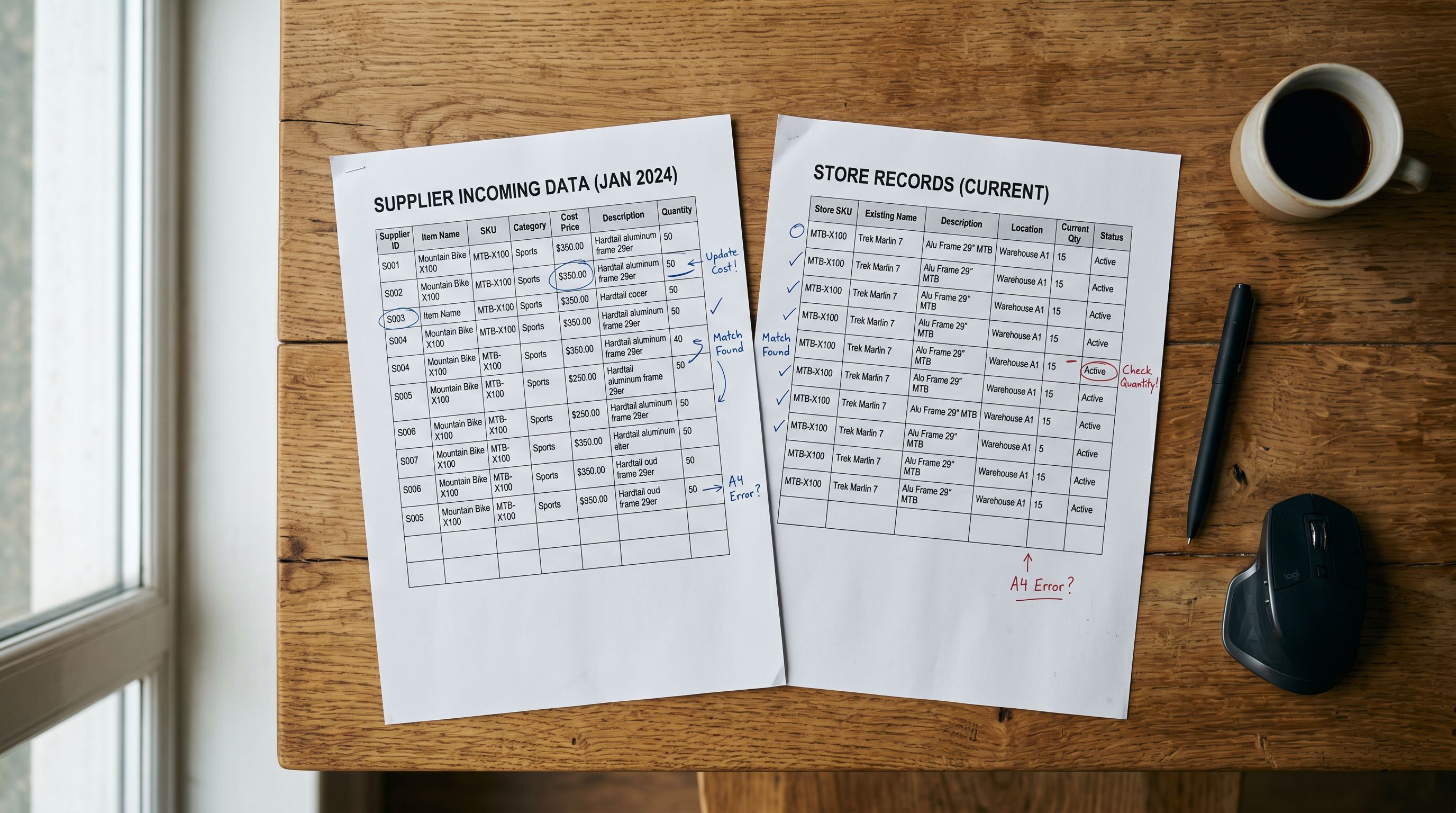
Before importing a supplier update, use Importier's export to get a CSV of your current products with their Handles. Open both the export and the supplier's update file in a spreadsheet. Add a Handle column to the supplier file by matching on SKU or another stable identifier. Import the updated file with the correct Handles already in place. Shopify matches on Handle and updates rather than creates.
Option 2: Use a stable identifier (SKU) as the Handle anchor.
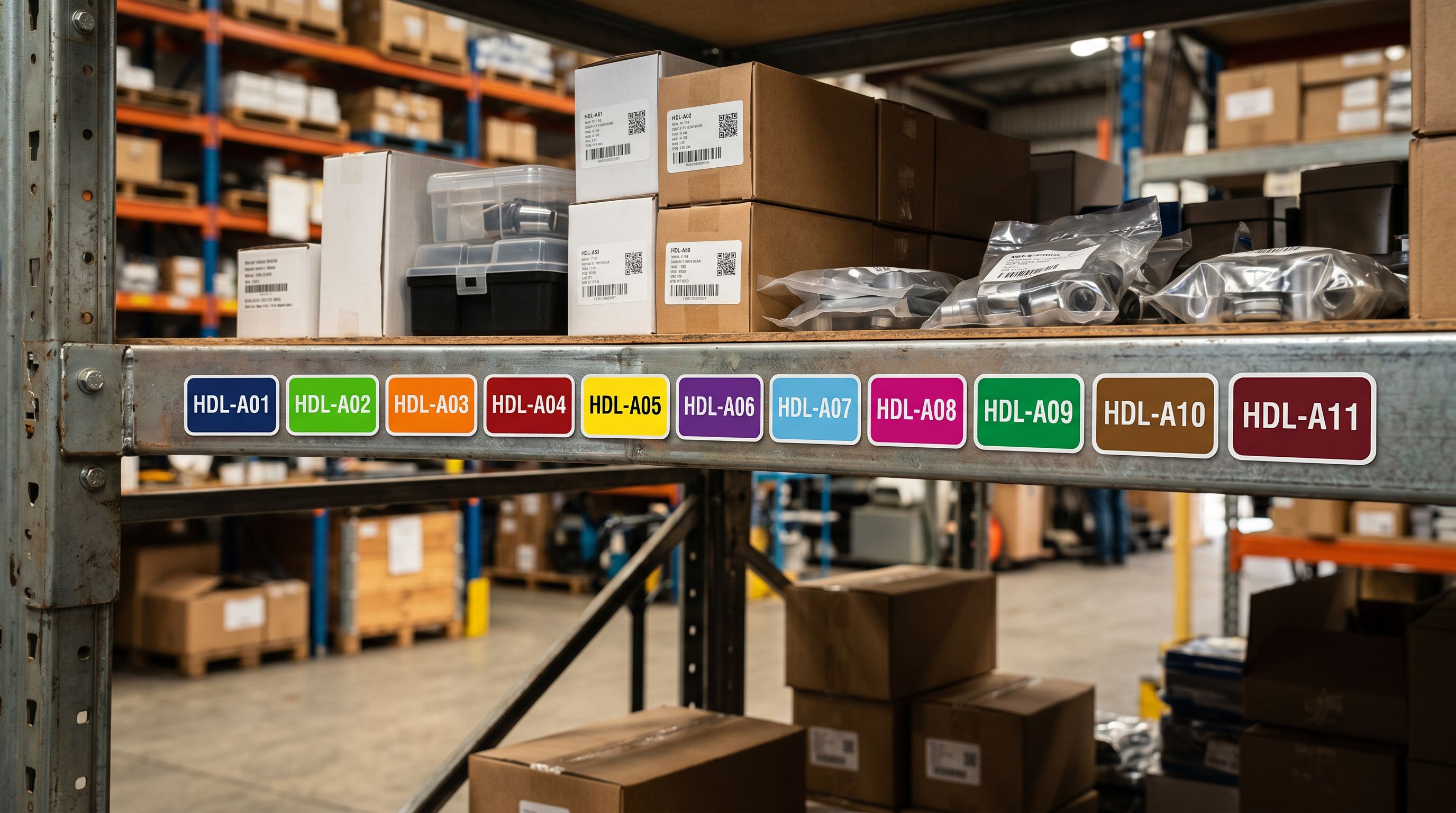
If the supplier provides a stable SKU or product code across all catalogue versions, that code is more reliable as a Handle source than the product title. Handles in Shopify must be URL-safe (lowercase, hyphens only, no spaces), so a supplier SKU of "BT-750-SS" becomes bt-750-ss. If the SKU is stable across catalogue versions, so are the Handles derived from it.
In practice, SKU-anchored Handles are the stronger long-term choice. Supplier product titles change with seasonal naming, rebranding, and added compliance language, but SKUs stay fixed as long as the product itself does. For any catalogue that receives regular updates, building Handle consistency on the SKU is the approach that holds up across months of imports without needing manual correction.

How Importier's Import Preview Catches This Before It Happens
Importier's 14-step import wizard includes a preview step that shows the products as they will appear in Shopify after the import runs. For a re-import, the preview distinguishes between products that will update an existing record and products that will create a new record.
When the preview shows a large number of new products being created where you expected updates, that is the signal that Handle values are not matching. At that point, no changes have been made to Shopify. You can exit the wizard, investigate the Handle discrepancy, correct the source file, and re-run before committing anything.
The import preview is the check that the native Shopify importer does not provide. Shopify's built-in importer runs the import and shows you the result. There is no point at which you can review what will happen and choose not to proceed.
For CSV column mapping, Importier's auto-mapper identifies likely Handle source columns from the supplier file: if the file has a SKU, Product ID, or Handle column, the mapper surfaces it for your review. Confirming the correct column for Handle before the import runs is the step that prevents the mismatch before it reaches the preview.
- No preview before committing
- Import runs and results are shown after
- No warning when duplicates will be created
- Manual cleanup required after every bad import
- Preview shows create vs update split before any changes
- Stop and correct the file if the counts look wrong
- Auto-mapper identifies likely Handle columns
- Import Undo removes a bad batch in one action
Undoing a Re-Import That Created Duplicates
If duplicates have already been created from a recent import, Importier's Import Undo removes the batch.
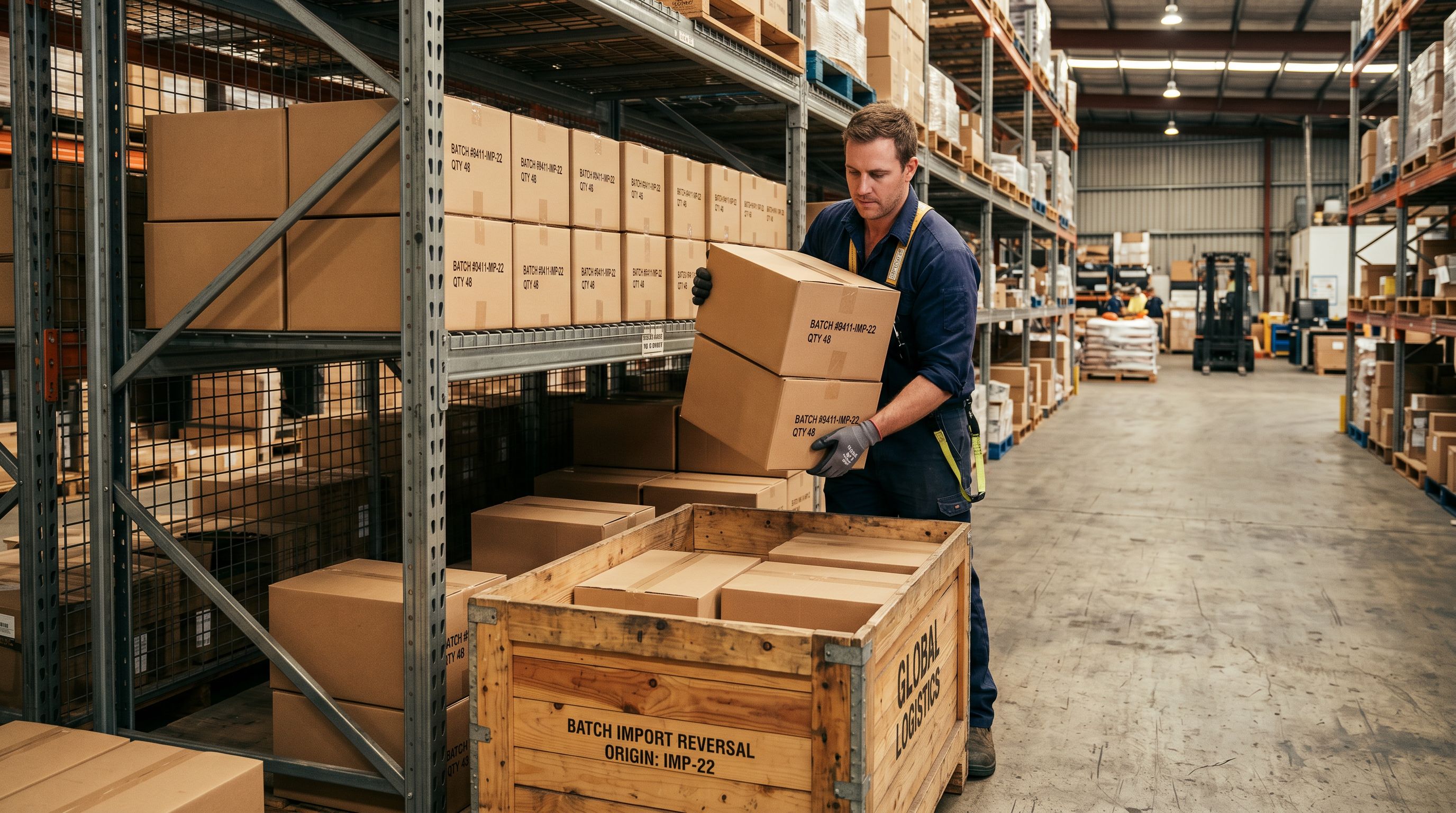
Every import run through Importier is logged in the Import History panel with the date, time, filename, and number of products created or updated. Open Import History, find the batch that created the duplicates, and run the Undo operation. Importier removes all products created in that batch from Shopify, leaving the original products untouched.
Import Undo operates on the products created by that specific batch. It does not affect your existing products, and it does not affect orders placed before the undo runs. The operation restores the pre-import state without requiring you to manually identify and delete each duplicate product.
Importier retains up to 20 import snapshots. For merchants who re-import frequently, the most recent batches are always available for undo. The original import file is downloadable for 60 days after the batch, which also provides a reference file for investigating the Handle discrepancy.
The import preview shows the create/update split before a single product is written to Shopify. That one check eliminates the need for manual duplicate cleanup after every re-import.
Setting Up a Safe Re-Import Workflow
For catalogues that receive regular supplier updates, a consistent workflow prevents duplicate products from accumulating.
- 01Export current products using Importier's Full Shopify CSV presetThis file contains your current Handles
- 02Match the supplier's update file to your export by SKU or product codeAdd the Handle values from your export to the supplier update file
- 03Open Importier's 14-step wizard with the updated fileConfirm the Handle column maps to the Handle field during column mapping
- 04Review the import previewVerify that the count of new products matches what you expect, with only genuinely new supplier products creating new records
- 05Confirm the importImportier writes only what you reviewed in the preview
For merchants using Importier's Scheduled Imports, the same column mapping configuration is stored with the schedule. A supplier CSV delivered to the same schedule consistently applies the same Handle mapping without requiring manual review of the column configuration each time.
The duplicate products problem is almost entirely preventable once Handle management is built into the import workflow. The main variable is consistency: the same Handle values must arrive with every import from the same supplier, whether by carrying over the correct values in the source file or by confirming the mapping in the import wizard before the import runs.
Key Takeaways
- Shopify uses the Handle column as the unique product identifier during CSV import. A Handle mismatch creates a new product instead of updating an existing one.
- The four root causes are supplier title changes, inconsistent column mapping between runs, missing Handle columns in supplier CSVs, and encoding differences that silently alter the generated Handle.
- Importier's Import Preview shows the create/update split before any changes reach Shopify, giving merchants the chance to catch Handle mismatches before they commit.
- If duplicates have already been created, Import Undo removes the entire batch with one action, leaving original products untouched, with a download link available for 60 days after the import.
- For recurring supplier feeds, anchoring Handle values to a stable SKU rather than the product title is the approach that holds up reliably across months of catalogue updates.
Related Articles
Set up your first import in under five minutes.
Importier brings products into Shopify with AI descriptions, category metafields, and data enrichment on every run.