Shopify Large Catalogue Import Strategy: 10,000+ Products

On this page
A wholesale homewares distributor migrating from their ERP to Shopify had 12,400 active SKUs. Their first attempt: a single CSV file, all columns, all rows, uploaded in one session. The import froze at 43 percent. They tried again with the same file. It froze at 61 percent. Their third attempt produced a completed import, but 340 products had truncated descriptions where the source cell content had exceeded a character limit in the export step.
After restructuring the process, the same 12,400 SKUs imported cleanly across 31 batches of 400 products each, with three passes per batch (product records, content, inventory), over three working days. No frozen imports. No truncated content. The column mapping from batch one reused across every subsequent batch.
Large catalogue imports fail for predictable reasons. Knowing those reasons and designing the import structure around them is the difference between a migration that stalls for weeks and one that completes on schedule.
Why Batch Size Determines Reliability
Shopify has no published hard limit on the number of rows in a single import, but consistent field experience shows that imports above 400 to 500 rows begin to produce unpredictable behaviour: frozen progress indicators, timeouts during image processing, and partial completions that create inconsistent product states.
The problem is not just the Shopify endpoint. A CSV file with 12,000 rows and 40 columns takes time to parse at the column mapping step, and any ambiguous column name in a large file produces a long auto-mapping process that adds minutes to a step that should take seconds. Small file sizes are faster to map, faster to validate in preview, and faster to recover from if something goes wrong.
A batch size of 300 to 400 products is the practical ceiling. At that size, each batch takes three to five minutes to import, the column mapping step is nearly instant because the file is small and the profile is already saved, and a failed batch can be retried without risking a partial state across thousands of products.
The Three-Pass Field Structure
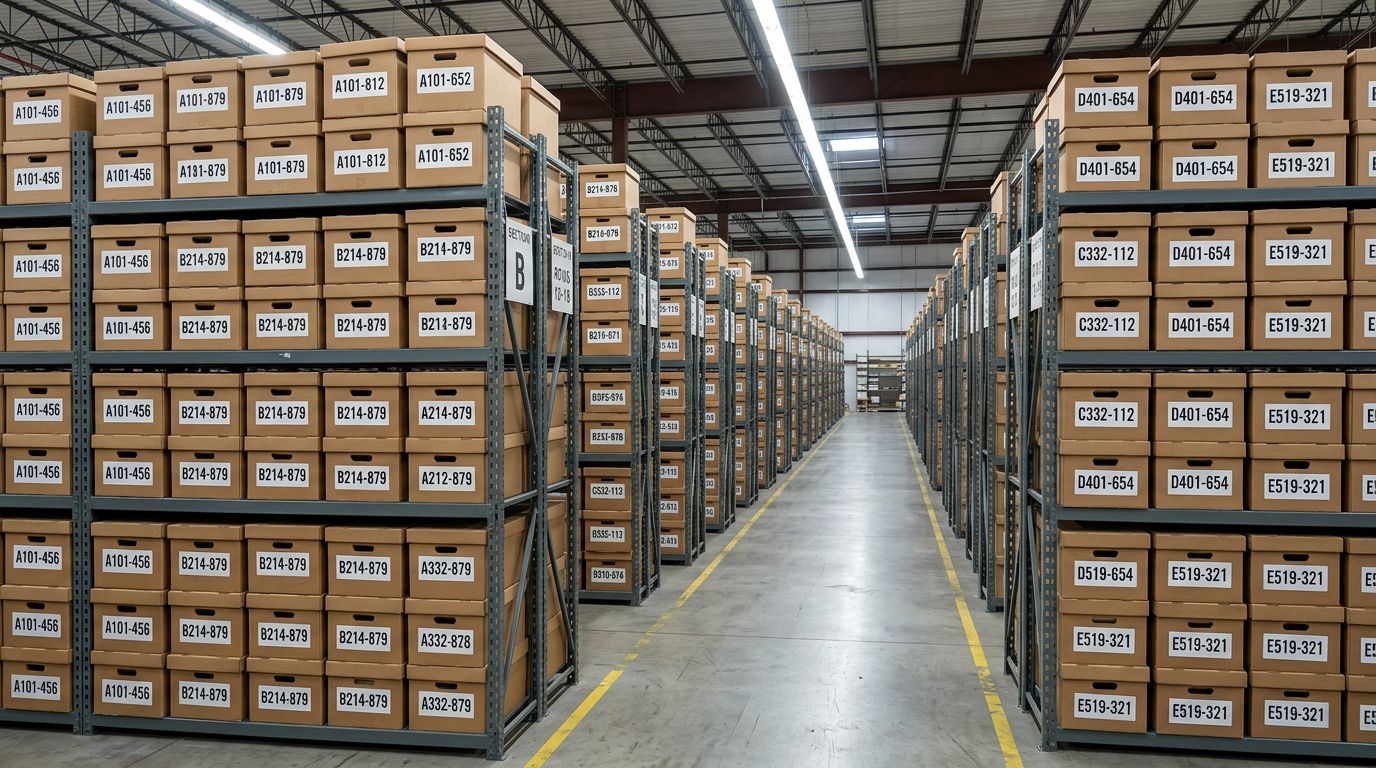
A large catalogue import works most reliably when the product data is split across three passes. Each pass focuses on a specific category of fields, and each uses update-existing mode from pass two onward.
Pass 1: Product records. This pass creates the product in Shopify. The columns covered are: Title, Handle, Vendor, Product Type, Tags, Price, Compare At Price, and Publication Status (set to Draft). Variant columns are included if the product has variants. The goal is to get a valid product record into Shopify with a stable handle that subsequent passes can target.
Pass 2: Content and metadata. This pass adds AI-generated descriptions, images, metafields from the Industry Pack, and any supplementary text fields. It runs in update-existing mode, targeting products by handle. Separating content from product creation means a description-generation issue (a model timeout, a content policy flag) does not affect the product record created in Pass 1, which is already in Shopify.
Pass 3: Inventory and publishing. This pass sets inventory quantities per location, confirms the publication status, and optionally updates pricing if supplier cost files arrive on a different schedule than the product master. Running inventory as a separate pass means a count discrepancy does not require reimporting the entire product record.
- 01Prepare your source fileSplit the master ERP or catalogue file into batches of 300-400 rows; number each batch file (batch-001.csv, batch-002.csv) so the import sequence is clear
- 02Run Pass 1 for all batchesImport product records only (title, handle, price, type, tags, publication status) using create-new mode; save the column mapping as a profile after the first batch
- 03Run Pass 2 for all batchesAdd content (AI descriptions, images, metafields) using update-existing mode and the same saved profile; generate AI descriptions from within Importier before pushing
- 04Run Pass 3 for all batchesImport inventory quantities and confirm publication status; use update-existing mode targeting the handles from Pass 1
- 05Verify in batchesAfter all three passes, run the SEO Audit export preset on the full catalogue to identify any products with missing content fields before publishing
Handle Stability Across Batches
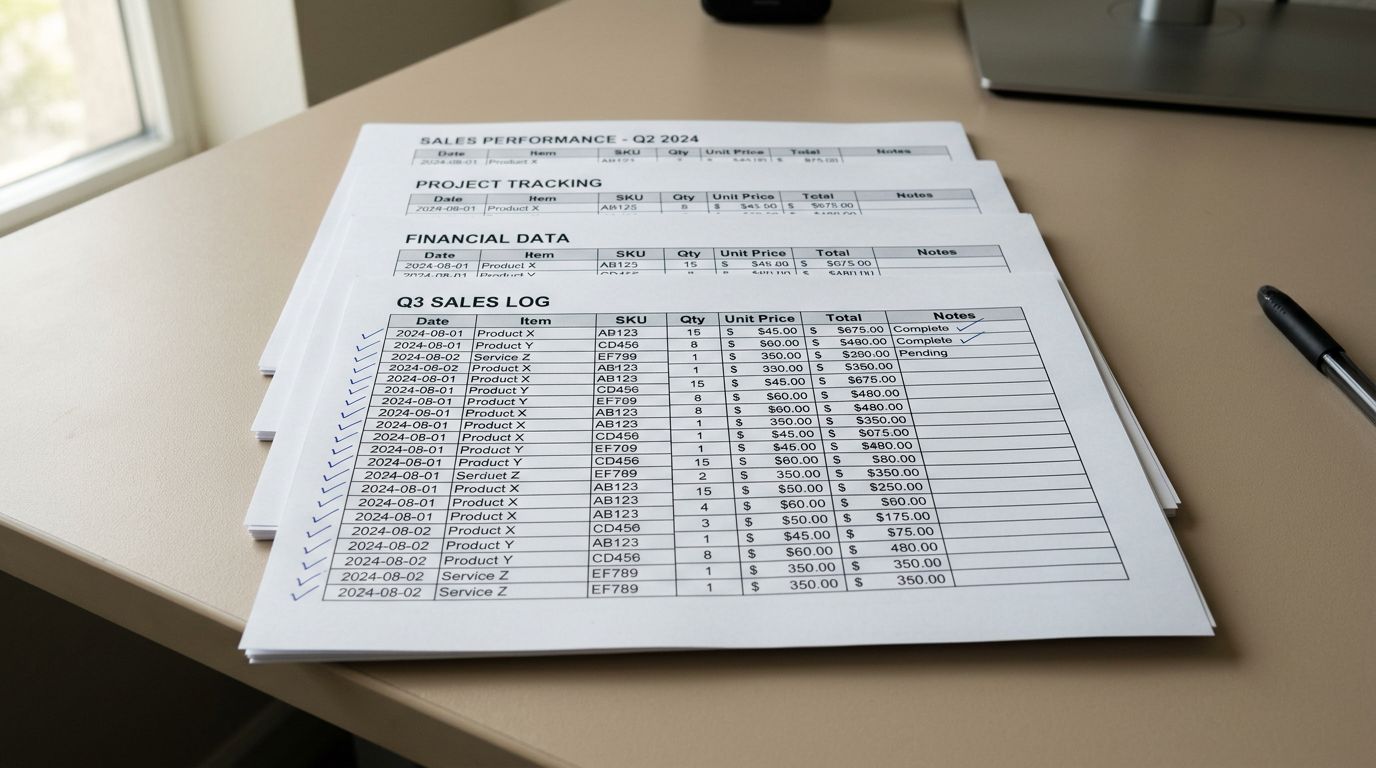
Handles are the key that connects Pass 1, Pass 2, and Pass 3. If a handle changes between passes, the update-existing mode in passes 2 and 3 cannot find the product to update, and creates a duplicate instead.
For large catalogue imports from ERP systems, the handle should be derived from the ERP product code or SKU, not generated from the product title. A product code is stable; a title changes. An ERP product code like HW-BOWL-30-TERR produces a handle hw-bowl-30-terr that is consistent across every pass, every batch, and every future re-import from the same supplier.
Generate handles in the spreadsheet before splitting into batches. Add a Handle column, derive it from the product code (lowercase, hyphens replacing spaces and special characters), and validate that no two rows in the entire master file share a handle before splitting. Duplicate handles within a batch produce only one product record; the duplicate row is silently skipped. Duplicate handles across batches produce an unintended product merge.
Shopify handles must be unique within the store. If you are migrating into an existing Shopify store with products already present, run a product export from Shopify first to get the existing handle list, and cross-reference against your import file to identify any collision before starting Pass 1.
AI Descriptions at Scale
Generating Descriptions for a 10,000+ Product Catalogue
A catalogue of 12,400 products requires a description generation plan, not just a generation session. The plan accounts for the monthly product allowance on your Importier plan and for the time the generation takes across that many records.
On the Scale plan (1,000 products per billing month) a 12,400-product migration requires 13 billing months of allowance. On the Enterprise plan (5,000 products per billing month) it requires three billing months. Understanding this before starting the migration prevents mid-migration plan throttling.
The practical approach for most large catalogue migrations: generate descriptions for the product sets with the highest commercial value first. For a homewares distributor, that means the top-selling 500 products in the first billing period, then the remaining long-tail products in subsequent periods. Products without descriptions are importable and sellable; descriptions can be added by batch over subsequent months as the allowance renews.
Importier's Store Scanner feature handles the post-import description backfill: it scans existing Shopify products for missing or short descriptions and generates them in batches without requiring a re-import of the full product record. For a large migration, the workflow is: import all product records in Pass 1 first (without descriptions), then use Store Scanner to generate descriptions across the catalogue in batches matched to the monthly allowance.
Batch generation by product category is more reliable than trying to generate descriptions for all 12,400 products at once. Applying a consistent Industry Pack and persona to a category batch produces uniform output quality. A different Industry Pack for a different product category, applied in its own batch, produces descriptions calibrated to that category rather than a generic middle ground across the entire catalogue.
Import all product records first. Generate descriptions in batches matched to your monthly allowance. A product without a description is live and findable. A product stuck in an incomplete import is neither.

Import Profile Reuse Across 30+ Batches
A 12,400-product migration in 400-row batches is 31 import sessions. Running each session without a saved profile means remapping 40 columns 31 times. Saving the column mapping as a profile after the first batch means batches 2 through 31 start with the mapping already set.
The saved import profile approach applies directly at migration scale. The profile saves the column mapping, the AI description settings (style, persona, Industry Pack), the publication status, and the variant detection configuration. For a large catalogue migration from a single ERP system, one profile per product category covers the full migration: one profile for homewares, one for kitchenware, one for bathroom accessories.
If the ERP export format differs slightly between category extracts (different column names, different field order), create a separate profile for each extract format. Running the column mapping step once per format and saving it means the per-batch overhead is a file upload and a preview check, not a full remapping session.

Post-Import Verification at Scale
After completing all passes for all batches, run the SEO Audit export preset on the full catalogue. The audit export produces a CSV with a completeness map: which products have descriptions, which have GTINs, which have images, which have metafields, and which are missing any of these.
For a 12,400-product catalogue, the audit export will almost always surface a small percentage of products with data gaps. Shopify's CSV import documentation confirms which fields are required versus optional at creation time, which is useful context for deciding what to include in Pass 1 versus later passes. The common reasons: a source file row had a malformed character that silently truncated a field, a handle derived from a product code included a disallowed character and was auto-corrected to a different handle than expected, or a batch ran in create-new mode accidentally instead of update-existing mode during Pass 2.
The product data completeness audit covers the triage framework for addressing data gaps. At migration scale, the framework applies by category: fix the 20 percent of the catalogue responsible for 80 percent of revenue first, then work through the long tail in subsequent import sessions.
For the homewares distributor, the first clean migration pass produced 11,987 complete product records and 413 with partial data. Working through the audit output took one additional afternoon. The 12,400-product migration was fully complete in four working days.
According to Shopify's product data requirements, product records require a title and a price to be valid. All other fields are optional at creation time. This confirms the Pass 1 approach: create valid records with title and price, then enrich them in subsequent passes. A product with only a title and price is a valid Shopify product; it can be published, appear in collections, and accept orders while content enrichment continues.
Try Importier free at importier.app.
Set up your first import in under five minutes.
Importier brings products into Shopify with AI descriptions, category metafields, and data enrichment on every run.